12 • Troubleshooting | Dexcom ONE+ User Guide
59
Issue
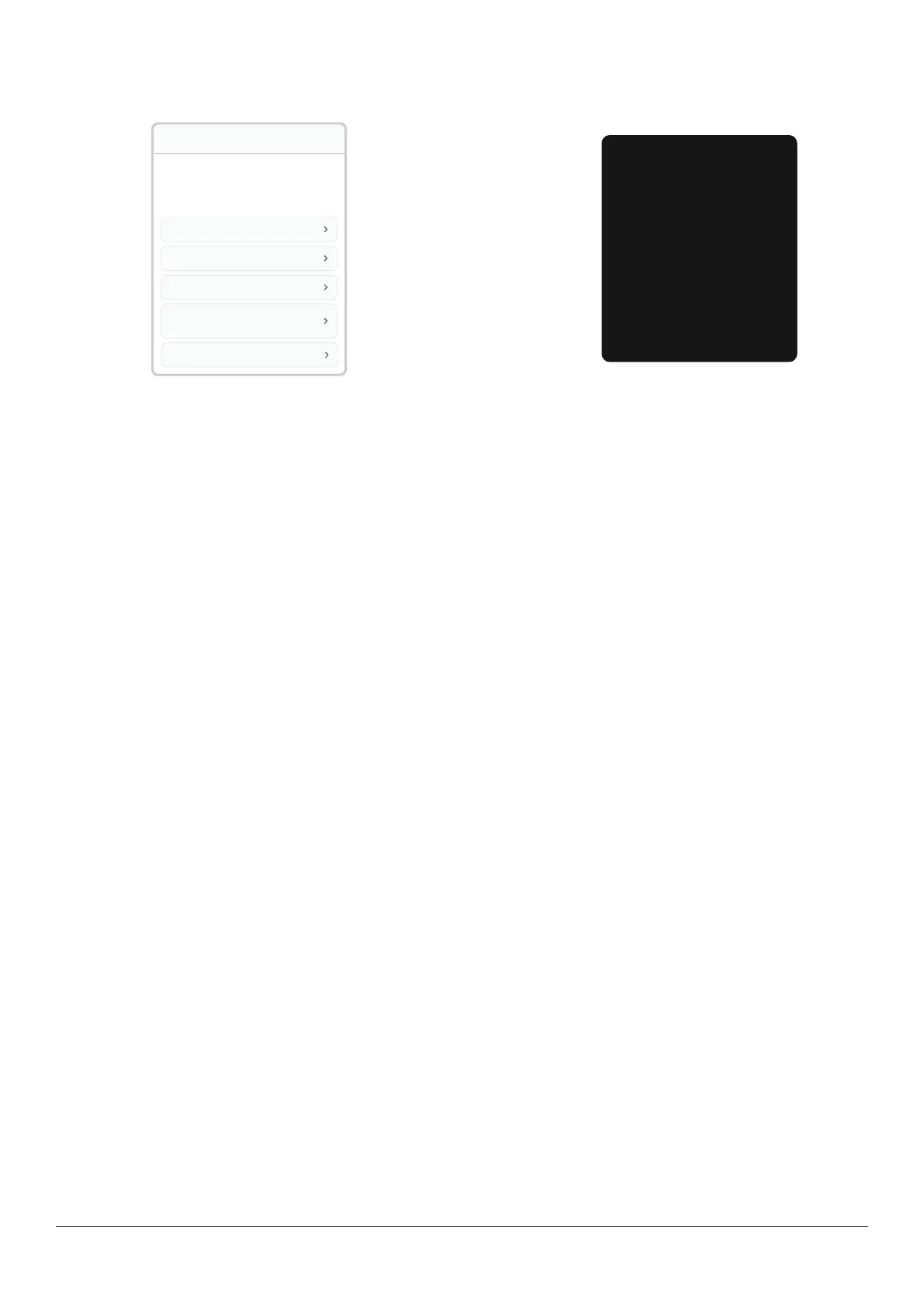
Searching for sensor: Pairing is taking longer than expected. (Help screen shown here.)
App
Searching for sensor
Pairing usually takes less than 5 minutes.
Troubleshooting tips:
Insert sensor to pair
Keep phone close
Move away from others wearing
sensors
Check pairing code
Check sensor
Done
Searching..
Receiver
Searching for Sensor
Pairing usually takes less than
10 minutes.
Troubleshooting tips:
Keep receiver close
Move your receiver within
1 meter of your sensor.
Insert sensor to pair
Make sure your sensor is
inserted.
Solution
If you get this alert, go to its Help screen for more information.
Pairing usually takes less than 5 minutes for the app and less than 10 minutes for the receiver. If it takes longer, use these
troubleshooting tips.
l
Keep display device close:
l
App: Always keep phone within 6 meters of sensor.
l
Receiver: For pairing, keep receiver within 1 meter of sensor.
l
Insert sensor to pair: Make sure your sensor is inserted. If it isn't, insert sensor now.
l
Check pairing code: Check that pairing code you entered is the pairing code on the applicator. If it isn't, edit pairing code.
l
Move away from others wearing sensors: To reduce potential interference, stay more than 6 meters from other sensors
until pairing is complete. For pairing, you may have to go to a different area to get far enough away from other people
wearing sensors.
l
Check display device:
l
Sensor can be paired with only one receiver.
l
Sensor can be paired with only one smartphone.
l
Keep app open: Don't swipe it closed during pairing.



 To Next Page