A
A
p
p
p
p
l
l
i
i
c
c
a
a
t
t
i
i
o
o
n
n
N
N
o
o
t
t
e
e
s
s
A
A
-
-
1
1
H
H
o
o
w
w
t
t
o
o
c
c
r
r
e
e
a
a
t
t
e
e
F
F
a
a
c
c
e
e
b
b
o
o
o
o
k
k
A
A
P
P
P
P
f
f
o
o
r
r
W
W
e
e
b
b
P
P
o
o
r
r
t
t
a
a
l
l
A
A
u
u
t
t
h
h
e
e
n
n
t
t
i
i
c
c
a
a
t
t
i
i
o
o
n
n
?
?
The new web portal feature support social login as authentication method, and allows
network administrator to authenticate LAN clients by their Google or Facebook account. This
document introduces how to create Facebook APP, and generate the APP ID and APP secret
that can be used in Web Portal setup.
1. Register as FB Developer: Go to https://developers.facebook.com/
and login the FB
account.
2. Register the Facebook account as a Developer (If the account has been verified previously,
this step can be skipped.)
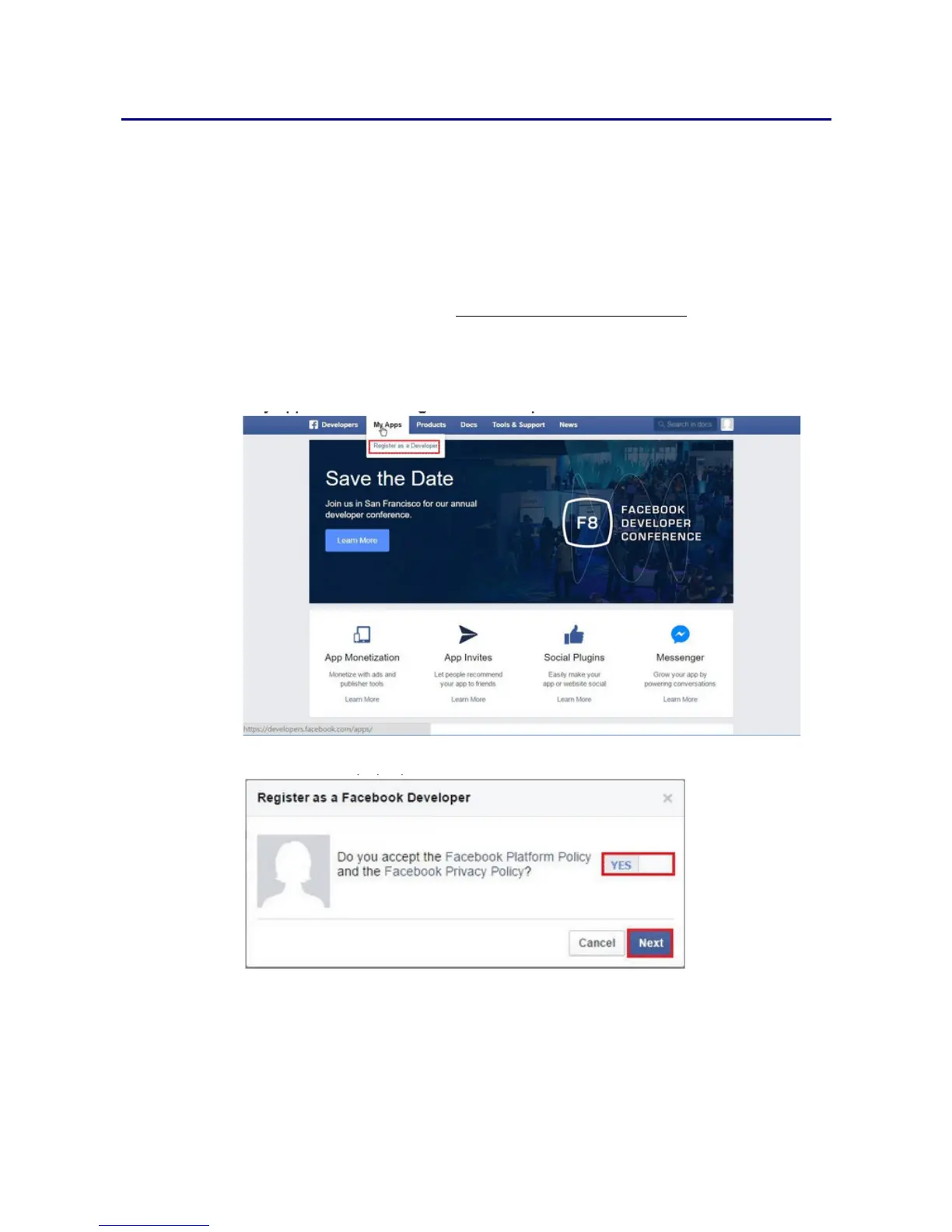
3. Click My Apps then choose Register as Developer.
4. Switch to YES then click Next on pop-up window.
5. Choose country then type phone number, click Send as Text in Get Confirmation Code.
Wait confirmation code message received then enter the confirmation code. Click
Register to finish the register process.






 To Next Page