Page 21 / 53
7. Getting Started
7.1 Accessing the HELIOS User Interface
To access the HELIOS user interface, follow these steps:
7.1.1. Double-click the icon from your desktop
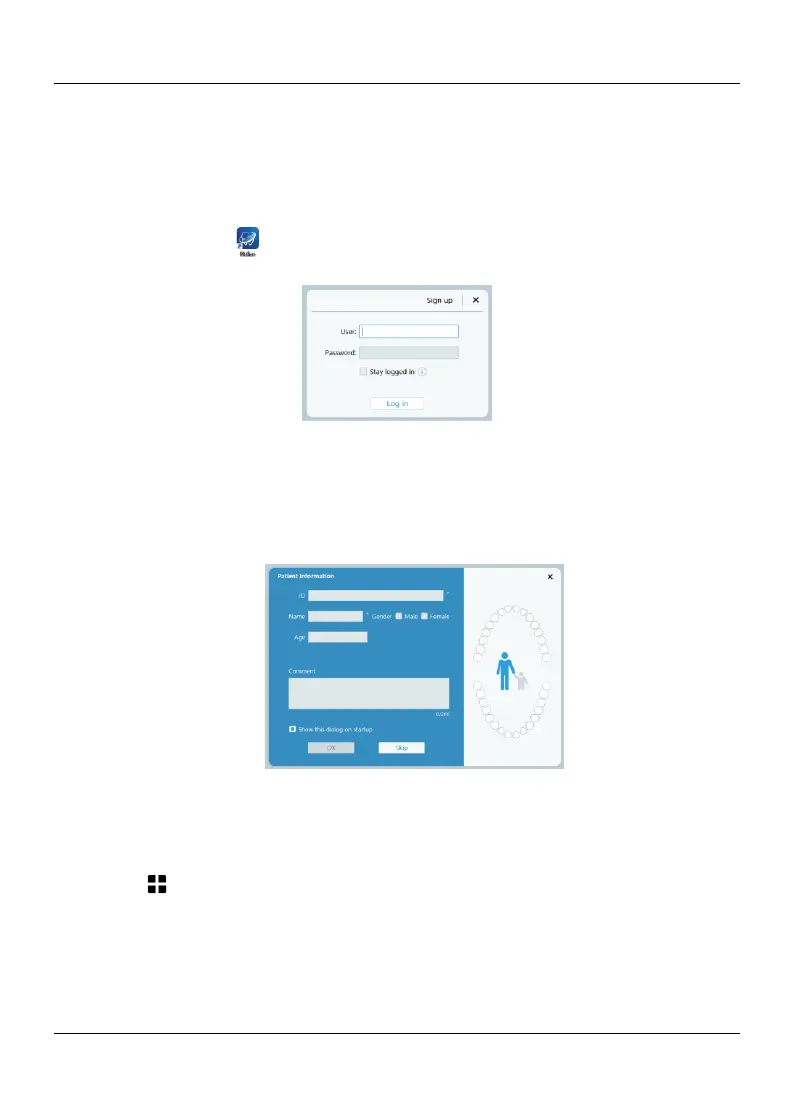
7.1.2. In the HELIOS window, Automatic display of the login window
7.1.3 Type your Eighteeth DataHub account information in the username and
password fields, and click Login.
7.1.4.If the scanner is not activated, the device activation dialog will be displayed.
Follow the instructions on the screen to complete device activation.
7.1.5.The HELIOS scan window will be displayed and the Patient Information dialog
box will pop up.
7.1.6. Do one of the following:
Enter patient information and tooth number information, and click OK.
Click Skip and continue without patient information.
7.1.7. Click and select Preferences
Click General to set the general prefe rences.
Click Scan to set the scan preferences.
Click Display to set display preferences.
Click Save to set save preferences



 To Next Page