Page 38 / 53
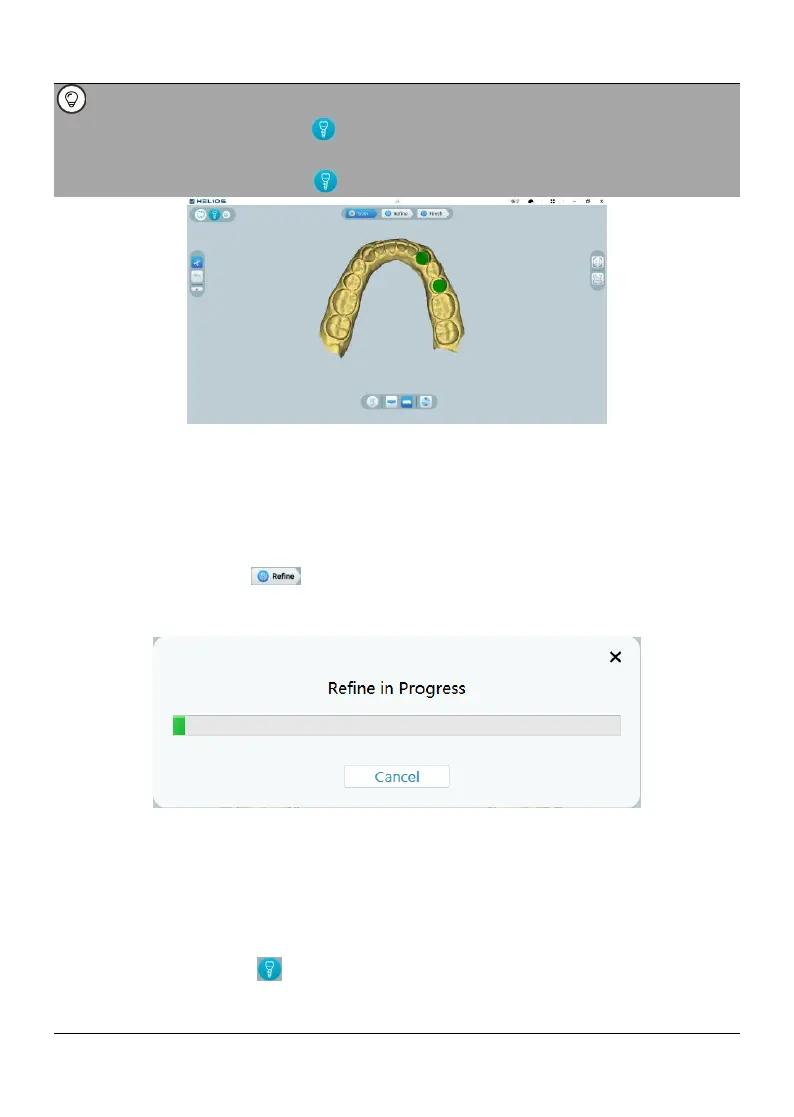
If there are more than one adjacent scan bodies that cause mismatch, you can
click the scan body placeholder at the bottom of the interface to specify the area
for matching. The activated matching area is highlighted in a column. Click on an
activated scan body placeholder again to restore the global match.
10.5.5. When you have completed the scan body scanning, proceed to the Refining
and Checking the 3D Model step.
10.6 Refining and Checking the 3D Model
Refining the 3D model allows you to obtain higher accuracy data for further
processing. To refine the 3D model, follow these steps:
10.6.1 Click the Refine button, the refining progress bar will be displayed.
Depending on your computer configuration, the refining process may take several
minutes.
10.6.2. After the refining is complete, manipulate the refined 3D model using the
following methods:
Right-click and hold on the 3D model to move it in the window.
Click and hold on the 3D model to rotate it.
Use the wheel of the mouse to zoom in or zoom out on the 3D model.
Click the Scan body button to switch between different 3D models
Model with scan body
Model without scan body



 To Next Page