
 Need help?
Do you have a question about the Elko Smart and is the answer not in the manual?
Provides a high-level view of the ELKO Smart system's architecture and components.
Lists the categories of ELKO Smart devices available for controlling home functions.
Explains how to combine device settings to create automated actions or manual sequences.
Introduces the primary mobile application for system setup and control.
Details the process of creating and managing user accounts for the ELKO Smart app.
Information on data centre regions for account registration and their implications.
Lists data centre locations and the countries associated with each region.
Defines the concept of a 'Home' in the app for grouping devices and users.
Outlines the different user roles and their permissions within the ELKO Smart app.
Specifies the necessary operating systems and versions for the ELKO Smart app.
Introduces the range of devices compatible with the ELKO Smart system.
Describes the central ELKO SmartHUB and its optional stand for connectivity.
Details various ELKO Smart light switches and their functionalities.
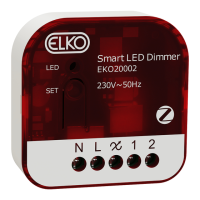
Presents different ELKO Smart dimmer models and their dimming capabilities.
Lists ELKO Smart devices designed for controlling shutters and blinds.
Features ELKO Smart devices for power outlets, including energy monitoring.
Describes devices used for controlling environmental conditions and remote operations.
Introduces various ELKO Smart sensors for occupancy, light, and climate monitoring.
Details the ELKO Smart IP Camera for monitoring sensitive home areas.
Describes the Smart Smoke Alarm Battery with fire and temperature detection features.
Explains the SmartTagE for energy consumption monitoring and management.
Details ELKO Smart thermostats for controlling heating systems and radiators.
Explains how mains-powered devices enhance network capacity for battery-operated devices.
Outlines the system's constraints on the number of devices, moments, and users.
Outlines the sequential steps required for setting up the ELKO Smart system.
Guides on the initial installation and functional testing of ELKO Smart devices.
Provides criteria for choosing the optimal placement for the ELKO SmartHUB.
Specifies the necessary Wi-Fi network configurations for the ELKO Smart system.
Details methods for connecting the ELKO SmartHUB to the internet via Ethernet or Wi-Fi.
Step-by-step instructions for connecting the SmartHUB using an Ethernet cable.
Explains how to configure the ELKO SmartHUB using its Wi-Fi Access Point mode.
Guides on obtaining and installing the ELKO Smart mobile application.
Details the procedure for registering a new user account for the app.
Covers managing Homes, Rooms, and user memberships within the ELKO Smart app.
Instructions on how to create a new 'Home' entity in the ELKO Smart app.
Explains how to invite and add other users to a Home.
Steps for commissioning the SmartHUB via an Ethernet connection.
Steps for commissioning the SmartHUB using its Wi-Fi AP mode.
Guides on integrating a commissioned SmartHUB into an existing Home.
Instructions for transitioning the SmartHUB from Ethernet to Wi-Fi connectivity.
Covers adding and configuring ELKO Smart devices within a Home.
Details the steps for adding a new ELKO Smart device to a Home.
Explains how to organize devices by assigning them to specific physical locations (Rooms).
Provides general guidance on configuring device settings and features.
Describes how to adjust device settings, rename, and reassign devices within the app.
How to configure the light sensitivity and delay for motion sensors.
Details the procedure for calibrating shutter devices for precise movement.
Instructions for pairing and configuring the ELKO Smart IP camera.
How to optimize dimming quality for LED lamps by selecting RL-LED mode.
Explains creating automated sequences or manual triggers for device actions.
Step-by-step guide to creating a 'Moment' for grouped device actions.
Detailed instructions on setting up 'Automations' with triggers and actions.
Guides on integrating third-party voice assistants like Alexa and Google Assistant.
Explains the system's alarm and notification features for system events.
Describes the interface for viewing and managing system alerts and notifications.
Procedures for resetting the ELKO SmartHUB to its factory default state.
Instructions on how to perform a factory reset on individual ELKO Smart devices.
Details how to reset devices to factory defaults via the mobile application.
How to keep ELKO Smart devices updated with the latest firmware releases.
Steps to check and apply firmware updates for individual devices.
Method to identify and update firmware for multiple devices simultaneously.
Specific details on the power consumption monitoring feature of socket outlets.
Explains how power usage data is collected and visualized in the app.
Describes how to pair compatible devices for group operation.
Explains setting up device networks for remote control without a central hub.
Lists devices that can be used in Room Control networks as Senders or Receivers.
Information on combining shutter control devices for group operations.
Details devices used for controlling other devices, such as wireless switches.
Specifies the maximum number of devices allowed in a Room Control network.
Guides on establishing a new, independent Room Control network.
Details how to form groups with Senders and Receivers within a Room Control network.
Steps to designate devices as Receivers and a Sender in a Room Control group.
How to dissolve a Room Control group and remove device links.
How to integrate a Wireless Switch as a Sender into an existing Room Control network.
Steps for pairing devices with a Wireless Switch for remote control functionality.
How to disassociate a Wireless Switch from a Room Control group.
How to create local device control scenes using Wireless Switches.
Explains the LED status indicators and their meanings for the ELKO SmartHUB.
Details the LED indications during the SmartHUB reset process.
Describes LED indicators related to power status on devices like the SmartPlug.
Explains the LED behavior when various smart devices are being reset.
Details LED indications for different operational states of connected sockets.
Explains LED indicators for the radiator thermostat during normal operation.
Describes LED indications during the head calibration process of the thermostat.
Explains LED indications for various error conditions, such as low battery or no signal.
Details LED indications for the smoke alarm battery during pairing.
Explains LED indications during device reset procedures.
Describes LED and sound indications for different operating modes of devices.
Details LED indications for pairing the Smart ZB Thermostat.
Explains the LED behavior during the pairing process for the thermostat.
Details LED indications for pairing the Wi-Fi Thermostat.
Explains the LED behavior during the pairing process for the Wi-Fi thermostat.
Crucial safety warnings regarding electrical installation and potential hazards.
Solutions for common issues related to system setup, connectivity, and device pairing.
Troubleshooting steps for Wi-Fi devices that cannot be found during commissioning.
Solutions for operational issues with setup/reset buttons on specific device types.
Troubleshooting for sensor reporting status issues, potentially related to firmware updates.
Solutions for problems like loads not switching automatically with motion sensors.
Troubleshooting for switches where loads are stuck on or won't switch on.
Solutions for common dimming problems like inability to dim or flickering.
Troubleshooting for issues controlling shutters or their movement.
Solutions for the Wireless Switch appearing offline in the app.
Troubleshooting for communication errors with metering chips in connected sockets.
Troubleshooting steps for thermostat responsiveness and offline status issues.
Troubleshooting for incorrect cost or currency information display on the SmartTagE.
Troubleshooting for the Smart ZB Thermostat going offline.
Troubleshooting for the Wi-Fi Thermostat going offline.
Guidance on accessing FAQs, providing feedback, and getting device-specific help via the app.
 General
| Brand | Elko |
|---|---|
| Model | Smart |
| Category | Home Automation |
| Language | English |

 To Next Page