5 Additional Software Features
5 Additional Software Features
5.1 Protocols
Select ≡ (General Menu) –> Protocols
A protocol containing test parameters and results can be saved in the equipment. Additional information
about the EUT and environment conditions can be added.
1
2
3
4
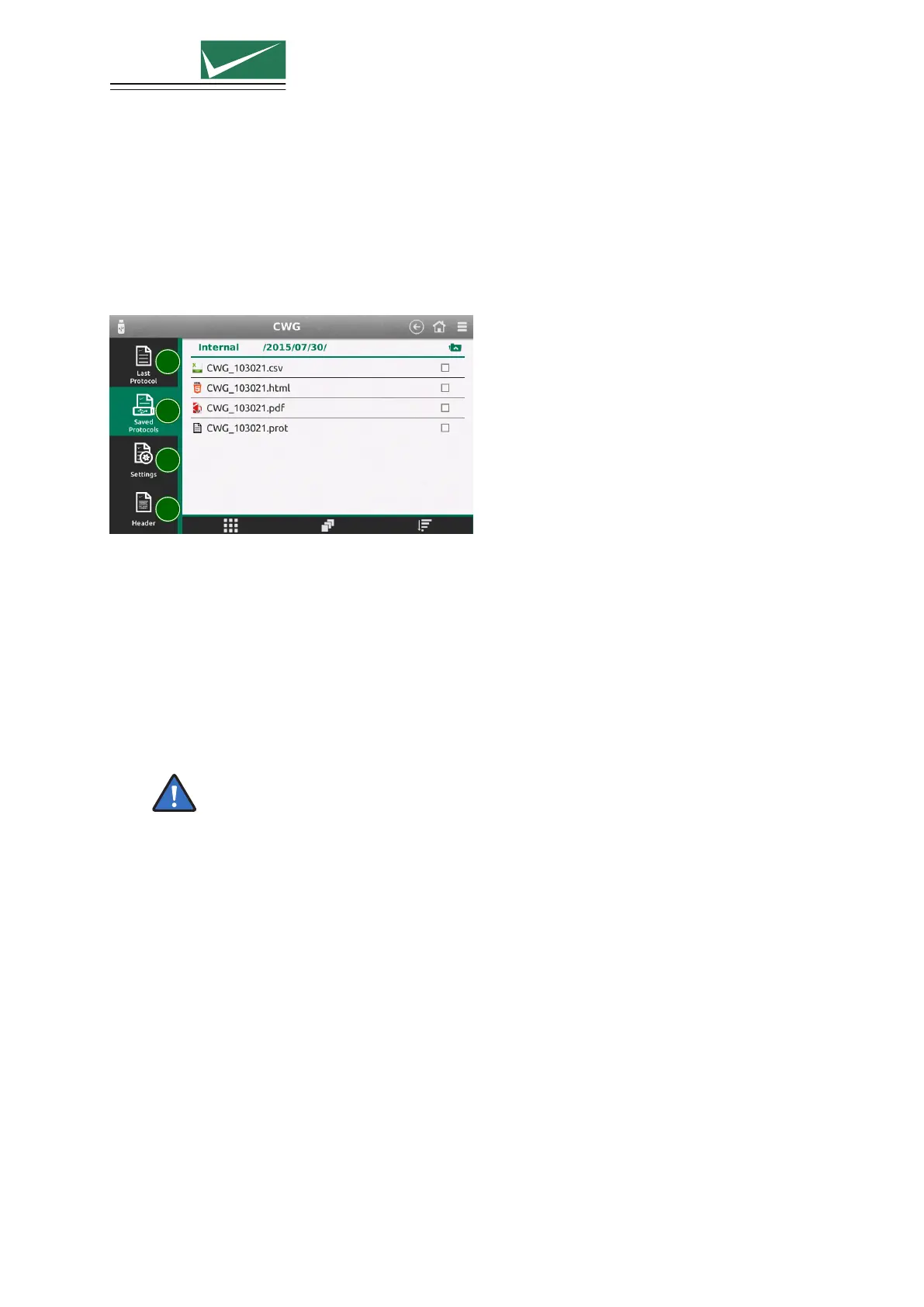
1 Last Protocol
Shows a preview of the latest protocol, even if “Create Protocol” is not selected. It will be
overwritten by the next test.
2 Saved Protocols
All saved protocols are listed here in the selected formats. The internal file format *.prot can be
converted to CSV, HTML and PDF. Select a protocol to open the file manager. Protocol files
can be deleted, copied, moved individually or as blocks of files. For more information about the
internal file manager see section “File Manager”.
Single protocol files are copied to a USB memory stick by selecting the file and choosing
copy to USB from the menu. To copy multiple protocol files, select with the check box
on the right side. When all files to be copied are marked, press Copy selection to USB
from the left hand menu.
3 Settings
Select if and in which format the protocols should be stored. Basic storage format is for internal
use. Stored protocols can be converted to other formats at any time.
Define the root directory for saving protocols. The default directory structure creates sub directories
in the format <year>/<month>/<day>. The file itself is saved in the format specified in Save
Name.
4 Header
Enter additional information about the EUT and the test environment. This data will be displayed
together with the test results in the protocol.
5.2 Setup library
Select ≡ (General Menu) –> Setups
A predefined EMCP test setup library is included in the equipment. User defined tests can also be stored
internally or externally on a USB stick.
Page 34/55


 To Next Page