PACSystems VersaMax Genius Network Interface User Manual Section 4
GFK-1535D Jan 2023
Configuration 67
4.3.5 Adding Expansion Racks
When you add an expansion rack, the rack icon appears in the Navigator
window. Initially, there is no Power Supply or Expansion module for the
rack. Right-click on the expansion rack node and select the type of
Expansion Receiver module for the rack: None, Non-Isolated Receiver, or
Isolated Receiver. Only those expansion receiver modules that are valid
for the current Expansion Rack system can be selected.
Figure 47: Expansion Receiver Modules
To replace one type of receiver with another, do not use the replace
module command. Instead, right-click on the expansion rack node and
select the new receiver type as described above
4.3.6 Configure the Power Supplies
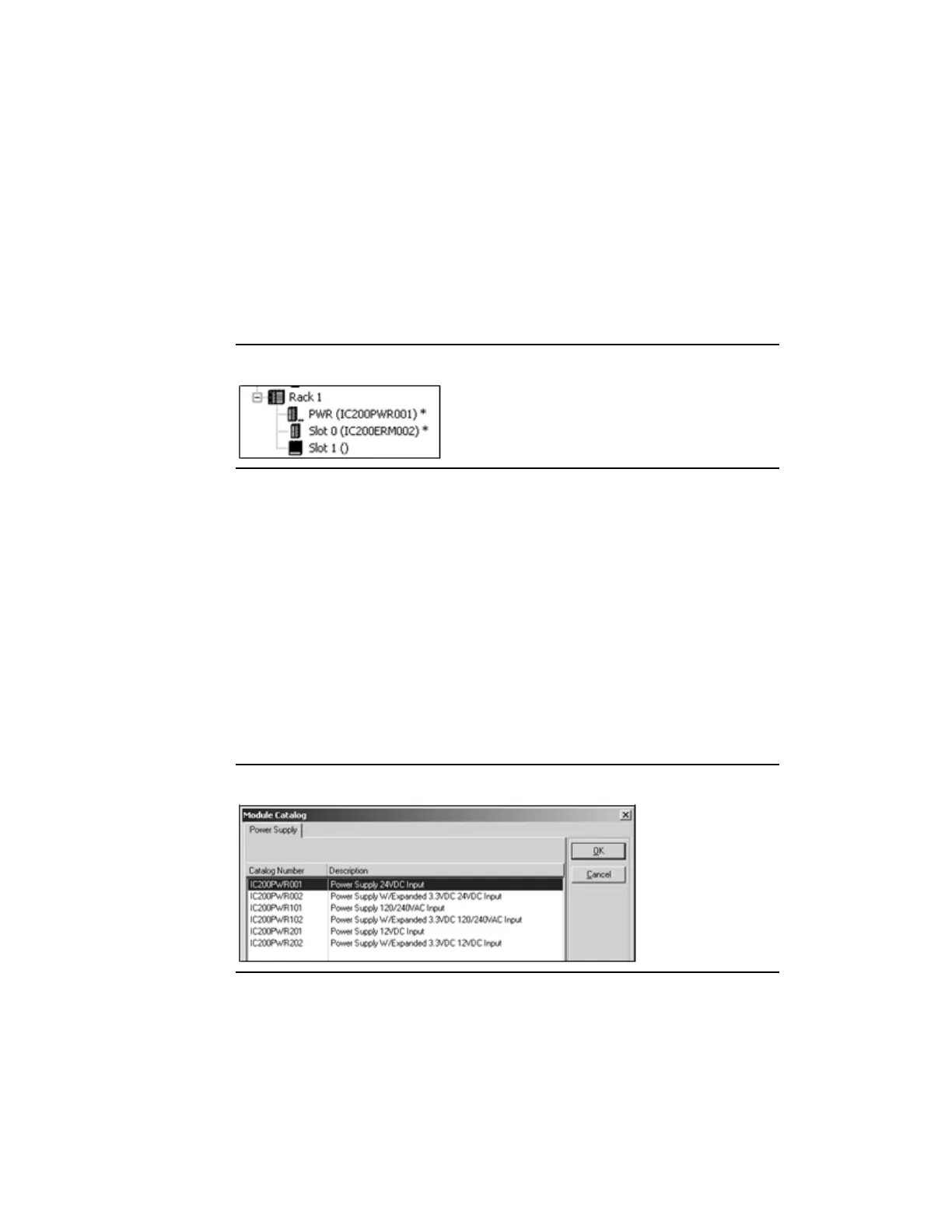
If the default Power Supply IC200PWR001 is not correct, right-click on the
Power Supply icon immediately under the Rack 0 node and select Replace
Module.
Select the correct VersaMax Power Supply from the Module Catalog:
Figure 48: Selecting VersaMax Power Supply from Module Catalog
Repeat this process for the power supply slot of each expansion rack.



 To Next Page