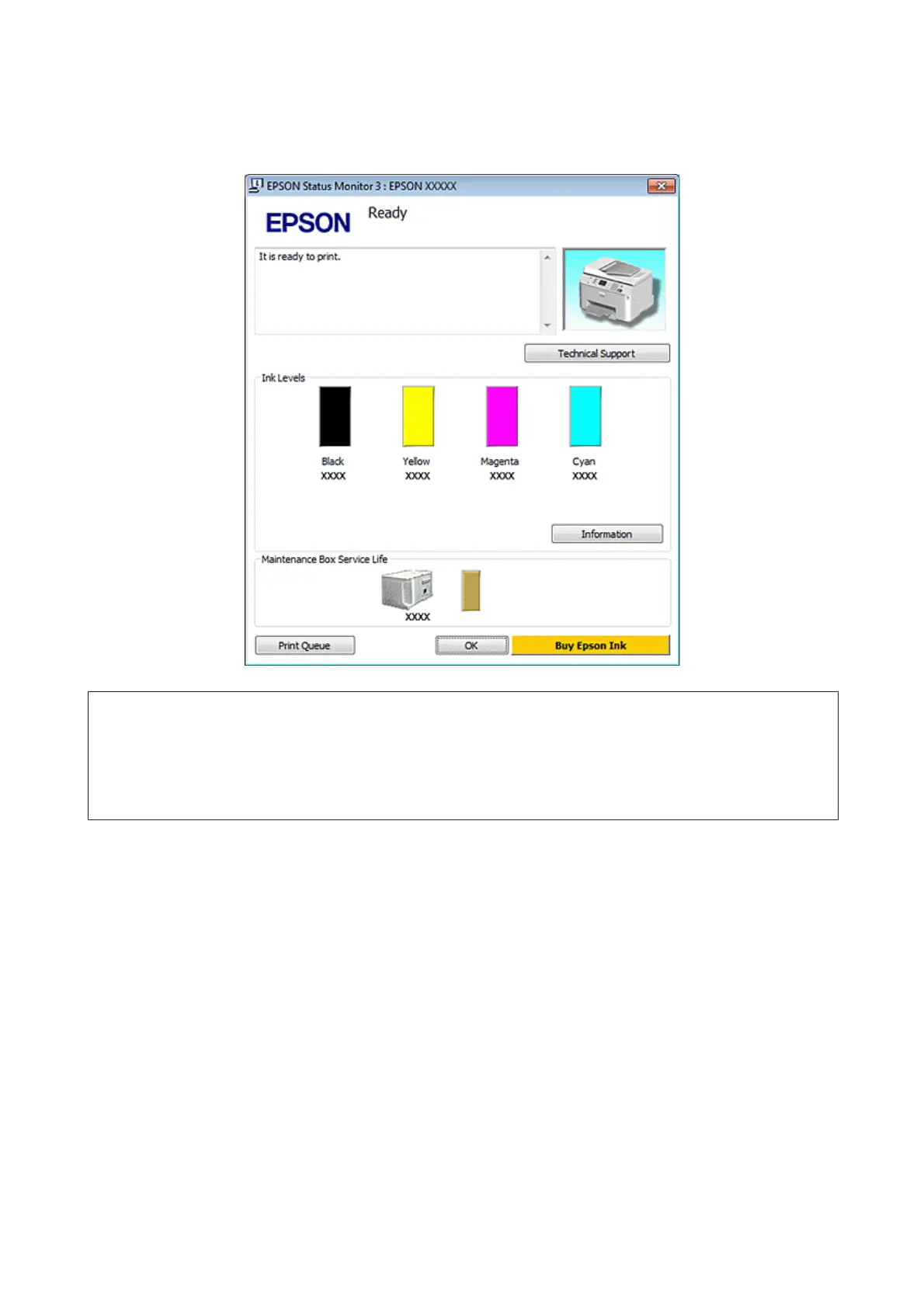
When you access EPSON Status Monitor 3, the following window appears:
Note:
❏ If EPSON Status Monitor 3 does not appear, access the printer driver and click the Maintenance tab and then the
Extended Settings button. In the Extended Settings window, check the Enable EPSON Status Monitor 3 check box.
❏ Depending on current settings, the simplified status monitor may be displayed. Click the Details button to display the
window above.
EPSON Status Monitor 3 provides the following information:
❏ Current Status:
If the ink is low/expended or the maintenance box is nearly full/full, the How to button appears in the EPSON
Status Monitor 3 window. Clicking How to displays ink cartridge or maintenance box replacement instructions.
❏ Ink Levels:
EPSON Status Monitor 3 provides a graphic display of the ink cartridge status.
❏ Information:
You can view information about the installed ink cartridges by clicking Information.
❏ Maintenance Box Service Life:
EPSON Status Monitor 3 provides a graphic display of the maintenance box status.
❏ Technical Support:
You can access the online User’s Guide from EPSON Status Monitor 3. If you encounter a problem, click
Technical Support in the EPSON Status Monitor 3 window.
WP-4511/4515/4521/4525/4530/4531/4535/4540/4545/4590/4595 User’s Guide
Troubleshooting for Printing
154








 To Next Page