G
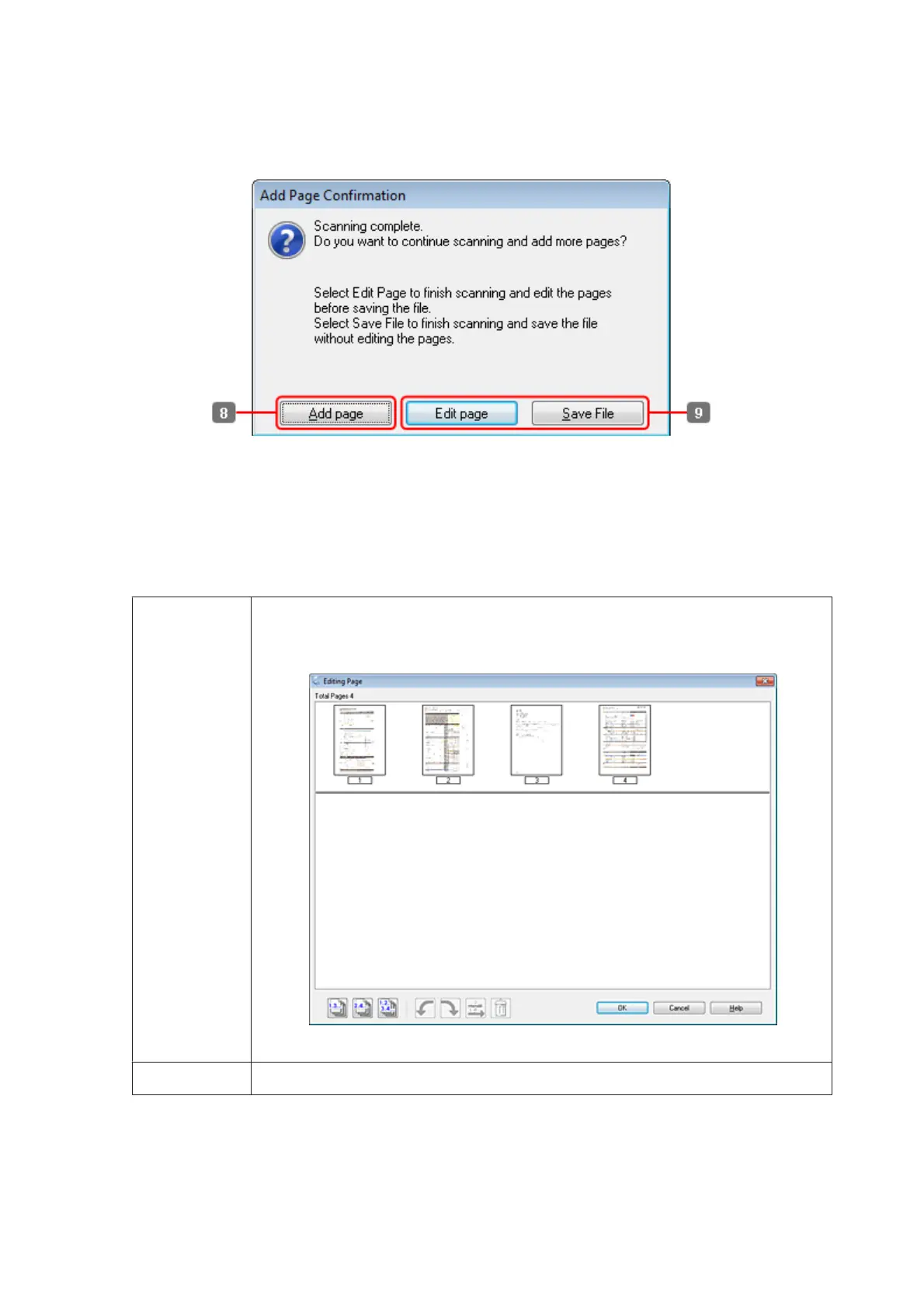
Epson Scan starts scanning your document.
H
If you want to scan more pages, click Add page.
Load the document and scan again, repeating as necessary for each page.
If you have finished scanning, go to step 9.
I
Click Edit page or Save File.
Edit page Select this button if you want to delete or reorder any of the pages. Then use the icons on the
bottom of the Editing Page window to select, rotate, reorder, and delete pages.
See the Help for more details on Epson Scan.
Click OK when you are finished editing your pages.
Save File Select this button when you are finished.
The pages are saved in one PDF file.
WP-4511/4515/4521/4525/4530/4531/4535/4540/4545/4590/4595 User’s Guide
Scanning
88








 To Next Page