26
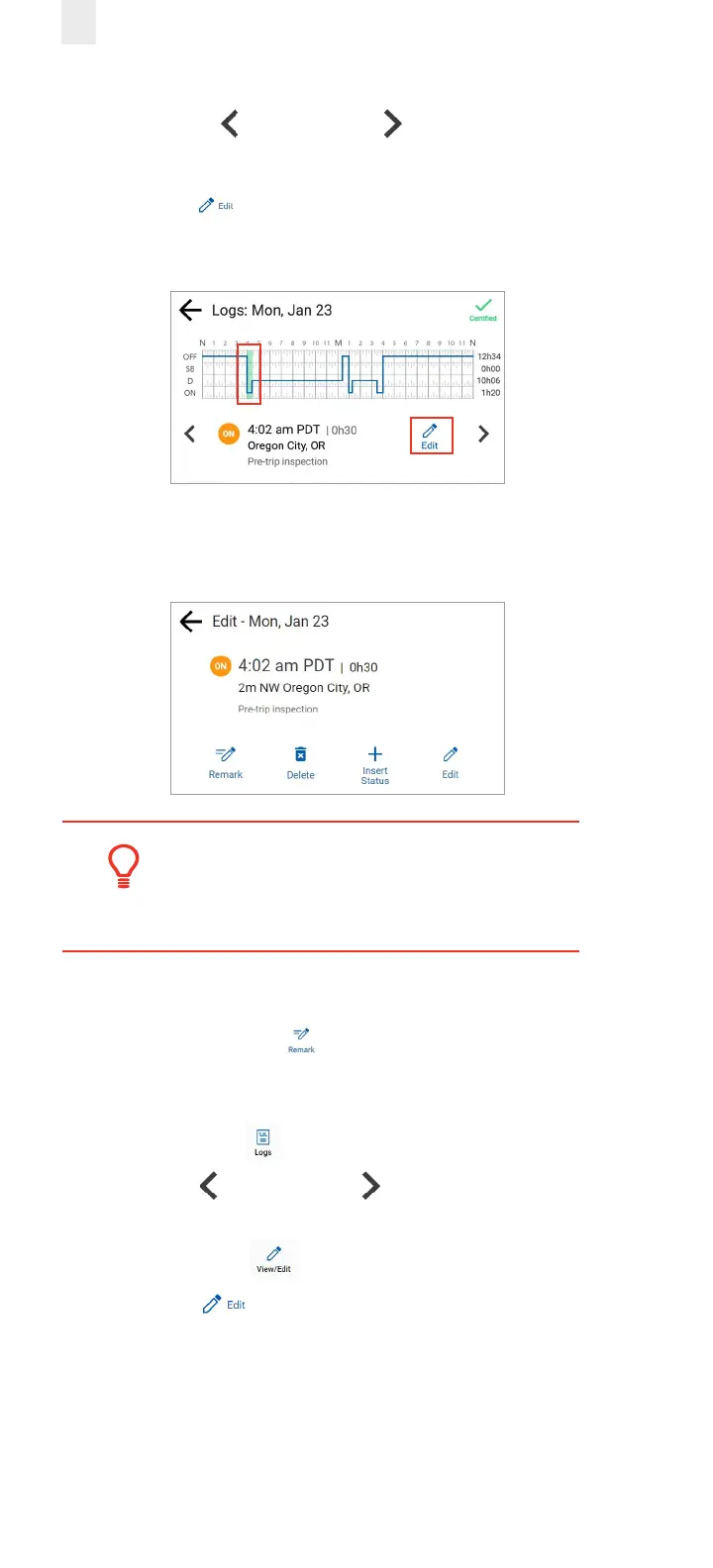
3. Tap the Duty Status on the graph that you want to correct,
or tap the Left arrow or Right arrow below the graph
to locate the duty status that needs correction.
4. Tap the Edit icon on the lower right side of the screen.
The selected log entry for that day appears on screen
highlighted in green.
There are several menu options on the Edit screen that can
be used to modify your logs, which are described in the
following sections.
Tip:
You cannot shorten or edit driving time that was
automatically recorded.
3.7.1 Adding a Remark
You can use the Remark icon to annotate a duty status.
Perform the following steps to add a remark. See section 3.7,
Correcting Logs for illustrations of steps 1 – 4.
1. Tap the Logs icon on the Home screen.
2. Tap the Left arrow or Right arrow until you locate
the point in your logs where you want to annotate a record.
3. Tap the View/Edit icon on the Logs screen.
4. Tap the Edit icon on the View/Edit screen. The Edit
Summary screen appears.



 To Next Page