46
3. Tap the Left arrow icon beside the date to back up to a
prior date or tap the Right arrow icon beside the date to
advance to a current date.
4. Tap the Down arrow icon on the right side of the
screen to see more information or tap the Up arrow
icon to move up to the top of the list.
5. Tap the Back arrow icon to return to the previous
screen.
5.2.2 Viewing Log Graphs
Perform the following steps to view the Log graphs.
1. Ensure that you have completed the steps described in
section 5, Roadside Inspection.
2. Tap the Display button. The Info tab displays
by default.
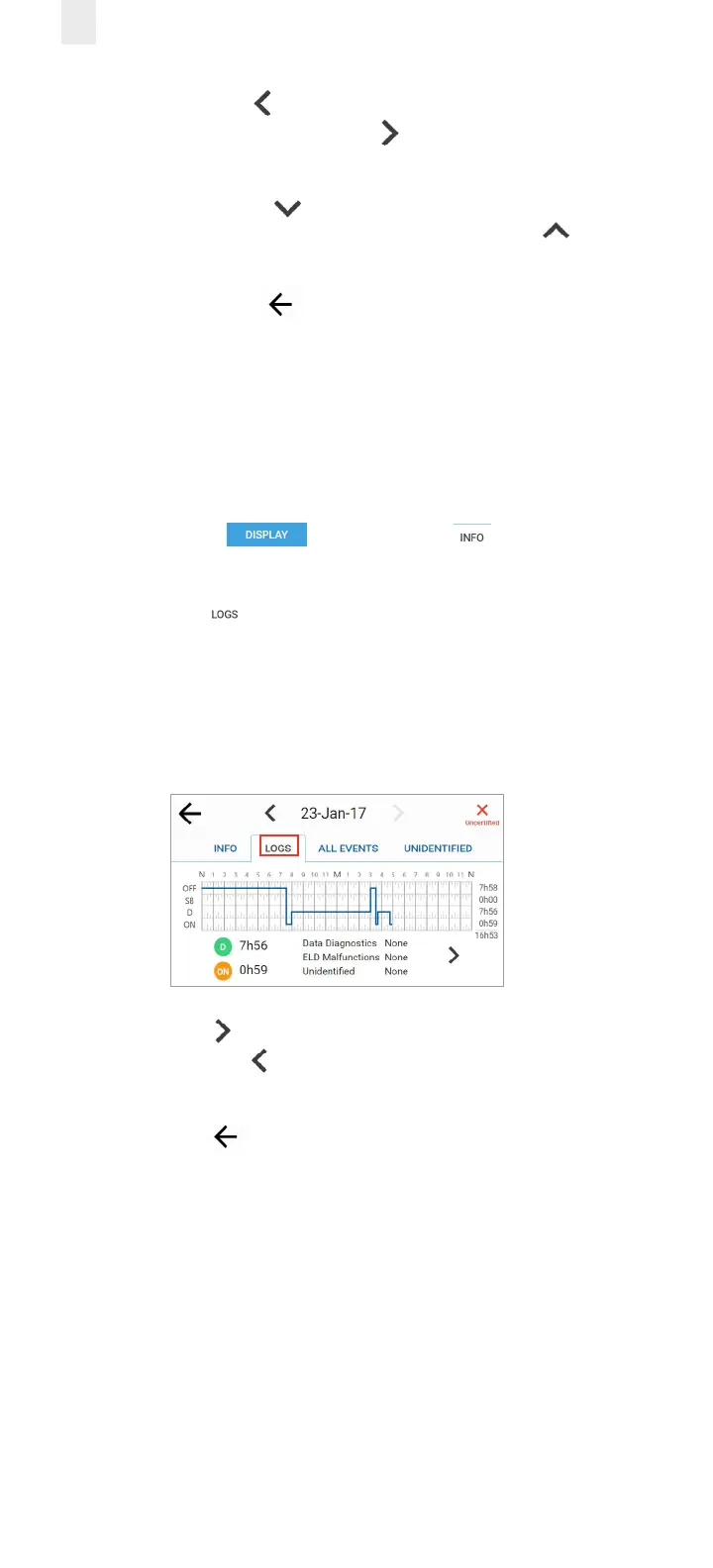
3. Tap the Logs tab. The log graph illustrates your logs for
the last eight days, listing total hours for each duty status.
It displays hours while driving, on-duty, Data Diagnostics
status, Unidentified hours’ status, and ELD Malfunctions, if
any.
4. Tap the Right arrow to see driver status changes in the
log or tap the Left arrow to return to the first (Logs) tab
screen. The inspector can see details for each duty status.
5. Tap the Back arrow in the upper left corner of the
screen to return to the previous screen.



 To Next Page