○
3
In section 3, all the details for the selected option will be available here. Use the arrow keys to move
between items and press “Enter” to make changes.
Note: press “Menu” button to go back to the previous menu section.
3.2.3 Component Options
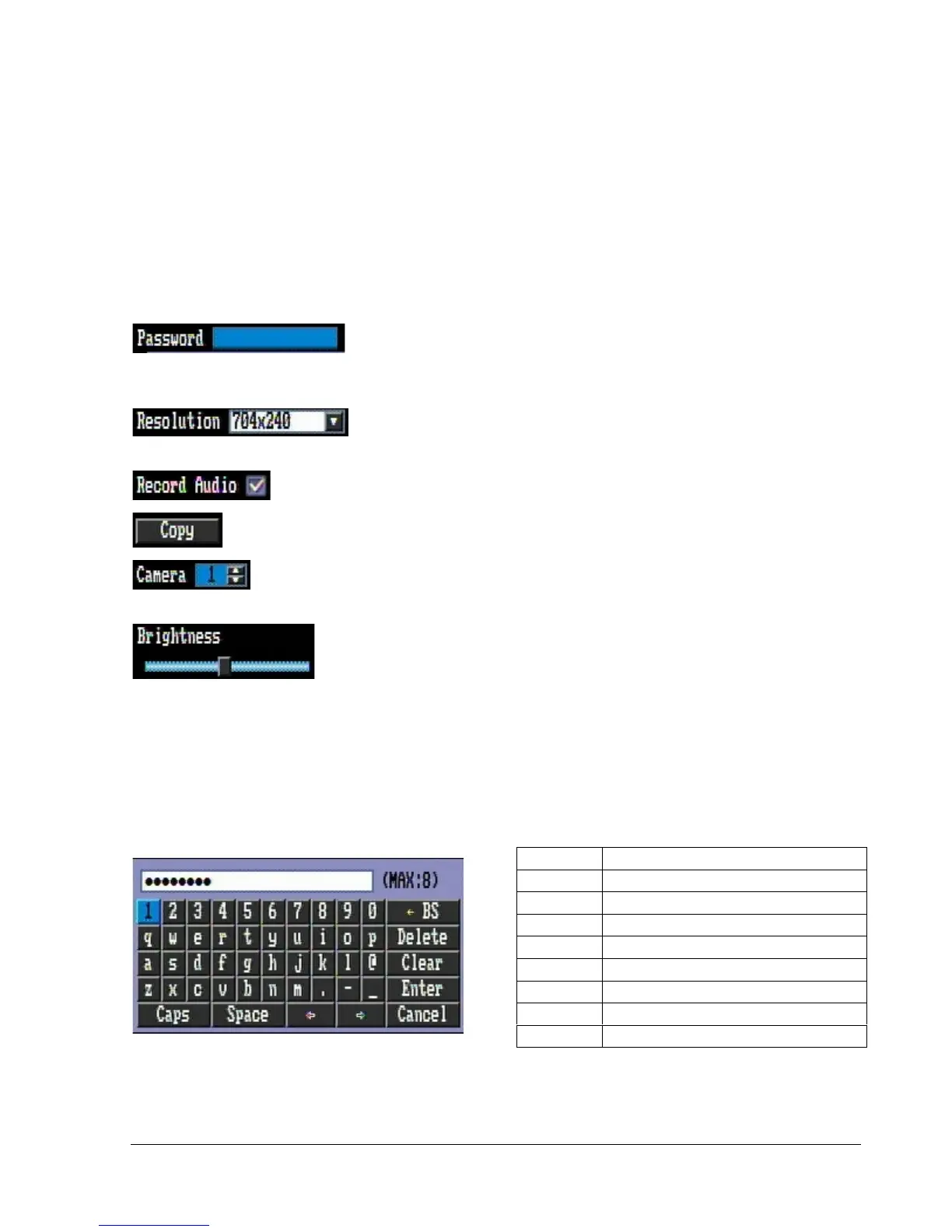
Textbox: Press Enter key and an on-screen keyboard will appear below.
(For more details about on-screen keyboard, please see *Note about on-screen keyboard).
Dropdown box: Press “Enter” key to show the available options. Use the
Up/Down arrow keys to highlight the desired option and press “Enter” again to select it.
Check box: Press “Enter” key to enable or disable the setting.
Button: Press “Enter” key to execute the function.
Selection box: Press “Enter” key to select the field, then use the Up/Down arrow keys to
scroll through the desired options. Press “Enter” again to choose it.
Bar: Press “Enter” key to activate the slider, then use the Left/Right arrow keys
to adjust the setting. Press “Enter” again to finalize the changes.
* Note about on-screen keyboard:
Use the arrow keys to highlight a button and press “Enter” to input that character.
The buttons on the right and bottom have the following functions:











 To Next Page