4.6 Quick Menu
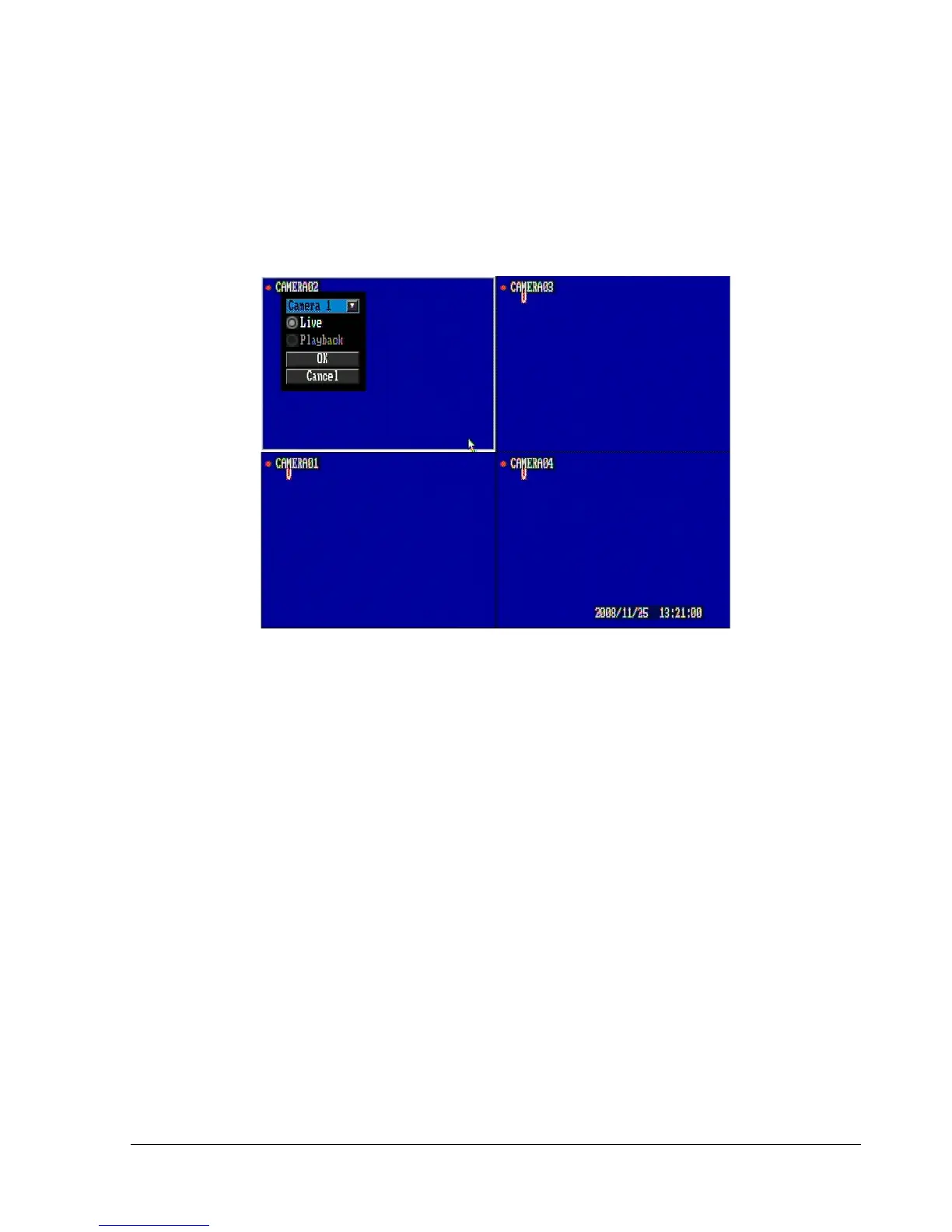
In 9/4 displays mode, use arrow keys to move between select different screens. Press the “Enter” key
while selecting a screen to bring up a small quick menu (see Figure 4.3).
Note: This menu can only be accessed using the front panel.
Figure 4.3
4.6.1 Triplex Operation
Each camera can be individually set in either live mode or playback mode.
1. Use the mouse to select “Live” or “Playback” mode. You can also use the arrow keys and press the
“Enter” key to confirm.
2. Once the selection is made, click on the “OK” button with the mouse or highlight “OK” using the arrow
keys and press “Enter” key to confirm.
3. If you wish to cancel the selection and exit from the quick menu, click on the “Cancel” button with the
mouse, or highlight “Cancel” using the arrow keys and press the “Enter” key to confirm.
4.6.2 Change Camera Order
Cameras can be manually rearranged into a different display order.
1. Click or press the “Enter” key on the drop-down menu to bring up a list of cameras.
2. Click or press the “Enter” key on the desired camera.
3. Click on the “OK” button (or highlight it and press the “Enter” key) to display the camera on the
selected screen.



 To Next Page