Supported protocols: EverFocus, Pelco-D, Pelco-P, Samsung, Transparent
Required DVR settings: RS-485 receiver address in CAMERA menu
( chapter 5.3)
RS-485 parameters and protocol in the I/O CONTROL menu
( chapter 5.10.4.)
ATTENTION: Some Pelco-D / -P protocol domes and receivers require an address offset of -1, i.e. the
address assigned to the dome / receiver in the DVR camera menu must be 1 below the address set in the
dome / receiver itself!
2.6 USB-Mouse installation
Connect the USB mouse to one of the 2 USB ports. (This can be done while DVR is powered on)
NOTE: Recommended mouse types are Logitech® and Microsoft® wired USB wheel-mouse. Wireless
USB mouse is not supported.
2.7 NETWORK CONNECTION
This section only describes physical connection to an Ethernet network. This step must be completed
before the DVR’s can connect to the network. There are two basic types of connection:
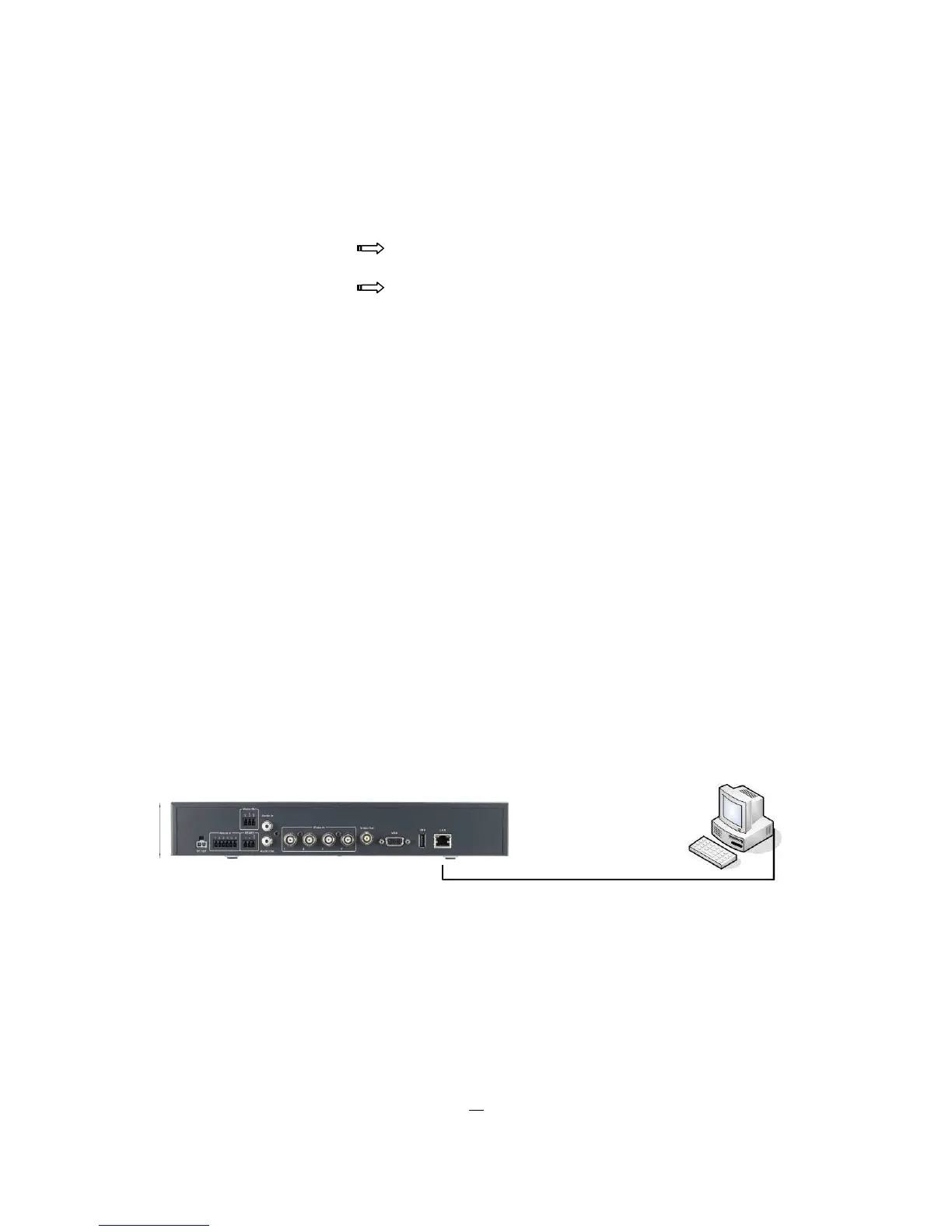
2.7.1 Direct PC Connection through Crossover Network Cable
The point-to-point connection of DVR and PC requires a crossover (crossed) network cable. This type of
connection is ONLY used for direct connection to a single PC. Make sure that the PC is equipped with a
10/100/1000 Mbps compatible network connection.
Figure 2-1 Direct PC Connection




 To Next Page