3 MOUSE AND FRONT PANEL OPERATION
ELR series DVR supports multiple sources to control the DVR. It can be controlled with a mouse, the front
panel, an EKB500, the handheld remote control.
This chapter will cover the basic operation using mouse and front panel.
3.1 GENERAL USB MOUSE OPERATION
3.1.1 How to select a channel / Enable audio
1. In a view consisting of more than one channel, user can select a channel by clicking once on desired
channel screen. The selected screen will be highlighted by white frame.
2. Double clicking on a channel screen will display full screen of this channel.
3. To enable audio out, click audio icon (ex: ) at lower side of the screen. This system can have
only one audio out for one camera at a time. Click this button to select a camera for audio out, or to
select none audio-out mode.
3.1.2 OSD Root Menu
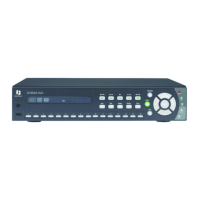
1. Right-click the mouse to obtain DVR control bar (see Figure 3-1 OSD Root Menu ). When you move the
mouse over each icon, the appropriate title will be displayed on top of the control bar.
Figure 3-1 OSD Root Menu
2. Click on any icon to perform that action. These actions are covered in detail in Chapter 4.
3. Click the “X” in the top-right corner to close the DVR control bar.
3.1.3 Operation in Configuration Menu
The Main menu (shown in Figure 3-2 OSD Menu) is divided into 3 main sections.




 To Next Page