Room Scheduling System • Room Agent Installation and Configuration 26
Design pane
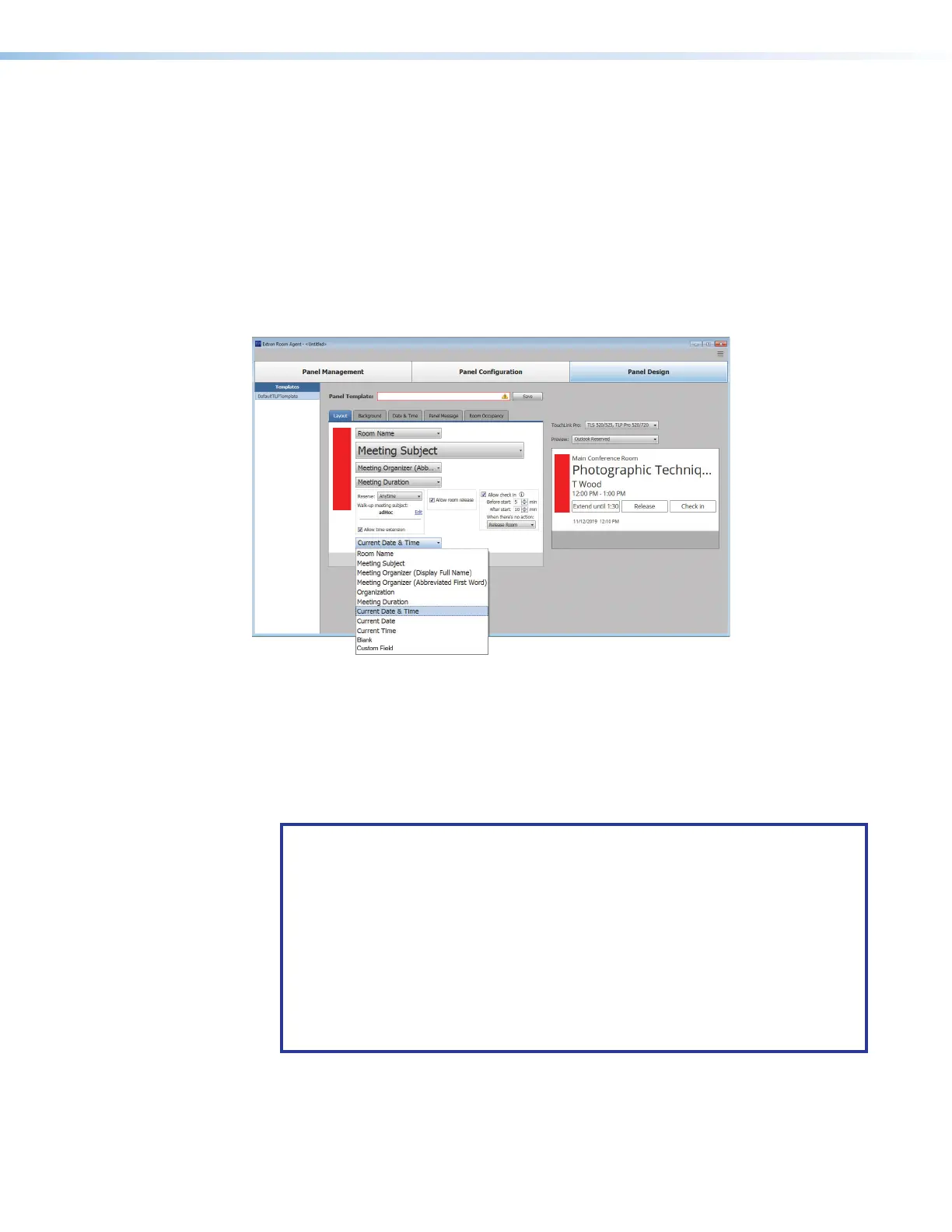
Layout tab
If necessary, click the Layout tab (see figure 21,
1
) to make changes to the following:
• The arrangement of the fields on the display
• Whether or not you can locally (on the panel):
• Reserve the room
• Release the room
• Extend the meeting time
1
1
2
2
3
3
2
2
2
2
2
2
4
4
5
5
6
6
Figure 21. Panel Design Pane, Layout Tab
2
Data field drop-down lists — These five menus are positioned within the pane to
correspond to data positions on the panels and in the preview pane (see figure 50,
2
).
All menus contain the same options (
6
). Select among the options to choose the
data displayed in the corresponding position. Watch the preview pane to see how your
selections affect the appearance of a panel. Selecting Blank causes no data in the
associated position.
NOTES:
• When you use Google, Microsoft Exchange, or Office 365 calendars, you can
create private meetings. For these meetings, the subject title defaults to Private
Meeting and the meeting organizer is hidden.
• Custom Field is available only when Office 365 or Microsoft Exchange
selected as the calendar type. It displays up to 50 characters from the body of
the meeting invitation.
• Organization is available for selection only when you have selected
CollegeNET 25Live on the Panel Management page. Organization causes
the panel to display the organization associated with the booked meeting, such
as Arts & Art History in the preview pane.
figure 21



 To Next Page