2. Commissioning
2−24
Festo P.BE−CPX−FB13−EN en 0811c
Setting up the controller system (PLC/Master)
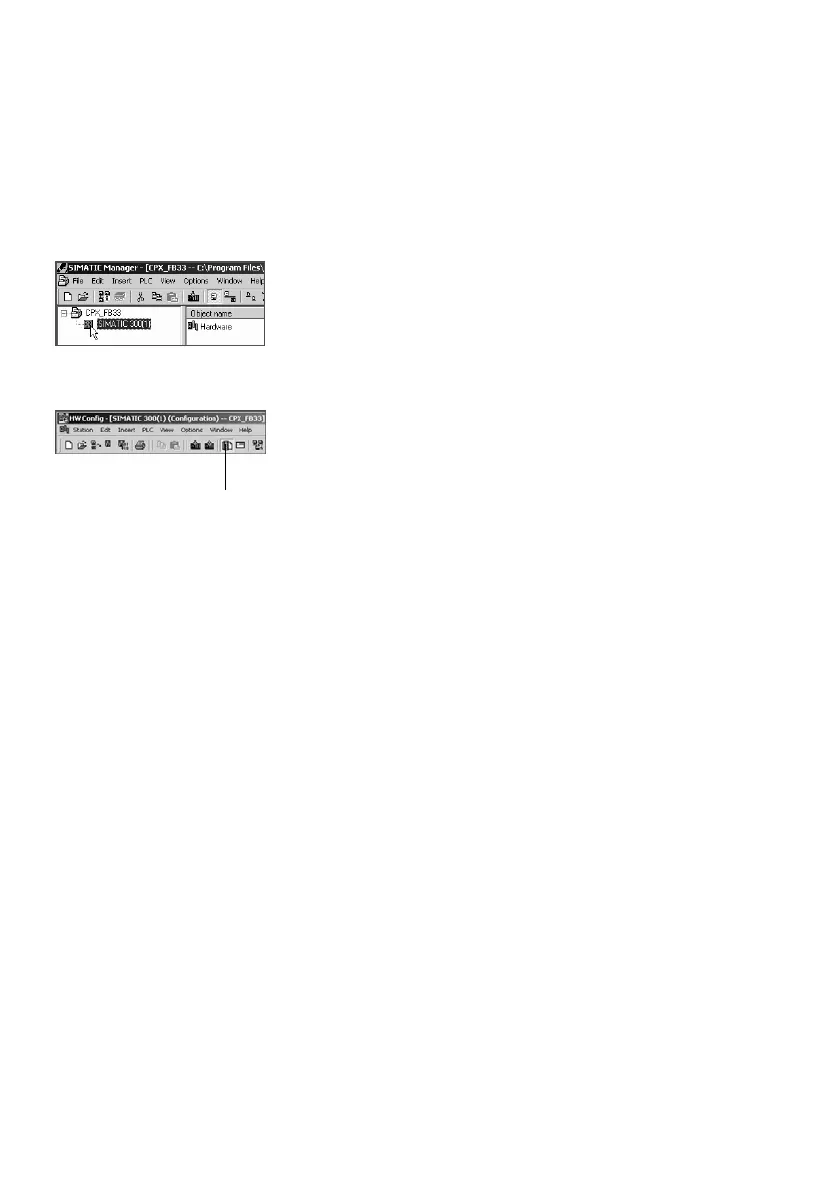
1. Click once on the station symbol (on the left next to the
station name) and afterwards double click on the hard
ware symbol in the Object name" column.
The hardware configuration window HW Config (Station
Configuration) is displayed.
1
2. Open the Hardw a re catal ogue
(Catalogue View, 1 in the adjacent screenshot).
3. Select your controller system (PLC/Master) in the
Hardware Catalogue (e.g. SIMATIC 300, 1 in Fig.2/5):
Click on the plus symbol in order to expand the selection.
4. Open the rack directory (e.g. RACK−300, 2 in Fig.2/5).
5. Double click on the rack rail symbol
(e.g.RAIL, 2 in
Fig.2/5).
A child window (with rack rail symbol in the header)
opens in the left−hand area of the HW Config window
( 3 or 4 in Fig.2/5).
The child window symbolises the rack rail (profile rail) of
your controller system. You compile the individual
elements of your controller in this child
window and thus
form the basis for your PROFIBUS automation system.


 To Next Page