20
Now launch your desired route on your smartpho-
ne.
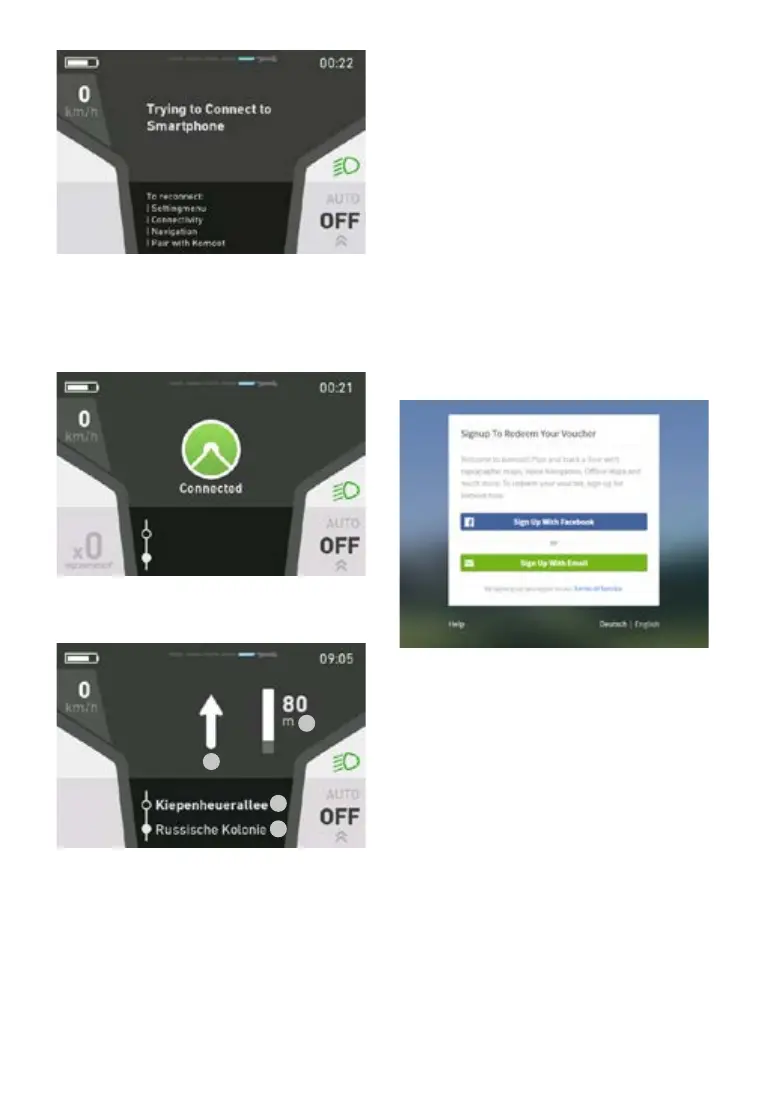
Aconrmationmessageappearsoncethee-bike
is connected to the komoot app.
The e-bike is now in navigation mode.
Navi
1.
2.
3.
4.
display
1. Navigation direction
2 .Current road
3. Road ahead
4.Distancetonextnavigationpoint
More information on the komoot app:
http://support.komoot.de/
https://www.komoot.de/about/routeplanner
5.5.22 Connection with iPhones
Installing the komoot app
You can download the „komoot“ app from the App
Store.
Setting up the komoot app
Once the app has been installed, you must create
auserprolewithkomoot.
You can register directly in the app or via the ko-
moot website:
www.komoot.de/
Activatingthemapsusingyourvouchercode
A voucher for the komoot app is included with
your e-bike purchase. Visit our website to collect
yourcode:www.yer-bikes.com/navigation/
You will then receive your voucher code by e-mail,
which you can use to activate the full range of
maps of the world at www.komoot.com/g.
Pairing with the e-bike
The app must be paired with your FLYER e-bi-
ke in order for you to use the navigation function.
Follow the steps below to establish a connection:
1. Open the komoot app on your smartphone
2.Selectthe“Prole”symbol


 To Next Page