23
EN
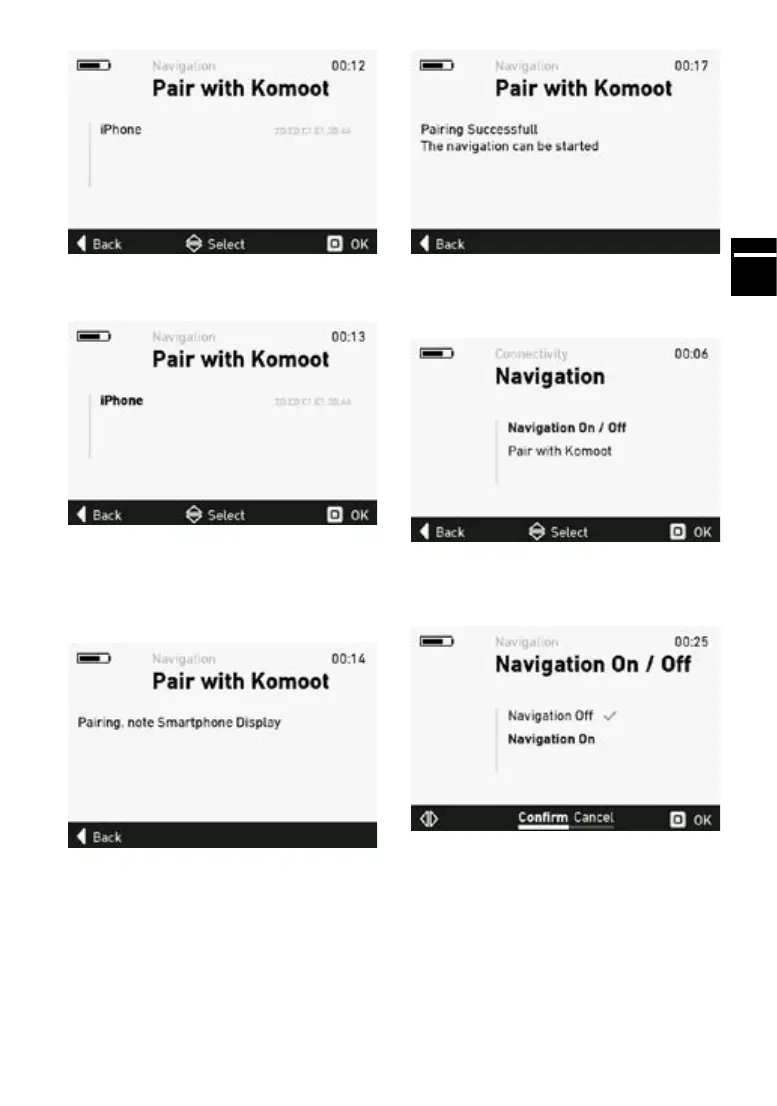
10. Select your chosen device.
The FLYER e-bike will now attempt to establish a
connection. Depending on the iphone or the secu-
rity settings, you may need to grant permission for
the connection to be established.
The connection has now been successfully esta-
blished.
From now on, the e-bike will always connect with
the selected iPhone automatically when navigati-
on is started and the navigation function is activa-
ted in the komoot app.
Ifyouwanttoestablishaconnectionwithadie-
rent iPhone, select the desired device in step 10.
To activate the navigation in the settings menu,
selectthesub-menu“NavigationOn/O”.
Select “Navigation On” and press ““OK” to con-
rm.
The e-bike will now attempt to connect to the
smartphone.


 To Next Page