43
4-2-4. Changing Menu Display Settings
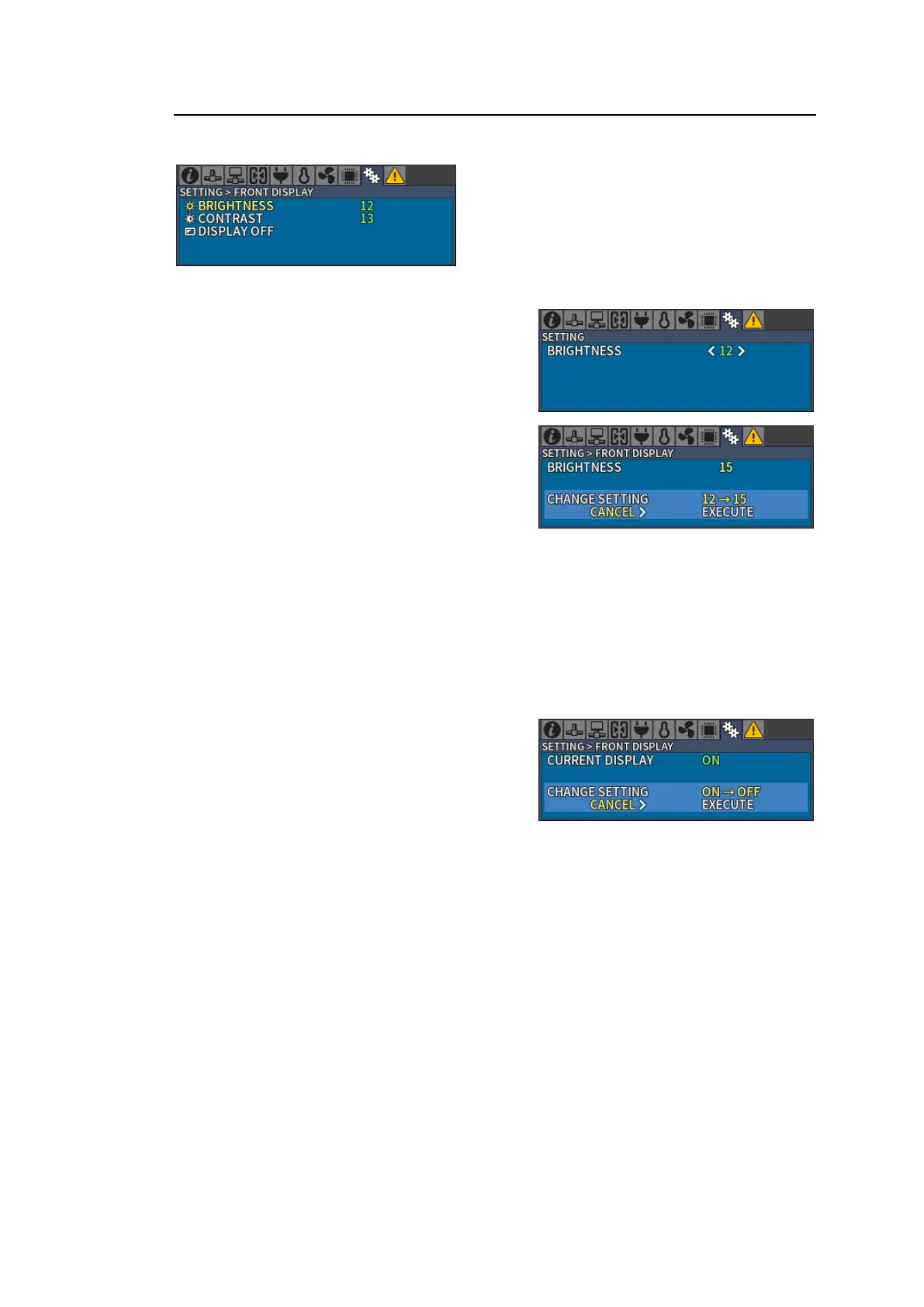
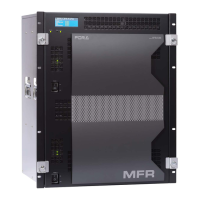
Open the [SETTING > FRONT DISPLAY] menu to change MFR-6000 menu display settings.
When the menu is not displayed, press the CANCEL button to display the menu.
Changing Menu Display Brightness
1. Open the [SETTING > FRONT DISPLAY]
menu.
2. Turn and press CONTROL to select
BRIGHTNESS.
3. Turn and press CONTROL to select the
brightness level from 00 (dim) to 15 (bright).
(Factory default: 12)
4. Turn and press CONTROL to select
EXECUTE under the CHANGE SETTING.
If CANCEL is selected under the CHANGE
SETTING and CONTROL is pressed, the
display returns to the [SETTING > FRONT
DISPLAY] menu without executing the change.
The Menu display contrast can also be adjusted following the above procedure but by
selecting CONTRAST.
Setting range: 00 (weak) to 15 (strong) (Factory default: 13)
Hiding Menu Display
1. Open the [SETTING > FRONT DISPLAY] menu.
2. Turn and press CONTROL to select DISPLAY
OFF.
3. Turn and press CONTROL to select
EXECUTE under the CHANGE SETTING.
Menu Display is hidden.
If CANCEL is selected under CHANGE
SETTING and CONTROL is pressed, the display returns to the [SETTING > FRONT
DISPLAY] menu without executing the change.
4. If the CANCEL button is pressed, Menu Display reappears.
* Menu Display Settings before turning off the power are retained when re-starting the unit.


 To Next Page