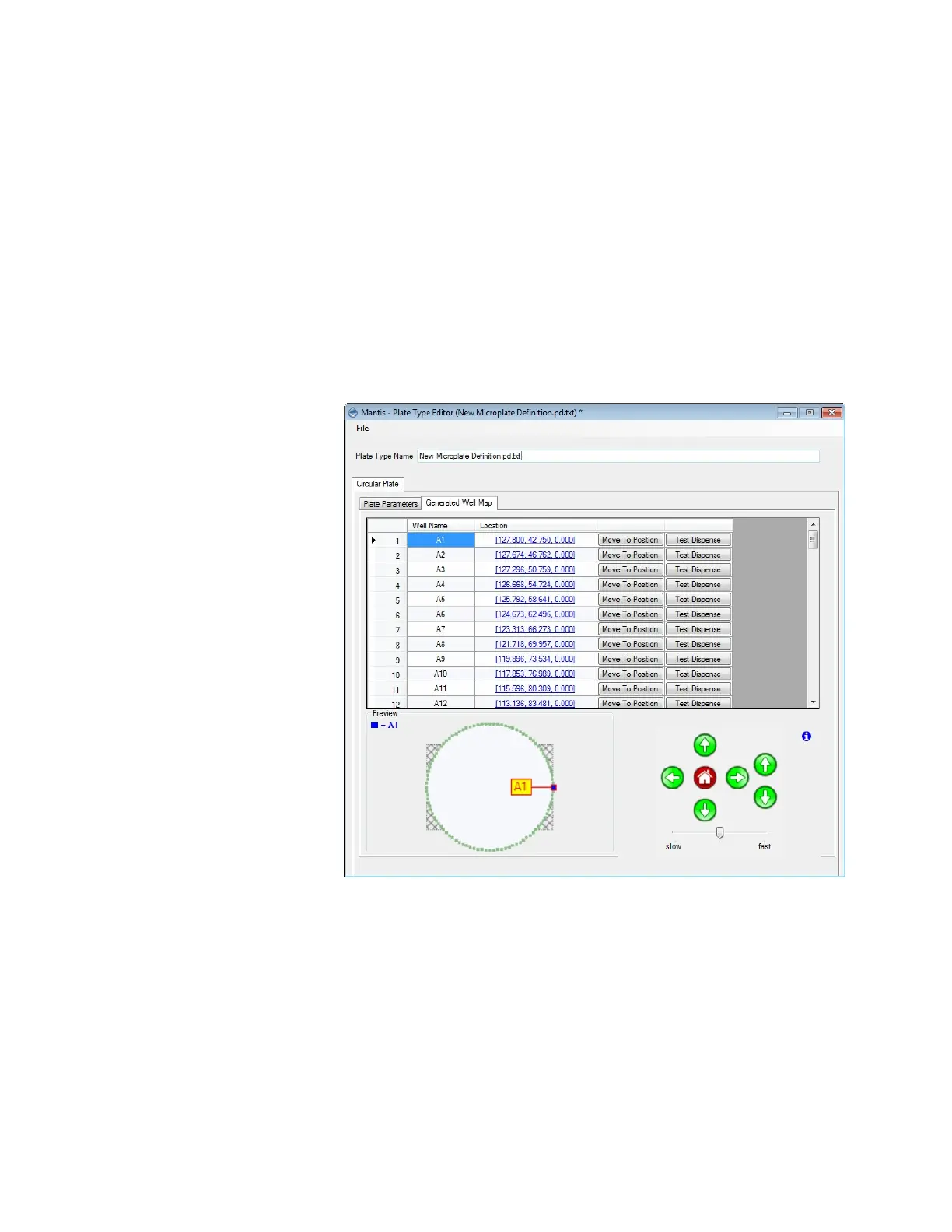
c. Use the Motion Control Pad at the lower right of the Plate Type Editor to
modify the A1 well position. Use the arrow keys to maneuver the MANTIS
hand to the A1 location of your plate. View the plate from both the side and
the front to ensure your center location is correct. View the plate from both
the side and the front to ensure your center location is correct.
9. Select either Clockwise or Counter Clockwise as the direction you would like the
MANTIS to dispense around the plate.
10. Set the well naming convention by typing a number in the Repeat numbering
every wells box. For example, if you type ‘6’, then the MANTIS will name the first
well A1, and after well A6 it will start naming wells with B1 until B6, and so on.
11. Check the MANTIS dispense location settings: Go to the Generated Well Map
tab, and then click Move to Position button. The MANTIS will move its arms to the
related location. If the locations are inaccurate, repeat steps 7 through 11.
Otherwise, proceed to step 12.
12. Go to the File menu in the Plate Type Editor wizard, click Save As, type a name
for your plate, and click Save.
OR
Go to the File menu in the Plate Type Editor wizard, and, click Save (Ctrl+S) to
save your changes.
MANTIS User's Guide | Chapter 6: Initial Setup
Generated Well Map Tab


 To Next Page