9. GPS OPERATION
9-3
9.3 WAAS Setup
Geostationary satellites, the type used with WAAS, provide more accurate position
data when compared to GPS. These satellites can be tracked automatically or manu-
ally. Auto tracking automatically searches for the best geostationary satellite from your
current position.
1. Press he MENU/ESC key to open the menu.
2. Use the Cursorpad ( or ) to select [GPS] and press the ENTER key.
3. Use the Cursorpad ( or ) to select [WAAS] and press the ENTER key.
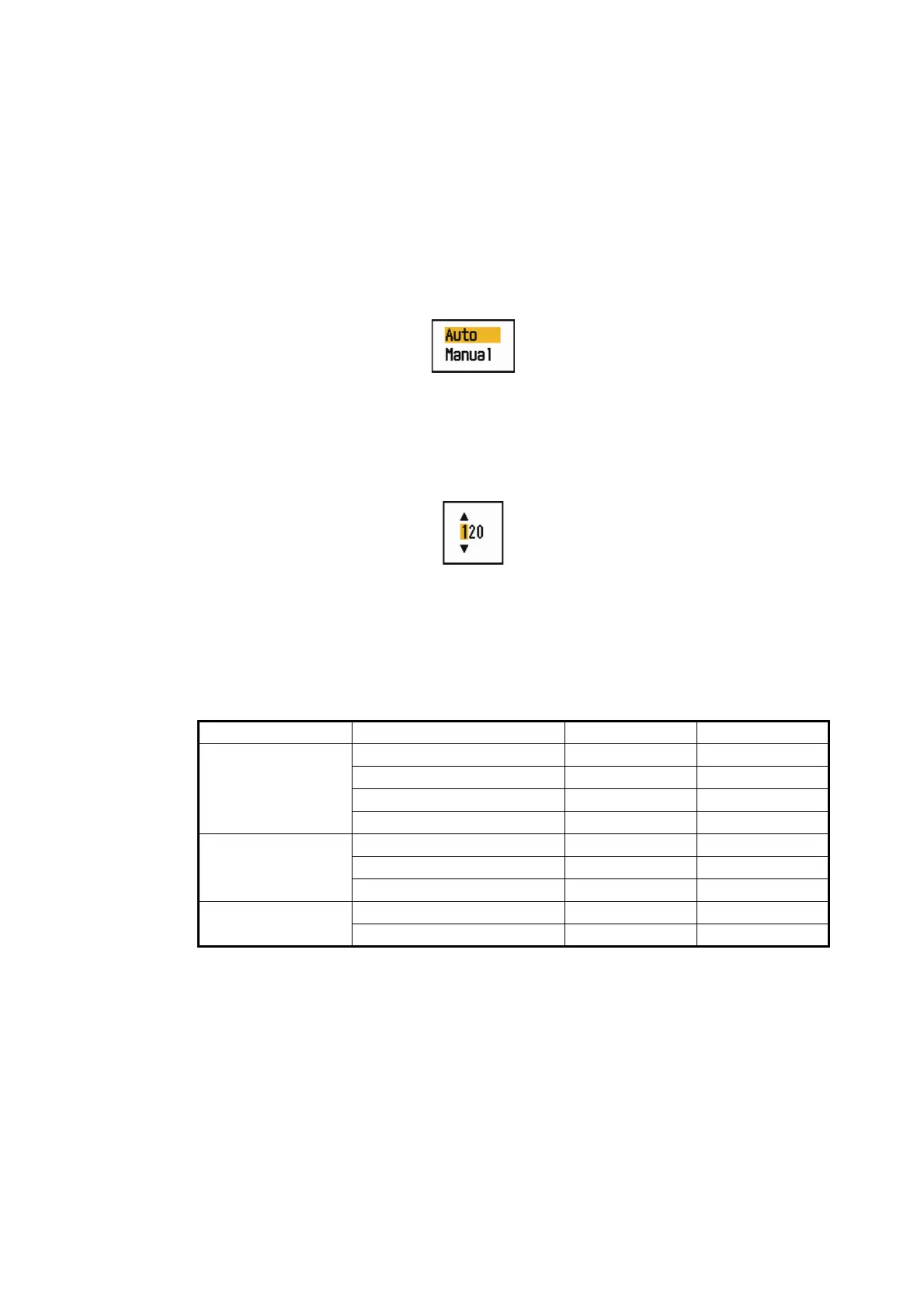
WAAS options
4. Use the Cursorpad ( or ) to select [Auto] or [Manual] then press the ENTER
key. If you select [Auto], go to step 7. If you select [Manual], go to the next step.
5. Use the Cursorpad ( or ) to select [WAAS No] and press the ENTER key.
WAAS No setting window
6. Use the Cursorpad ( or ) to select WAAS number and press the ENTER key.
(The setting range is 120 - 158. Refer to the following table.)
7. Press he MENU/ESC key to close the menu.
Provider Satellite type Longitude Satellite No.
WAAS Inmarsat-3-F4 (AOR-W) 142°W 122
Inmarsat-3-F3 (POR) 178°E 134
Intelsat Galaxy XV 133°W 135
TeleSat Anik F1R 107.3°W 138
EGNOS Inmarsat-3-F2 (AOR-E) 15.5°W 120
Artemis 21.5°E 124
Inmarsat-3-F5 (IOR-W) 25°E 126
MSAS MTSAT-1R 140°E 129
MTSAT-2 145°E 137





 To Next Page