112
On the “gcode” tab, you can adjust each material’s offset individually.
A negative number will make the first layer closer to the bed.
A positive number will make the first layer further away.
Adjust this in 0.05 increments.
Make sure to click “update profile” to save your changes when you’re done.
13.2 Network & Connectivity Issues
PLEASE NOTE: For customers on complex corporate or university networks, you may need to consult
with your IT department to correctly configure your F410. Fusion3 is able to provide assistance in
verifying the printer itself is working properly, but we may not be able to completely solve all network
related issues without assistance from your network administrator.
If you are having trouble connecting to your F410 please try the following.
13.2.1 Verify the printer is able to obtain an IP address
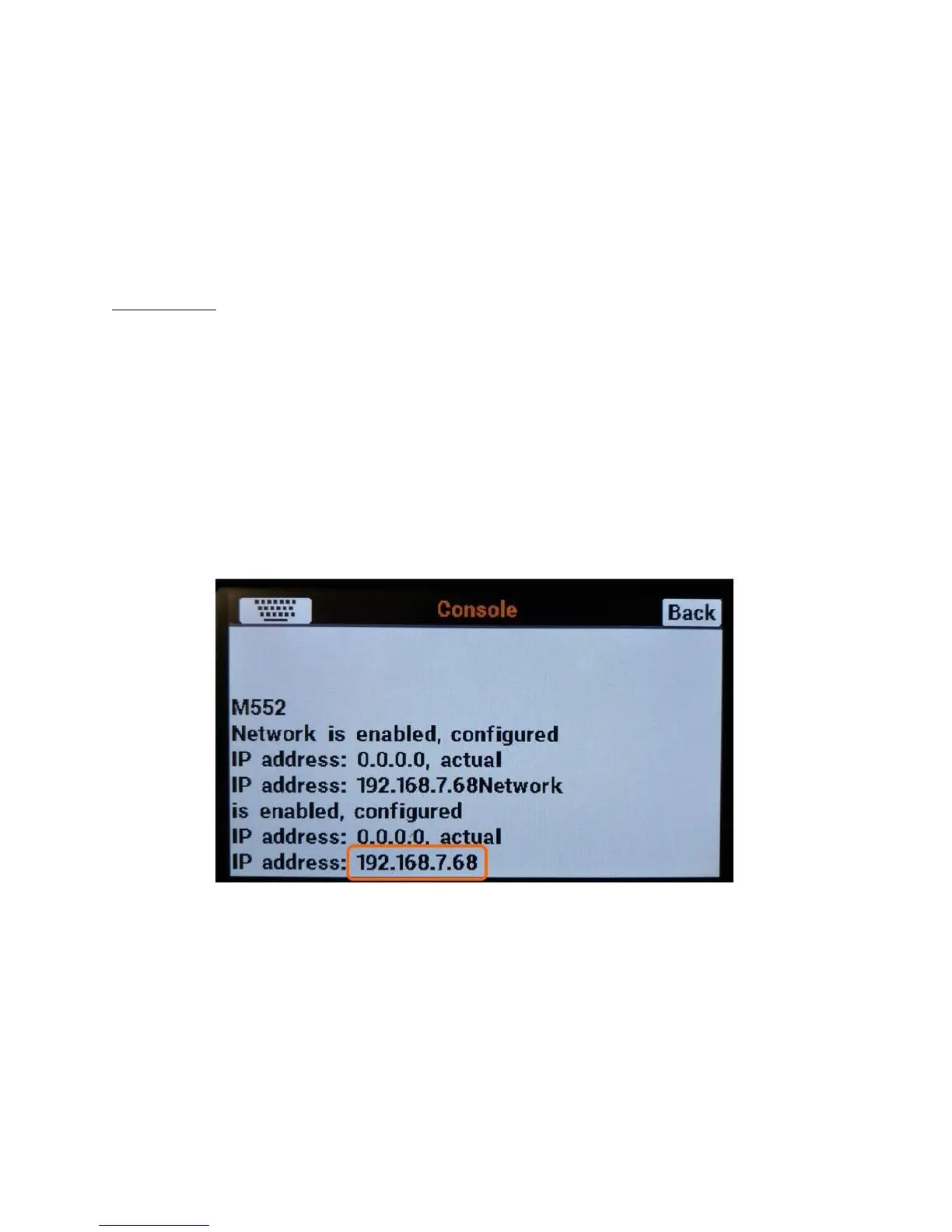
1. Go to the printer and click on the “console” tab on the LCD.
2. Type in “M552” and press enter. Verify the printer’s IP address is not all 0s. If it is, that means it
is not properly connected to the network. Try power cycling the printer (and Ethernet/wifi
bridge, if one is used)
3. If you are using a wifi bridge:
a. Make sure the printer and your computer are on the same subnet.
b. Make sure the bridge is set up properly and is on your network (see the instructions the
bridge should come with).
c. If possible, to reduce the variables while troubleshooting, connect the printer directly to
your wired network.


 To Next Page