130 GPSMAP 396 Owner’s Manual
usIng XM WeAther > usIng the WeAther tAb
3. Highlight the forecast you want to view—Current, 12 Hour,
24 Hour, 36 Hour, or 48 Hour, and press ENTER. The Map
window on the Weather Explorer tab is updated with forecast
information for the time you selected.
The age of the weather report appears in the bottom-left corner of
the Map window on the Weather Explorer tab.
To pan the map:
Press and hold the MENU/Wx key, or press MENU, highlight
Show Map Pointer, and press ENTER. The panning arrow
appears so you can pan the map to view other map areas.
Weather Options
Use the options menu on the Weather Explorer tab to select weather
options for the Map window on the Weather Explorer tab.
To select weather options:
1. Press MENU twice to open the Main Menu.
2. Highlight the Weather Explorer tab, and press MENU.
Declutter On (Off)—allows you to toggle unwanted weather items
on or off on the Map window.
Animate Weather (Stop Animation)
—animates NEXRAD Radar
and Satellite Mosaic weather. When selected, a series of frames
appears, each displaying a different time in the lower left-corner of
the map. Up to six frames appear, beginning with the oldest to the
most current weather data.
Show Map Pointer
—allows you to switch from pan mode to
pointer mode and display the map pointer in the map area so you can
pan the map.
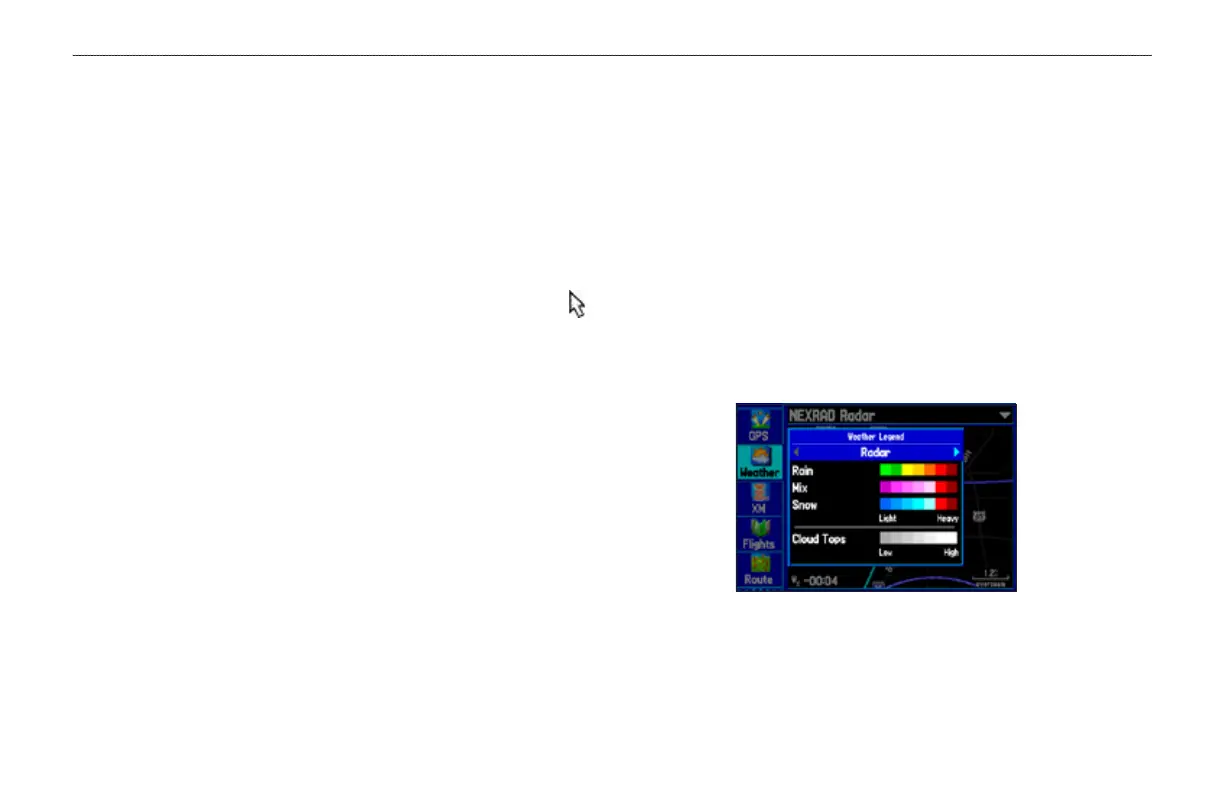
Weather Legend—shows the color legend for Radar, Fronts,
METARs, County Warnings, and Other features. Press right or left
on the ROCKER to view each weather legend.
Weather Legend










 To Next Page