GPSMAP 396 Owner’s Manual 21
bAsIc oPerAtIon In AvIAtIon Mode > fIndIng A neArby PoInt
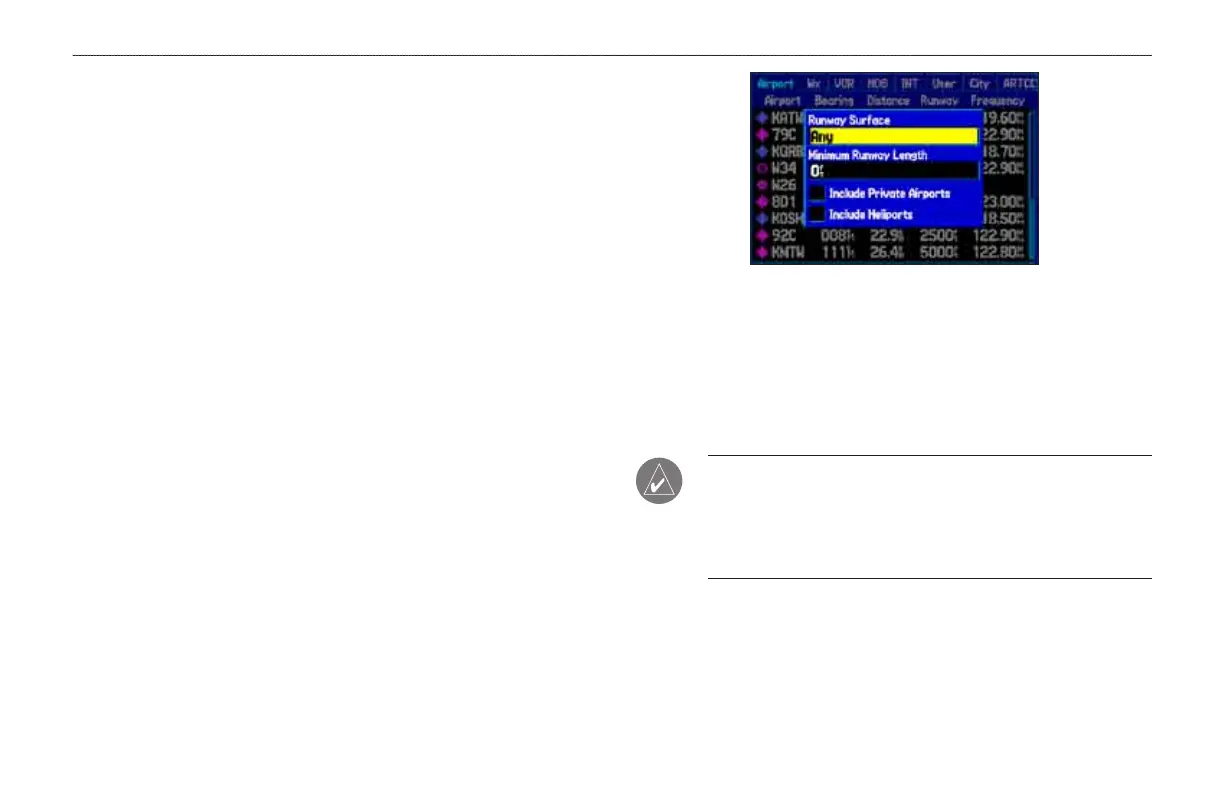
Setting Airport Criteria
From the Nearest Airport tab, an options window allows you to lter
out airports that do not meet a dened criteria. This allows you to
only show airports with a surface type and the minimum runway
length you want.
Runway Surface
—allows you to set criteria for the type of surface
on the runway:
Any
—shows any runway, regardless of surface type,
including water landing facilities.
Hard Only
—shows only runways with a concrete, asphalt, or
similar sealed surface.
Hard or Soft—shows all runways except water landing
facilities.
Water Only
—shows only water landing facilities.
Minimum Runway Length
—allows you to enter a specic length
for the shortest runway allowed.
To enter airport criteria:
1. Press NEAREST, and open the Airport tab.
2. Press MENU to show the options menu.
3. Select Set Airport Criteria, and then press ENTER. A window
appears with the current settings for runway surface and
minimum runway length.
•
•
•
•
Airport Criteria Page
4. With the runway surface eld highlighted, press ENTER.
Select the surface type, and press ENTER.
5. Highlight the minimum runway length eld, and press ENTER.
6. Use the ROCKER to enter the minimum acceptable runway
length. Press ENTER.
NOTE: Use caution when changing the nearest airport criteria.
In an emergency, a short runway is still typically preferable to an
off-eld landing. If you set the runway length too low or exclude
many runway surfaces, you may not be alerted to a nearby
airport that otherwise would be listed.










 To Next Page