80 GPSMAP 396 Owner’s Manual
AutoMotIve Mode PAges And feAtures > edItIng And MAnAgIng WAyPoInts
Projecting a Waypoint
You can also create a new waypoint by “projecting” the distance and
bearing from a specic location to a new location.
To create a new waypoint by projecting its location:
1. Create a waypoint using your favorite method (discussed
in previous sections). The new waypoint is created with the
next available waypoint number and the receiver’s last known
location as the default location.
2. Press MENU twice to open the Main Menu.
3. Highlight Points from the vertical list of tabs using the
ROCKER.
4. Press MENU to open the New Waypoint Page options menu.
5. Highlight Project Location, and press ENTER.
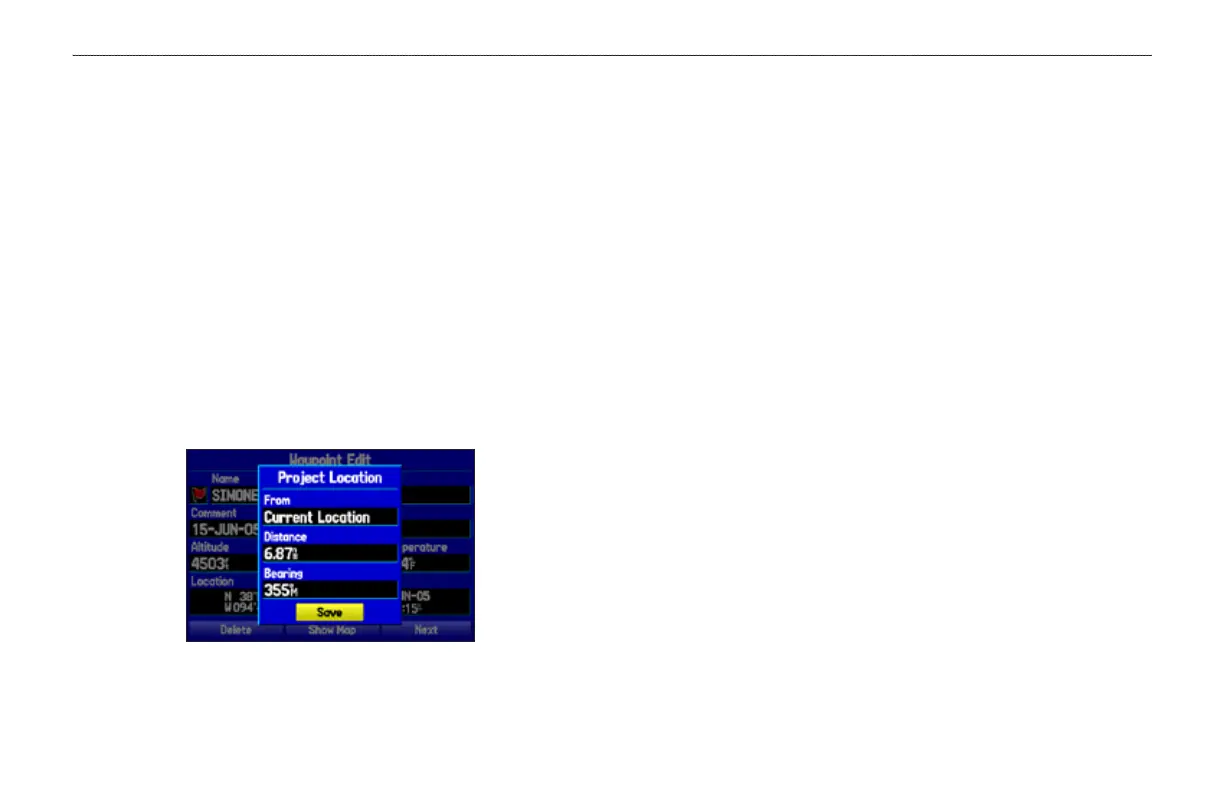
Project Location Menu
Enter the distance, bearing, and location to project from.
6. To change the location from which you are projecting the new
waypoint, highlight the From eld, and press ENTER. The
Find Menu opens.
Select the point from which you project your new waypoint
just as you would select a waypoint or point of interest. For
more information see the “Finding an Item” section on
page 57.
7. To adjust the distance that the new waypoint is projected
beyond the original waypoint, highlight the Distance eld
and press ENTER. Enter the projection distance and press
ENTER.
To adjust the bearing that the new waypoint is projected from
the original waypoint, highlight the Bearing eld and press
ENTER. Enter the bearing, and press ENTER.
8. When you have adjusted all elements of the projected
location, highlight Save, and press ENTER.
9. Make any other changes to the new waypoint data (such as
the name or symbol), highlight OK, and press ENTER.










 To Next Page