12 GPSMAP 396 Owner’s Manual
gettIng stArted > sIMulAted bAsIc nAvIgAtIon
Entering a New Location
From the GPS options menu you can enter a New Location and
New Altitude to simulate from.
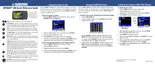
To enter a New Location using the map:
1. Press MENU twice, and highlight GPS from the vertical menu.
2. Press MENU to open the options menu.
3. Highlight New Location, and press ENTER.
4. Highlight Use Map, and press ENTER.
5. Use the ROCKER to move the panning arrow to the location
on the map you want, and press ENTER.
You can also select a New Location by entering an airport identier
(code). Select Use Identier from the GPS tab options menu. Enter
the airport code using the ROCKER. Refer to page 14 for complete
instructions about entering airport identiers and user waypoints.
To adjust the simulated speed, heading, and altitude
from the Panel, Pointer, or Highway pages:
1. Press up on the ROCKER to increase the speed in
10 knot/kph/mph increments. Press down on the ROCKER to
decrease the speed in the same increments.
2. Press left or right on the ROCKER to change heading.
3. Press the IN and OUT Zoom keys to increase or decrease
altitude (Aviation Mode only).










 To Next Page