2.1.1 Looking Up the Dynamic IP Address and Logging In
By default, when the device is connected to LAN with a DHCP server, it is automatically
assigned with a dynamic IP address. Follow the steps below to look up its IP address and log
in the Web interface.
1. Download and install the GV-IP Device Utility program from the company website.
Note:
1. The PC installed with GV-IP Device Utility must be under the same LAN as the
camera you wish to configure.
2. By default, the Administrator’s username is admin and cannot be modified.
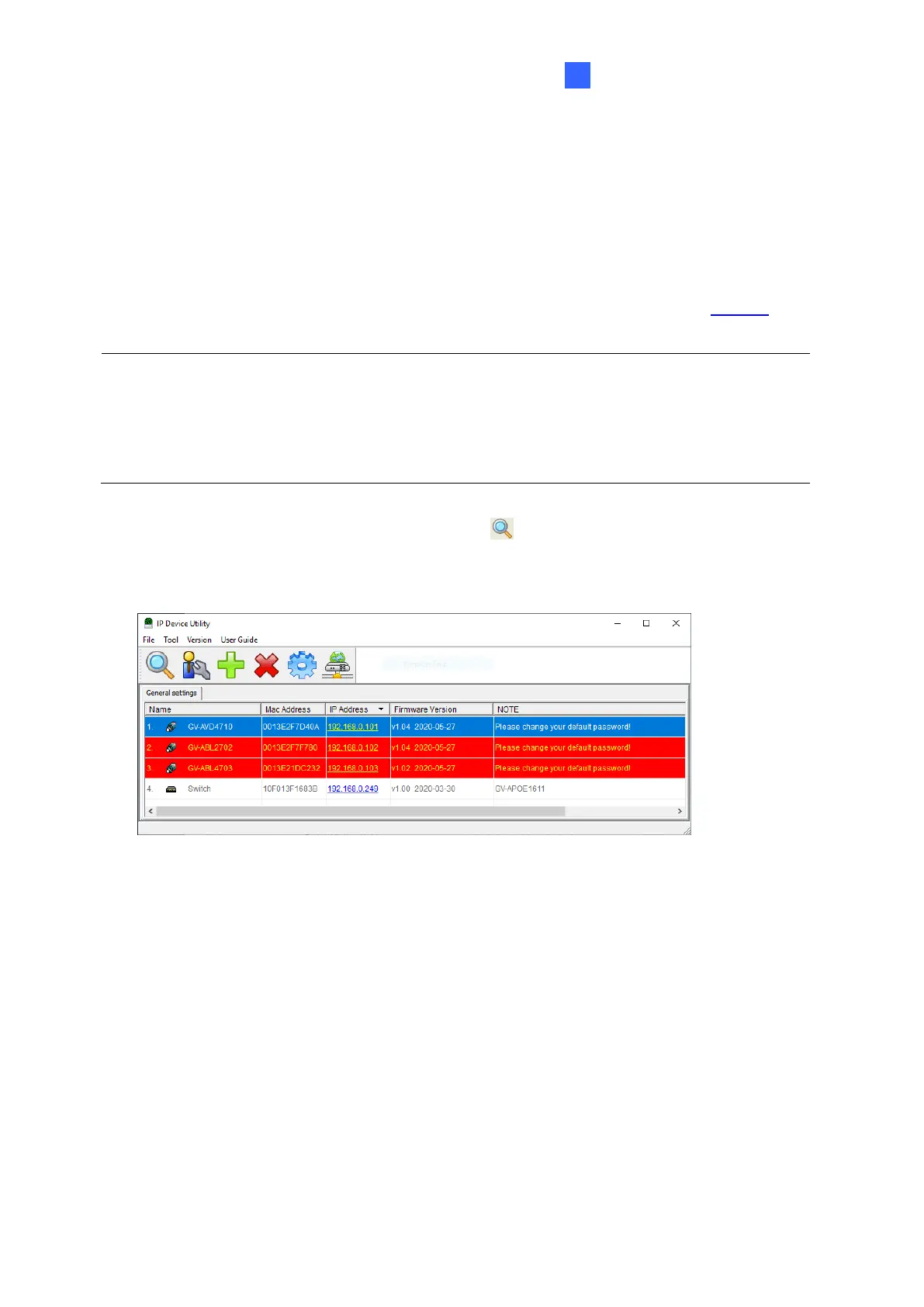
2. On the GV-IP Device Utility window, click the button to search for the IP devices
connected in the same LAN. Click the Name or Mac Address column to sort.
3. Find the camera with its Mac Address, click on its IP address.
Figure 2-1
4. For the first-time users, you will be requested to set up a password.
5. Type a new password and click OK.
6. Type your username and password on the login page and click Login.



 To Next Page