194
4.1.2 Using GV-IP Device Utility
You can upgrade the camera firmware using GV-IP Device Utility. Note the computer used to
upgrade firmware must be under the same network as the camera.
1. Download GV-IP Device Utility from the company website. Then follow the onscreen
instructions to install the program.
2. Double-click the GV IP Device Utility icon created on your desktop.
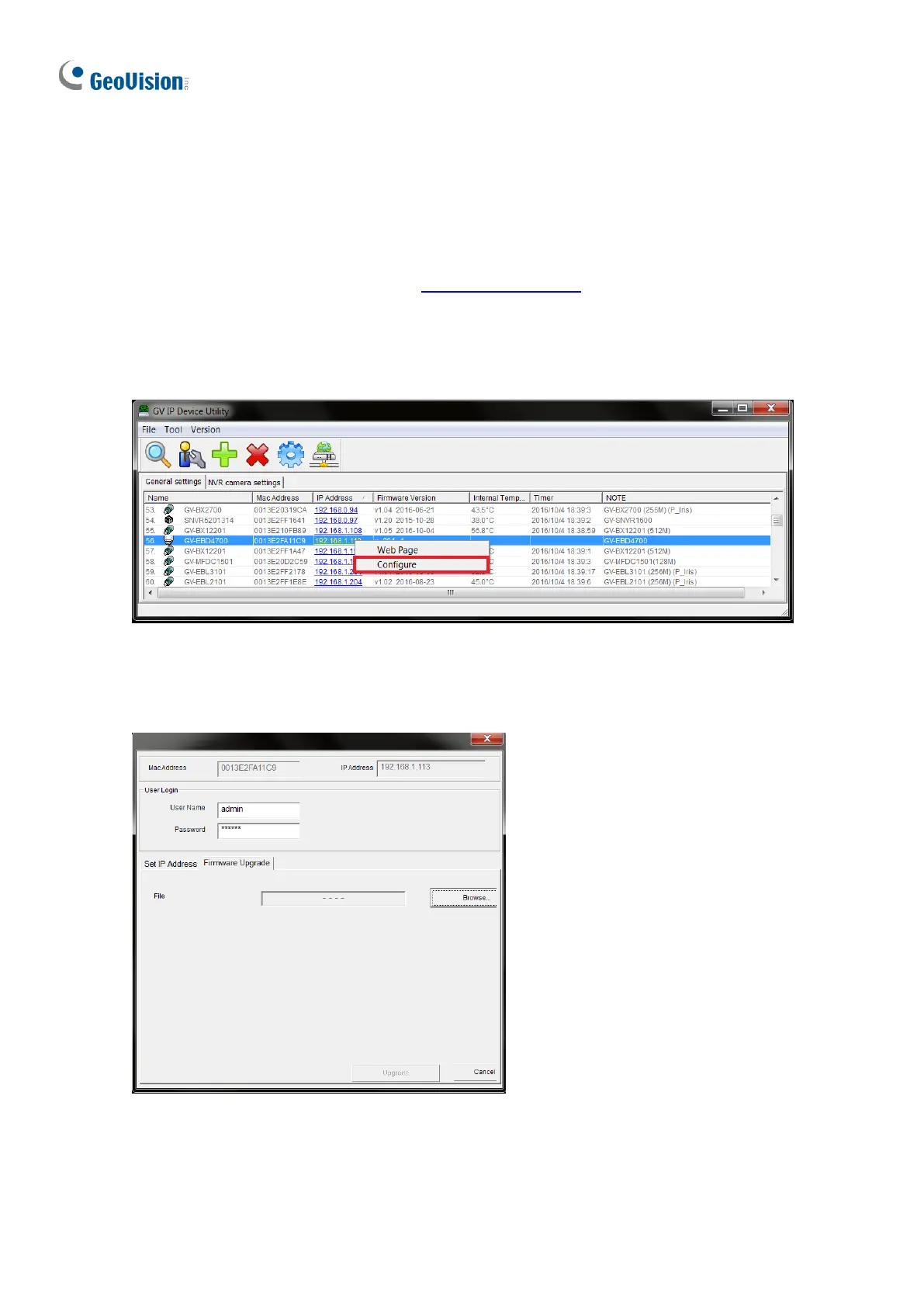
3. Click the camera in the list and select Configure.
Figure 4-2
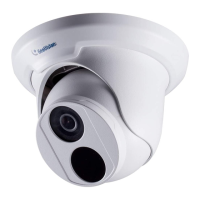
5. Type the camera’s user name and password to log in.
6. Click the Firmware Upgrade tab. This dialog box appears.
Figure 4-3
7. Click Browse to locate the firmware file (.zip) saved at your local computer.
8. Click Upgrade to start upgrading the firmware.



 To Next Page