To Next Page


L
Lynn BoydSep 23, 2025
What to do if Getac X500 stops after POST?
- MMatthew MooreSep 23, 2025
If your Getac Laptop stops after POST when you turn it on, reset your computer.

What to do if Getac X500 stops after POST?
If your Getac Laptop stops after POST when you turn it on, reset your computer.
How to fix dim characters on Getac Laptop screen?
If the characters on the screen are dim, adjust the brightness and/or contrast.
Why Getac X500 Laptop does not turn on?
When the computer does not respond and the Power Indicator does not light green, if you are using an external AC power, make sure that the AC adapter is correctly and securely connected and that the electrical outlet works properly. If you are using the battery power, make sure that the battery is not discharged. If your model comes with the 'HDD preheat' feature, you will not be able to turn on the system when the hard disk drive is being heated. The AC Power indicator lights red to indicate the heater is on. Wait till the heating is finished.
How to fix a Getac Laptop that is not charging?
If your Getac Laptop battery is not charging and the battery charge indicator does not light amber, ensure the AC adapter is properly connected. Also, the battery might be too hot or cold; allow it time to return to room temperature. If the battery doesn't charge after being stored in very low temperatures, try disconnecting and reconnecting the AC adapter. Ensure the battery pack is correctly installed and that the battery terminals are clean.
What to do if nothing appears on the screen of my Getac Laptop?
If nothing appears on the screen of your Getac Laptop, the screen may have automatically turned off due to power management. Try pressing any key to see if the screen comes back. Also, the brightness level might be too low, so increase the brightness. Finally, the display output might be set to an external device; press the Fn+F9 hot key or change the display through the Display Settings Properties to switch it back to the LCD.
What to do if my Getac X500 does not respond when turned on?
If you turn on your Getac Laptop and it does not seem to respond, make sure that either the AC adapter is connected or the battery has power. For models with the 'HDD preheat' feature, the computer will heat up the hard disk in extremely low temperatures. If external AC power is unavailable and the remaining battery power is too low, the computer may not start up. Turn off the computer and leave it at room temperature for about an hour before trying again.
What to do if nothing appears on the Getac Laptop screen?
If nothing appears on the screen of your Getac Laptop, try pressing any key to wake the screen. Also, increase the brightness. You can also switch the display back to the LCD by pressing the Fn+F9 hot key or changing the display through the Display Settings Properties.
Why Getac Laptop external monitor displays nothing?
If the external monitor displays nothing, ensure that the monitor is turned on and that the monitor’s signal cable is properly connected. You can also switch the display to the monitor by pressing the Fn+F9 hot key or change the display through the Display Settings Properties.
What to do if I cannot access the network on Getac Laptop?
If you cannot access the network, make sure that the LAN cable is properly connected to the RJ-45 connector and the network hub. Also, ensure that the network configuration is appropriate and that the user name or password is correct.
How to fix Getac Laptop keyboard that does not respond?
If the keyboard does not respond, try connecting an external keyboard. If it works, contact an authorized dealer, as the internal keyboard cable might be loose.
Guide to initial setup and getting the computer operational.
Instructions for powering the computer using the AC adapter.
Procedures for powering the computer on, off, and using sleep/hibernate modes.
Identification of the computer's front-facing components and their functions.
Identification of the computer's rear-facing components and their functions.
Identification of the computer's right-side components and their functions.
Identification of the computer's left-side components and their functions.
Identification of the computer's top-open components (screen area) and their functions.
Details on keyboard layout, keys, and special functions for input.
Guide to operating the touchpad for cursor control and selection.
Instructions for using the touchscreen and multi-touch gestures for navigation.
Connecting the computer to a network using the wired LAN port.
Steps for connecting the computer to available wireless networks.
Installing SIM card and setting up 3G for mobile internet access.
Using the AC adapter for power and managing battery charging.
Configuring system power management for energy saving and performance.
Guide to accessing and navigating BIOS menus for system configuration.
Steps to restore the system to factory default settings using the recovery tool.
Overview of G-Manager for system, battery, ECO modes, and sensor configuration.
Initial steps and checks to perform before diagnosing computer problems.
Guidance for resolving typical issues with battery, Bluetooth, display, and sound.
Diagnosing problems with DVD drive, ExpressCard, hardware devices, and LAN.
Troubleshooting power management, software, startup, and WLAN problems.
Procedures for rebooting or resetting the computer when it freezes.
 General
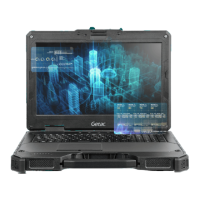
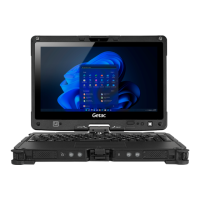
| Form factor | Clamshell |
|---|---|
| Product type | Laptop |
| Product color | Black |
| Housing material | Magnesium |
| Panel type | TFT |
| Touchscreen | - |
| LED backlight | Yes |
| Display diagonal | 15.6 \ |
| Native aspect ratio | 16:9 |
| Internal memory type | DDR4-SDRAM |
| Maximum internal memory | 64 GB |
| SSD capacity | The Solid State Drive's storage capacity in Gigabytes. |
| Storage media | HDD+SSD |
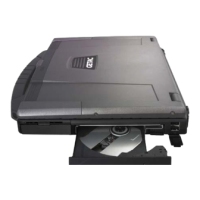
| Optical drive type | DVD Super Multi |
| Total HDDs capacity | 500 GB |
| Total SSDs capacity | 1000 GB |
| Total storage capacity | 1500 GB |
| Number of HDDs installed | 1 |
| On-board graphics card ID | 0x591B |
| On-board graphics card model | Intel® HD Graphics 630 |
| On-board graphics card family | Intel® HD Graphics |
| On-board graphics card OpenGL version | 4.4 |
| On-board graphics card base frequency | 350 MHz |
| On-board graphics card DirectX version | 12.0 |
| On-board graphics card dynamic frequency (max) | 1100 MHz |
| Battery voltage | 10.8 V |
| Battery capacity | 8700 mAh |
| AC adapter power | 150 W |
| AC adapter frequency | 50 - 60 Hz |
| AC adapter input voltage | 100 - 240 V |
| Cable lock slot type | Kensington |
| Antenna type | 2x2 |
| Wi-Fi standards | 802.11a, 802.11b, 802.11g, Wi-Fi 4 (802.11n), Wi-Fi 5 (802.11ac) |
| Top Wi-Fi standard | Wi-Fi 5 (802.11ac) |
| Ethernet LAN data rates | 10, 100, 1000 Mbit/s |
| Storage temperature (T-T) | -40 - 71 °C |
| Operating temperature (T-T) | -20 - 55 °C |
| Operating relative humidity (H-H) | 0 - 95 % |
| Certification | MIL-STD-810G, MIL-STD-461G |
| Charging port type | DC-in jack |
| USB 2.0 ports quantity | 0 |
| Ethernet LAN (RJ-45) ports | 2 |
| USB 3.2 Gen 1 (3.1 Gen 1) Type-A ports quantity | 4 |
| Keyboard layout | QWERTY |
| Pointing device | Touchpad |
| Operating system architecture | 64-bit |
| Bus type | DMI3 |
| Tjunction | 100 °C |
| Processor cache | 8 MB |
| Processor model | i7-7820HQ |
| System bus rate | - GT/s |
| Processor family | Intel® Core™ i7 |
| Processor series | Intel Core i7-7800 Mobile Series |
| Processor threads | 8 |
| Processor codename | Kaby Lake |
| Processor frequency | 2.9 GHz |
| Processor cache type | Smart Cache |
| Configurable TDP-down | 35 W |
| Processor lithography | 14 nm |
| Processor manufacturer | Intel |
| PCI Express slots version | 3.0 |
| Processor boost frequency | 3.9 GHz |
| PCI Express configurations | 1x16, 1x8, 2x4, 2x8 |
| Thermal Design Power (TDP) | 45 W |
| Maximum number of PCI Express lanes | 16 |
| Processor ARK ID | 97496 |
| Processor package size | 42 x 28 mm |
| Supported instruction sets | AVX 2.0, SSE4.1, SSE4.2 |
| Intel Identity Protection Technology version | 1.00 |
 Weight and Dimensions
| Depth | 320 mm |
|---|---|
| Width | 410 mm |
| Height | 65 mm |
| Weight | 5200 g |