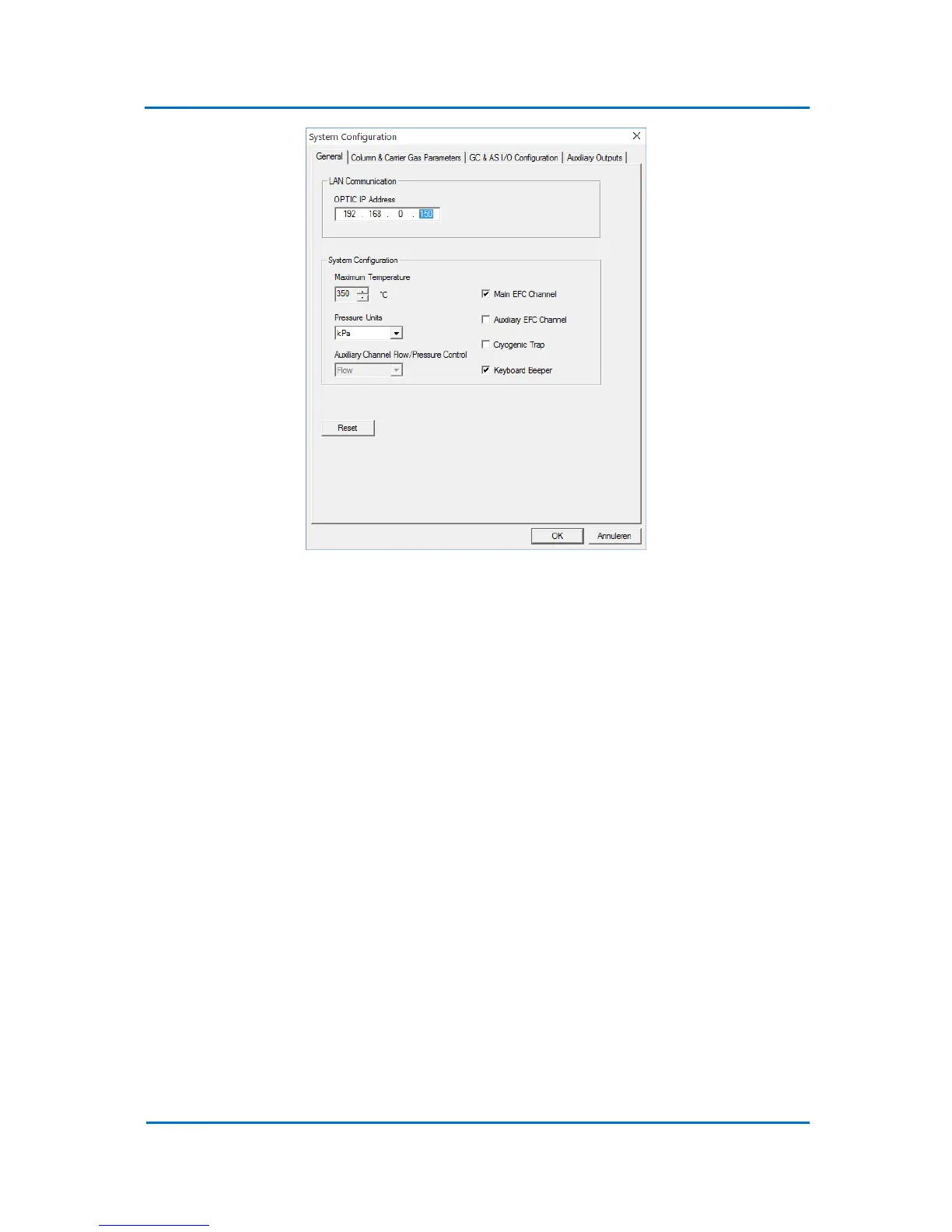
Figure 5.4
4. Wait until the OPTIC-4 is rebooted. Disconnect the USB cable and connect a LAN cable to
the unit.
5. Select Configuration/ External Communication in the Evolution Workstation main menu
bar and click on the radio button next to ‘LAN’ (Fig. 5.3). Click on ‘OK’ button. The Evolution
Workstation should now connect to OPTIC-4 controller.
5.5 Configuration Parameters
It is probably a good idea to start Evolution Workstation on your PC and go through all the
configuration options as you are reading this manual. Under Configuration on the menu bar at the
top of the Evolution Workstation window, you will find the following parameters:
5.5.1 Standby Parameters
Select Configuration/ Standby Parameters to set the parameters that system will maintain during
standby state. Fig. 5.5 shows General tab of the standby parameters configuration dialog.
Parameters like Inlet Temperature, Column Flow, Split Flow, Standby Timeout etc. can be set via this
dialog. The complete list of the standby parameters is included in Appendix A “OPTIC-4 Default
Parameters”.
Most of the parameters are obvious and do not require explanation, but some of them are system
specific and should be made clear.


 To Next Page