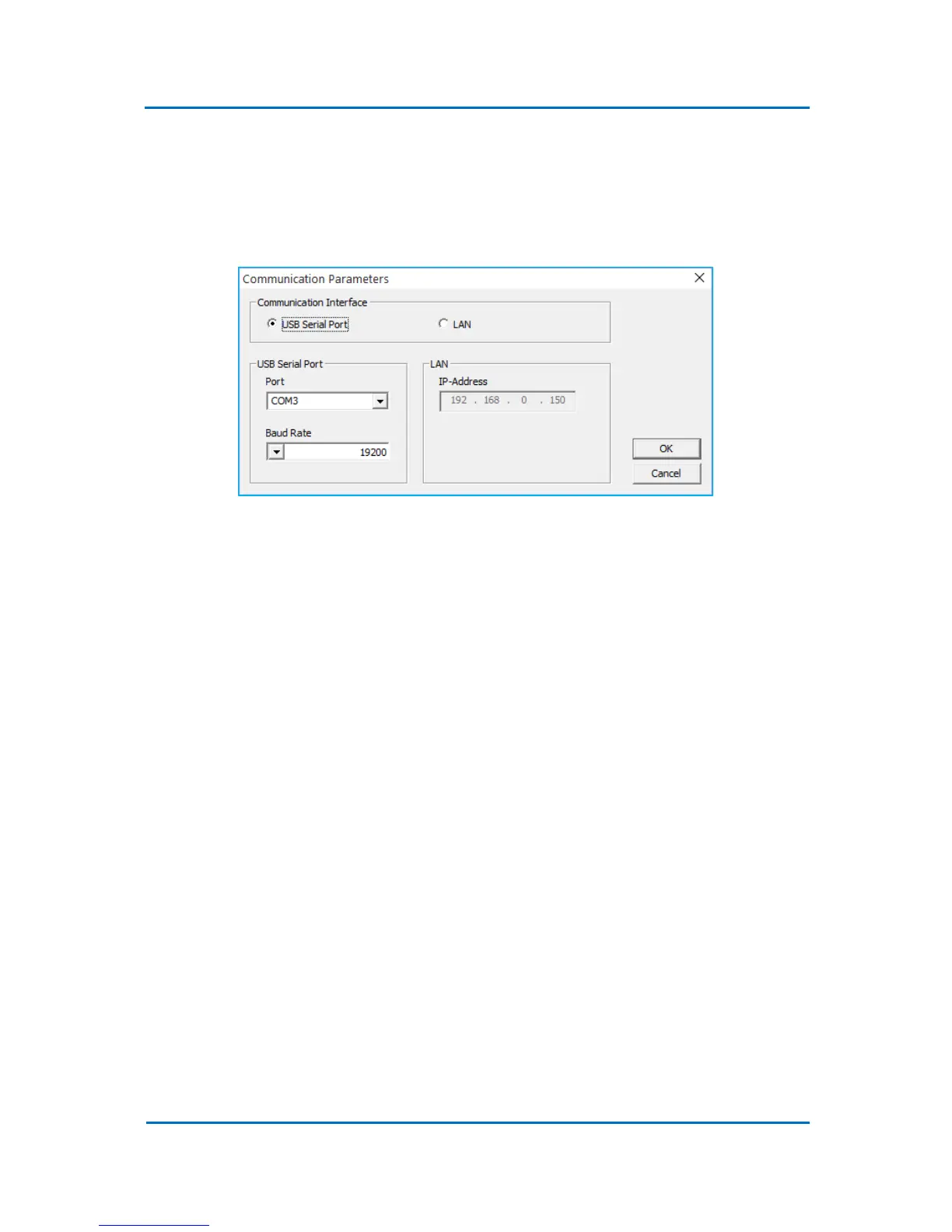
6. Normally, Evolution Workstation automatically detects the USB serial port number and
connects to OPTIC. If due to some reason this does not happen, open the Evolution
Workstation software to set the external communication configuration. Select
Configuration/ External Communication in the main menu bar and click on the radio button
next to ‘USB Serial Port’ (Fig. 5.3). Select a port number below and click on ‘OK’ button. The
Evolution Workstation should now connect to OPTIC-4 controller.
Figure 5.3
5.4.2 LAN Communication
The default OPTIC-4 IP address is set to 192.168.0.150. This address can be used for direct OPTIC-4
to PC LAN communication only. The cross-linked LAN cable should be used in this case. The sub-net
mask should be set to 255.255.255.0 and the proxy server settings should be disabled.
In order to be able to communicate with OPTIC-4 via a LAN switch or a hub, the IP address should be
changed. The first three segments of a new address should be the same as in the local area network
address. The subnet mask should be set to 255.255.255.0 .
To change the default IP address:
1. Connect the OPTIC-4 controller to a host PC via USB interface as it is described in the section
5.4.1.
2. Start Evolution Workstation software and select Configuration/ System Communication.
3. Type a new IP address (Fig. 5.4) and click ‘OK’ button. The new address will be sent to the
device and the OPTIC-4 controller will reboot. The system configuration dialog will stay
open for approx. 15 seconds until controller is rebooted.


 To Next Page