GSI TympStar Pro User Manual
D-0129427 Rev. B Page 50 of 162
TYMPANOMETRY
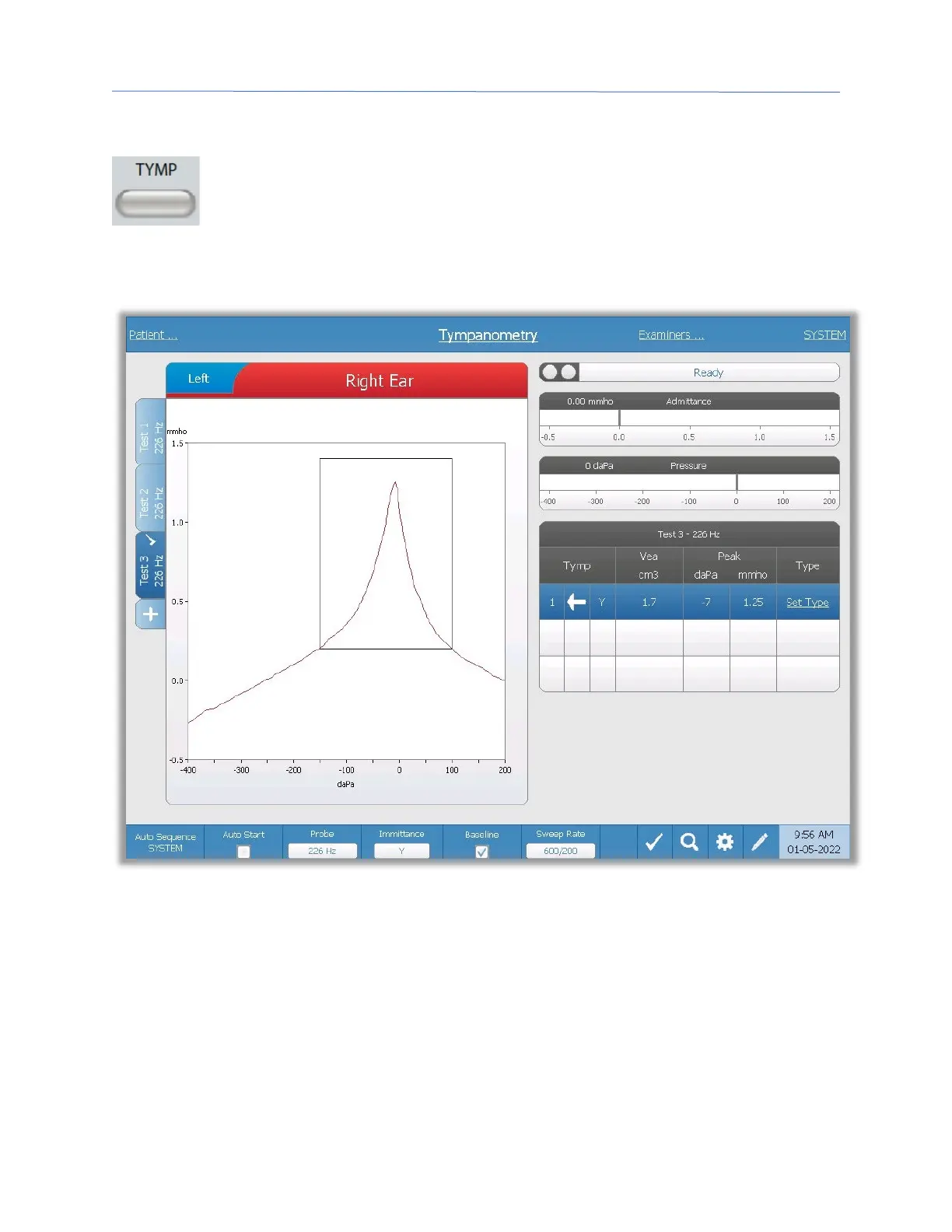
Pressing the Tymp button displays the tympanometry screen. The
tympanometry screen may also be selected from the Title Bar test type drop
down in the center of the title bar. The diagnostic tympanometry screen is
show below.
The tympanometry screen presents information for conducting a diagnostic tympanogram.
Individual tympanogram results are stored as tabs on the left side of the tympanogram
graph. A check mark indicates the ‘marked’ tympanogram. The marked tympanogram is
the tympanogram that will be transferred to GSI Suite or printed directly from the device.
The peak pressure of the marked tympanogram is used to set the pressure for conducting
the acoustic reflex tests. Only a single tympanogram per probe tone frequency may be
marked. A total of six tympanogram tabs per ear can be displayed on the screen. The tabs
at the top of the tympanogram graph are used to select the right or left ear. The current
selection is indicated by the larger tab.



 To Next Page