HQ In nity User Manual | 53
• A er downloading the updated so ware
to a USB drive, insert the drive in the
designated USB port in the machine. Look
for the message in the bo om bar that
con rms a USB drive has been inserted. If it
doesn’t appear, reinsert the USB drive. Then
t o u c h t h e Update bu on.
To update the machine’s so ware
ONLINE: For more informa on about upda ng the machine’s so ware, watch the video Upda ng
the So ware on the In nity at: h p://www.handiquilter.com/videos/hq-in nity/243/.
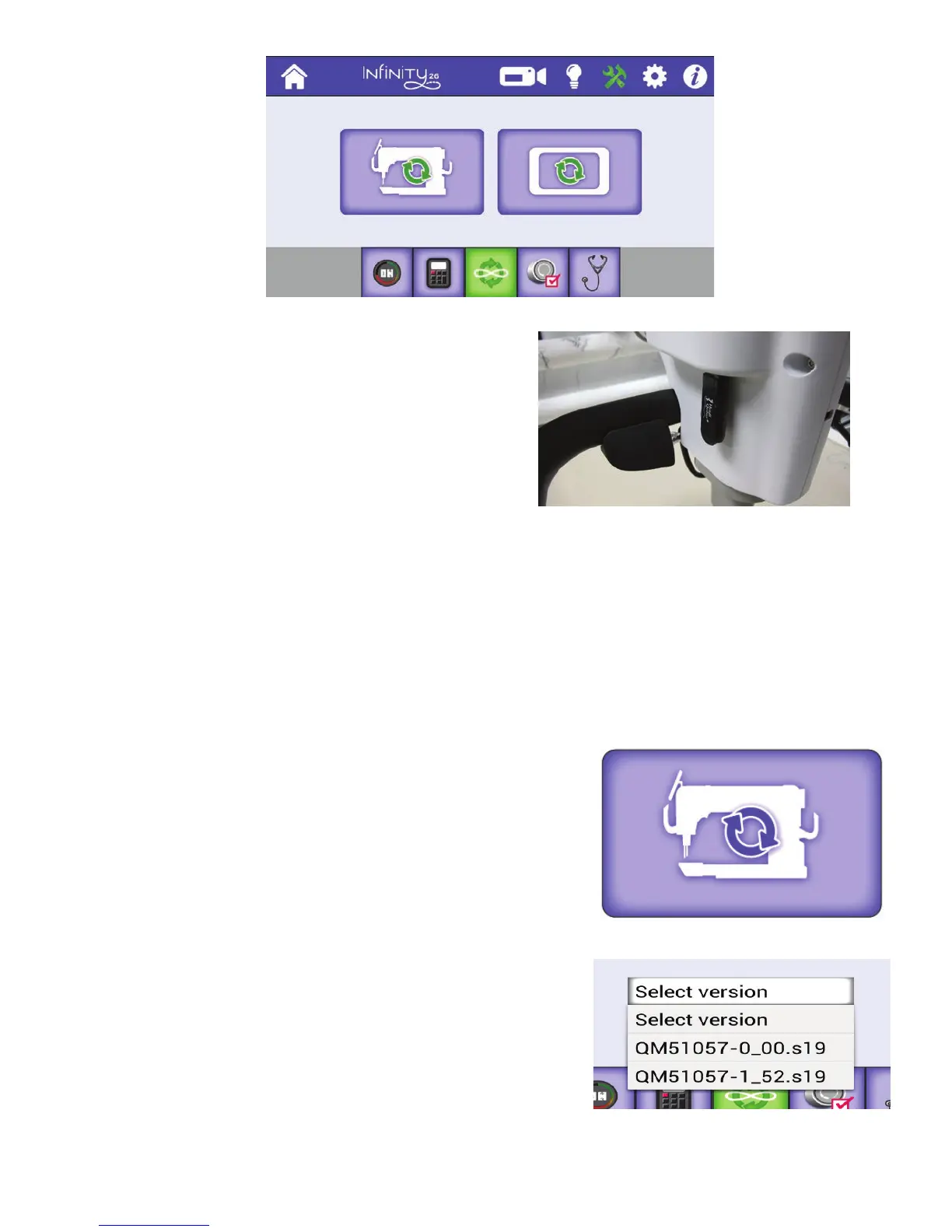
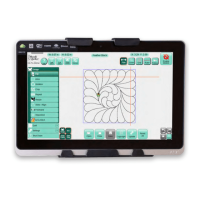
 IMPORTANT: If you are running the In nity from a Pro-S tcher tablet computer, the Update screen
has only the machine icon because you update the machine so ware only. The In nity so ware is
part of the Pro-S tcher so ware. Make sure you are also using the latest version of Pro-S tcher.
However, you’ll update the rear display using the instruc ons below.
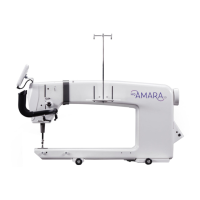
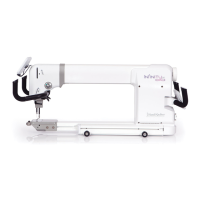
1 . Insert the USB drive into the rst USB port on the front-le
side of the machine. Then touch the machine icon to update
the machine’s so ware.
2 . You will be prompted to choose the le you want to use
to update the machine so ware. Touch the Select Version
box and then select the lename of the update le
you downloaded.




 To Next Page