MARK IV HD J2 TAMPER OPERATION PAGE 2.2 - 11
BULLETIN 5082505 JUPITER II REVISED 10 - 2020
2.2
2.2.1 Jupiter II Control System
2.2.1.10 Touch Screen Operation
1. The machine is equipped with touch sensitive computer monitor screens. A Jupiter monitor
is located in the cab of the machine ahead of the operator's seat. The monitor will display
machine functions in both the travel and work modes. The Jupiter monitor is used for
operation (set-up jacking, tamping, lining and surfacing operations), calibrate certain
machine functions and display machine diagnostic screens. The Jupiter monitor is
powered up when the Jupiter computer is turned on (booted up). When the Jupiter
computer is first powered on, the Travel Screen (see Figure 2.2-5) is initially displayed on
the monitor as soon as the computer is fully booted-up.
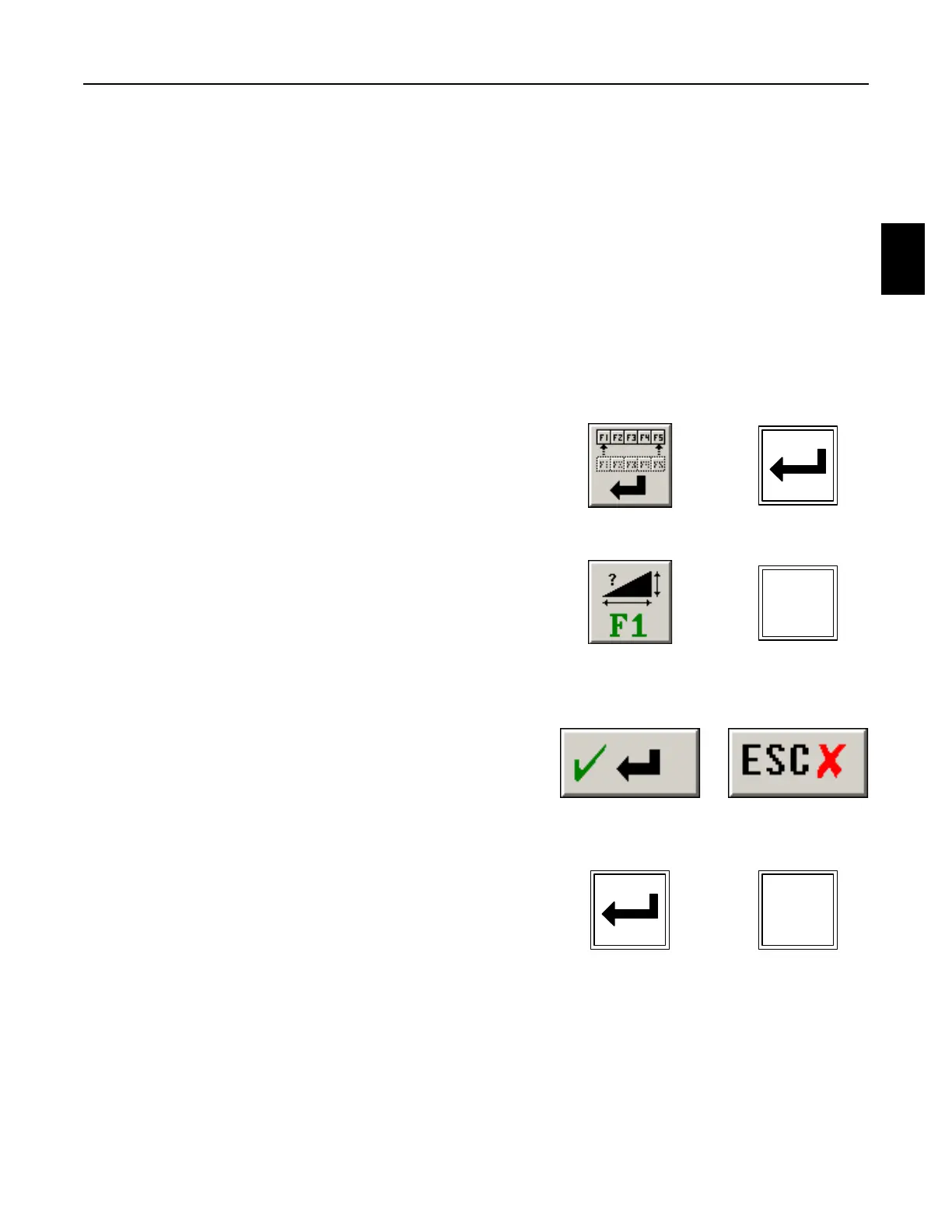
2. The Travel Mode and Work Mode Screens display
a Toolbar Button Panel at the top center of the
screen. Pressing the far right Enter Button on the
panel or the Enter Key on the Right Operator
Keypad or computer keyboard will display the next
set of available Toolbar Buttons.
3. Some panels or menus will have Buttons with F1 -
F2 -etc displayed on the button. Pressing the F
Button on the panel or the corresponding F Key on
the Right Operator Keypad or computer keyboard
will select or de-select the function in the same way
as pressing the button on the panel or menu.
4. Some panels or menus will have an Enter Button
and/or Escape Button. Pressing the Enter Button
on the panel or the Enter Key on the Right Operator
Keypad or computer keyboard accepts and saves
any changes and removes the panel or menu from
the screen. Pressing the Escape Button on the
panel or the Escape Key on the Right Operator
Keypad or computer keyboard discards any
changes and removes the panel or menu from the
screen.
ENTER
KEYPAD
ENTER
BUTTON
ENTER
KEYPAD
ENTER
BUTTON
F1 KEYPAD
F1 BUTTON
ESCAPE
KEYPAD
ESCAPE
BUTTON


 To Next Page