Trident HD Specimen Radiography System User Guide
Chapter 4: User Interface
Page 24 MAN-05478-002 Revision 003
4
Network Connections
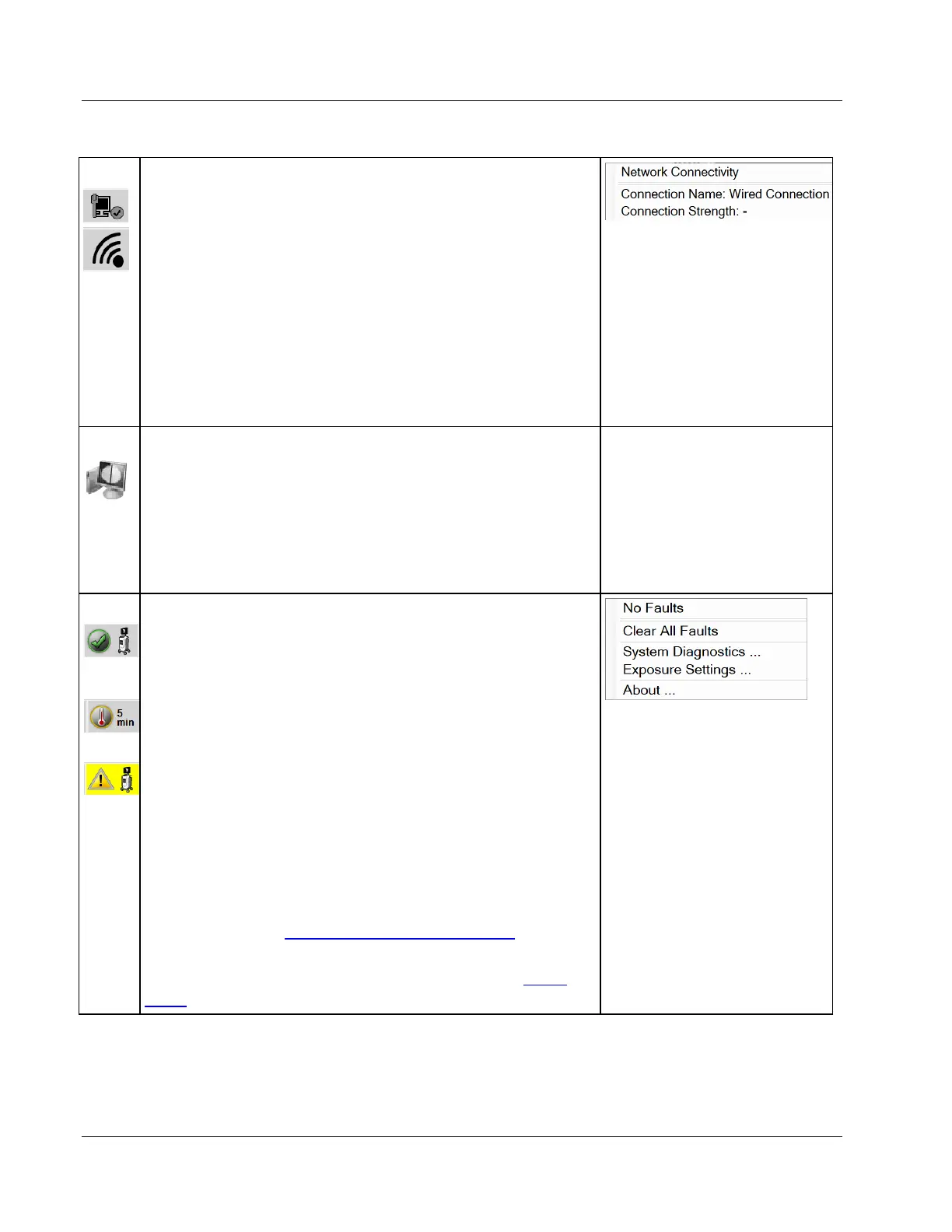
Select the Network icon to display the Network Connectivity
menu.
Connection Name shows the current network connection in use.
Connection Strength shows the strength of the wireless network
connection.
A network connection is required to:
• obtain scheduled patient procedures from a Modality
Worklist Provider
• archive, export, or print acquired images
• Query Retrieve images from an archive
5
Output Devices
Select the workstation icon to open the Manage Queues screen.
The number next to the icon is the number of jobs that remain in
the queue.
The Manage Queues screen displays the status of jobs in the queue
and job information for the selected output, and allows you to
filter the queue display.
6
System Status
If the System Status (console) icon has a green check mark next
to it, the system is ready for use. Select the System Status icon to
display the Faults menu.
If the System Status icon is red with a number next to it, the
system needs to wait the number of minutes shown before the
next image can safely be taken.
If the System Status icon has a yellow exclamation mark next to
it and this taskbar section flashes yellow, there is an error. Select
the System Status icon for more information about the error.
Clear All Faults deletes all error messages.
System Diagnostics accesses subsystem settings. You can also
toggle the cabinet light on and off.
Exposure Settings allows you to change the exposure
techniques. Refer to How to Set the Exposure Techniques
on page
42.
About displays information about the system. Refer to
About
Screen on page 67.















 To Next Page