Trident HD Specimen Radiography System User Guide
Chapter 4: User Interface
MAN-05478-002 Revision 003 Page 25
4.2 Select Patient Screen
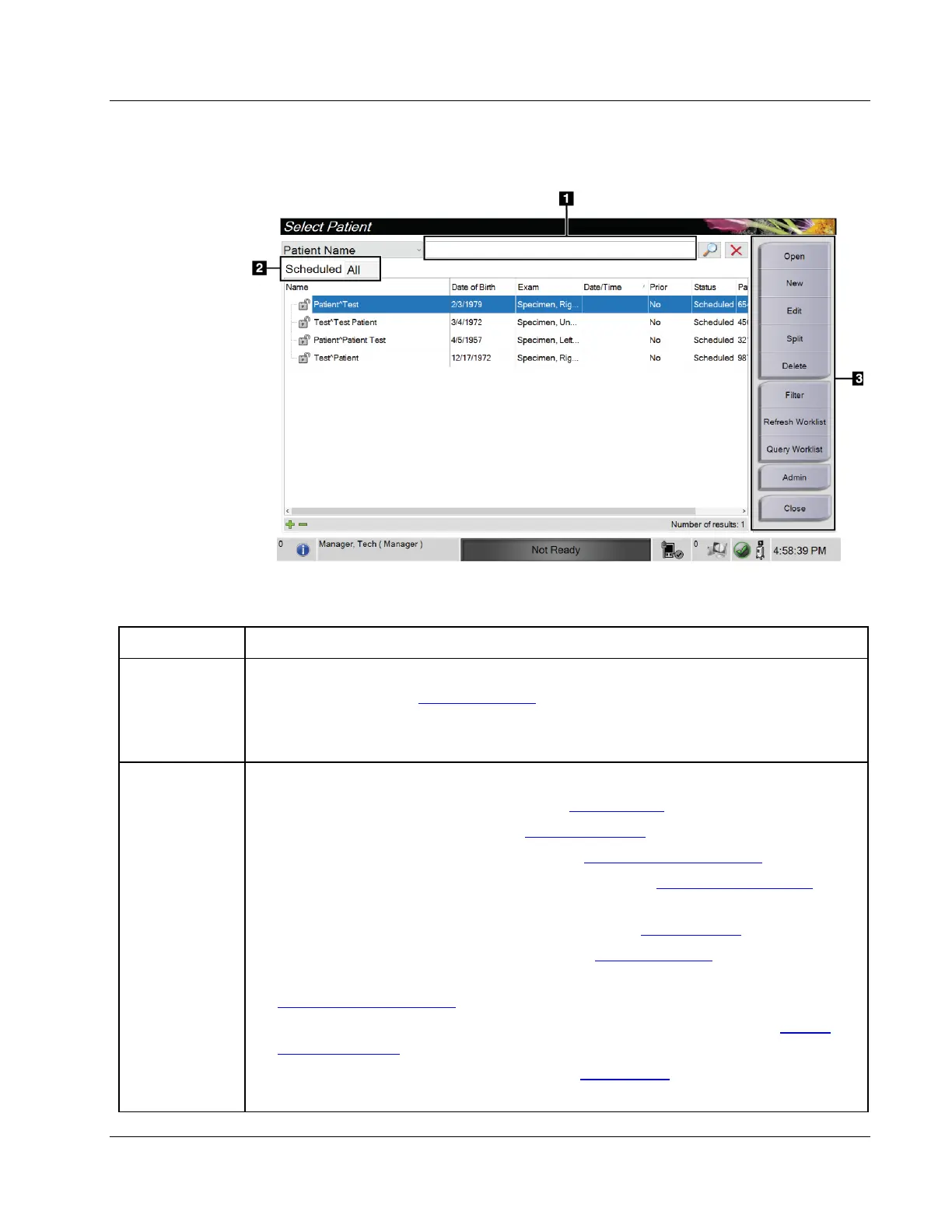
Figure 12: Select Patient Screen
Figure Legend
1. Quick Search Search the local database for the Patient Name, Patient ID, or Accession Number.
2. Tabs The filter tabs at the top of the screen are configurable. A Manager can delete tabs and
create new tabs (refer to Filters for Patients on page 31
).
• The Scheduled tab shows the scheduled procedures.
• The All tab shows all procedures for all users.
3. Buttons Many functions are accessed from this screen by selecting a particular button:
• Open: Open the selected patient—refer to Open a Patient on page 26
.
• New: Add a new patient — refer to Add a New Patient on page 26.
• Edit: Edit the patient information — refer to Edit the Patient Information on page 27.
• Split: Move images to a different procedure — refer to Split the Patient Records on
page 28.
• Delete: Delete a patient from the worklist — refer to Delete a Patient on page 31
.
• Filter: Configure the Patient Filters — refer to Filters for Patients on page 31.
• Refresh Worklist: Update the Scheduled Patient Worklist information — refer to
How to Refresh the Worklist on page 33
• Query Worklist: Search for a patient in the Modality Worklist — refer to How to
Query the Worklist on page 33.
• Admin: Access the Admin screen — refer to Admin Screen on page 65.
• Close: Exit and return to the Startup screen.















 To Next Page