Trident HD Specimen Radiography System User Guide
Chapter 4: User Interface
MAN-05478-002 Revision 003 Page 23
4: User Interface
4.1 About the Taskbar
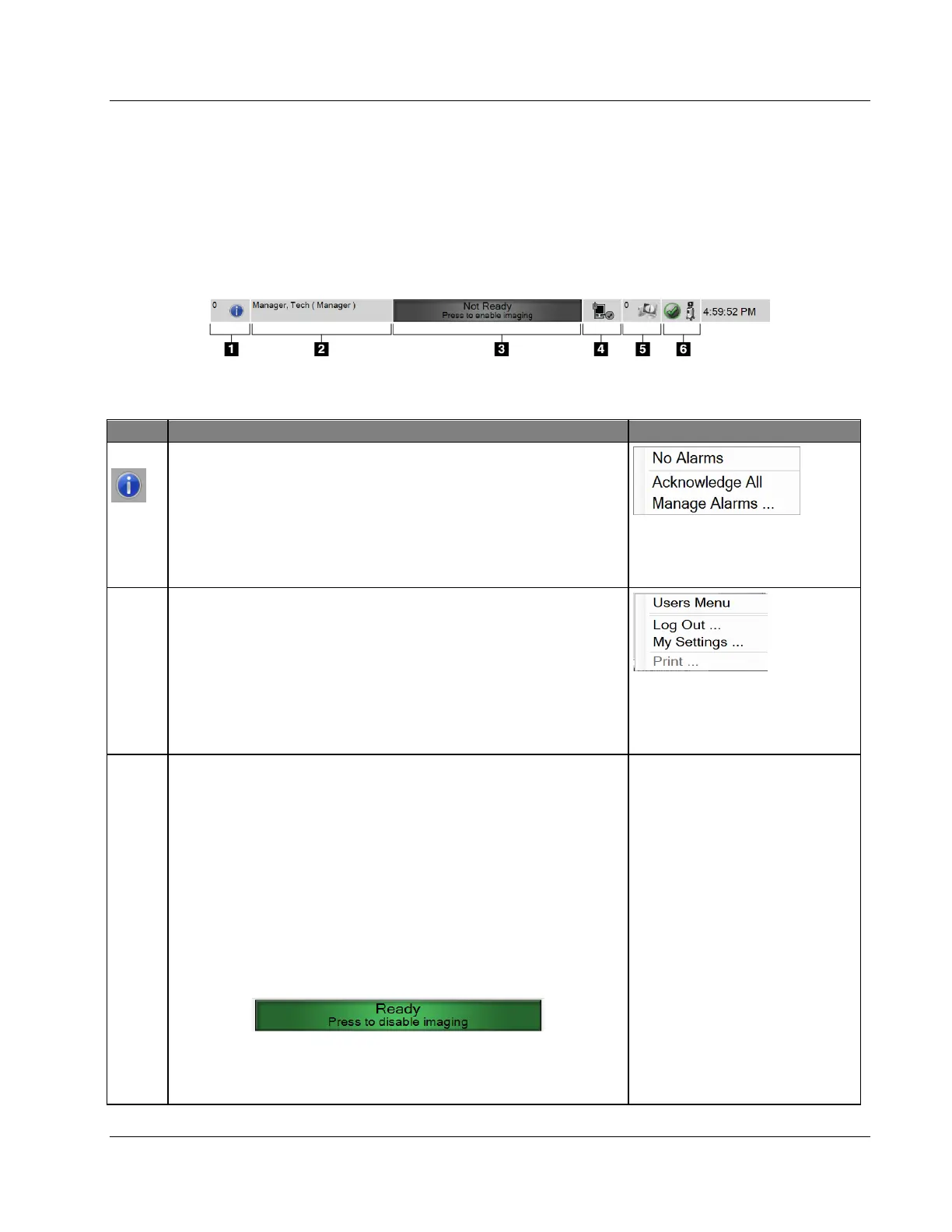
The Taskbar at the bottom of the screen displays additional icons, which you can select to
access information or perform system tasks.
Figure 11: The Taskbar
Table 2: The Taskbar Sections
1
Alarm Information
Select the Information icon to display the Alarm menu.
This section of the taskbar flashes a yellow color if an alarm
exists.
Select Acknowledge All to remove the flashing indication.
Select Manage Alarms to display and close any open alarms.
2
Current User
Select the user name to display the Users menu.
Log Out returns you to the Login screen.
My Settings opens the Edit Operator screen to review or edit
Operator information or to change your password.
Print prints the displayed patient list to a connected printer.
Note: this popup menu is inactive in the Procedure screen.
3
Imaging Status
Shows the imaging status: Not Ready, Ready, or X-ray in
progress.
Select this section to enable or disable imaging.
When imaging is disabled, this section is gray and shows a Not
Ready status. When the imaging status is Not Ready, the X-RAY
activation button is also disabled.
When imaging is enabled, this section changes to green and
shows a Ready status. When the imaging status is Ready, the X-
RAY activation button lights up on the control display.
When the imaging status is Ready, select this section to disable
imaging. To prevent accidental X-ray activation, keep the system
in Not Ready mode until you are ready to acquire an image.















 To Next Page