Trident User Guide
Chapter 4: The User Interface
MAN-02098 Revision 008 Page 19
4: The User Interface
4.1 The Select Patient Screen
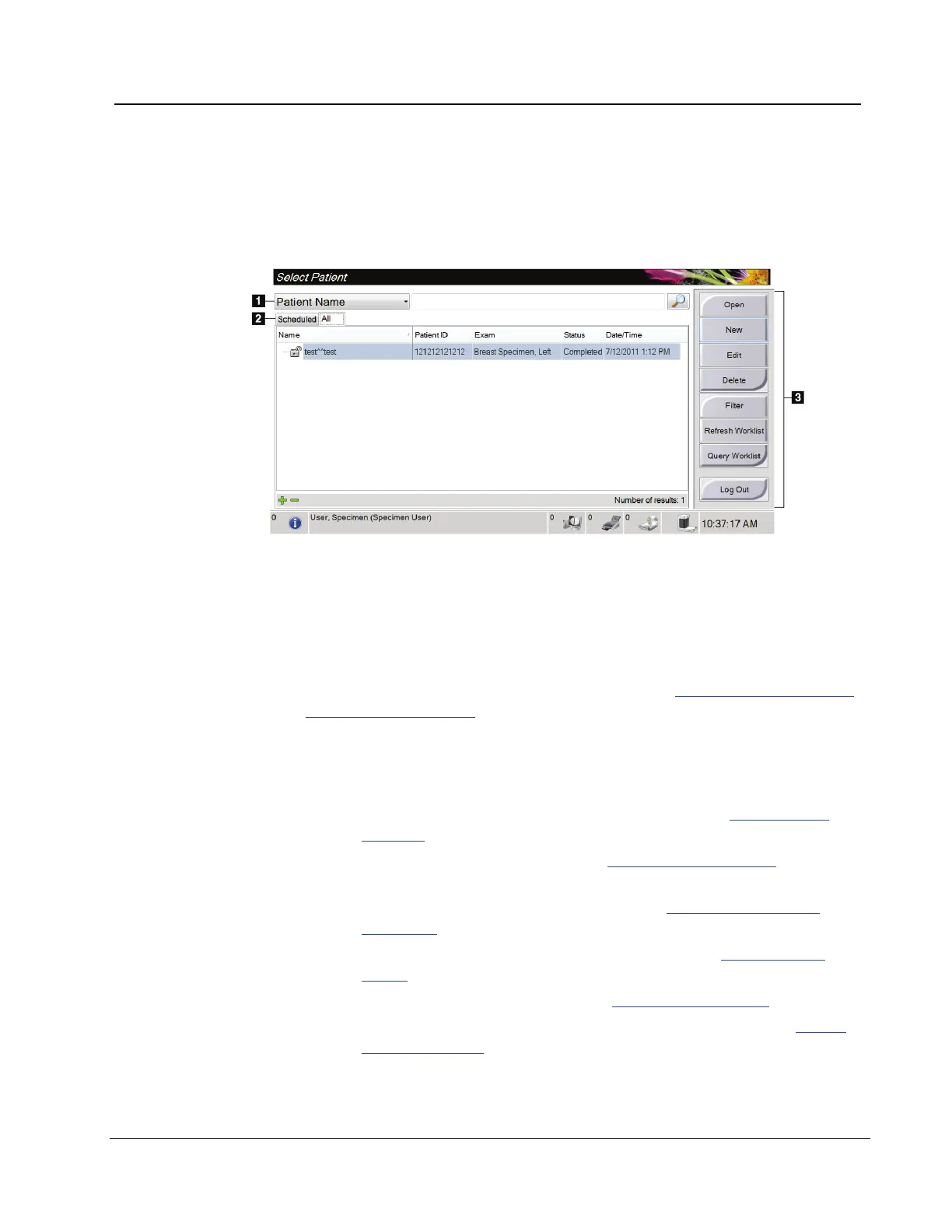
Figure 10: The Select Patient Screen
Figure Legend
Search the local database for the Patient Name, Patient ID, or Accession
Number.
Two tabs display at the top of the screen. These tabs are configurable. A
Manager can delete tabs and create new tabs (refer to The Filter and Column Tabs
in the Patient Filter Screen on page 22).
• The Scheduled tab displays the scheduled procedures.
• The All tab displays all procedures.
3. Other
Functions
You can perform many functions from this screen:
• Open the procedure for the selected patient—refer to How to Open a
Procedure on page 20.
• Add a new Patient (New)—refer to How to Add a New Patient on page 20
.
• Edit the patient information (Edit)—refer to How to Edit the Patient
Information on page 21.
• Delete a patient from the worklist (Delete)—refer to How to Delete a
Patient on page 21.
• Use a Patient Filter (Filter)—refer to The Patient Filter Screen on page 22.
• Search for a patient in the Modality Worklist (Query)—refer to How to
Query the Worklist on page 23.
• Exit (Log Out) and return to the Startup screen.
• Find your patients in the database (tabs at the top of screen).














 To Next Page