Trident User Guide
Chapter 4: The User Interface
Page 28 MAN-02098 Revision 008
4.5.2 How to Print
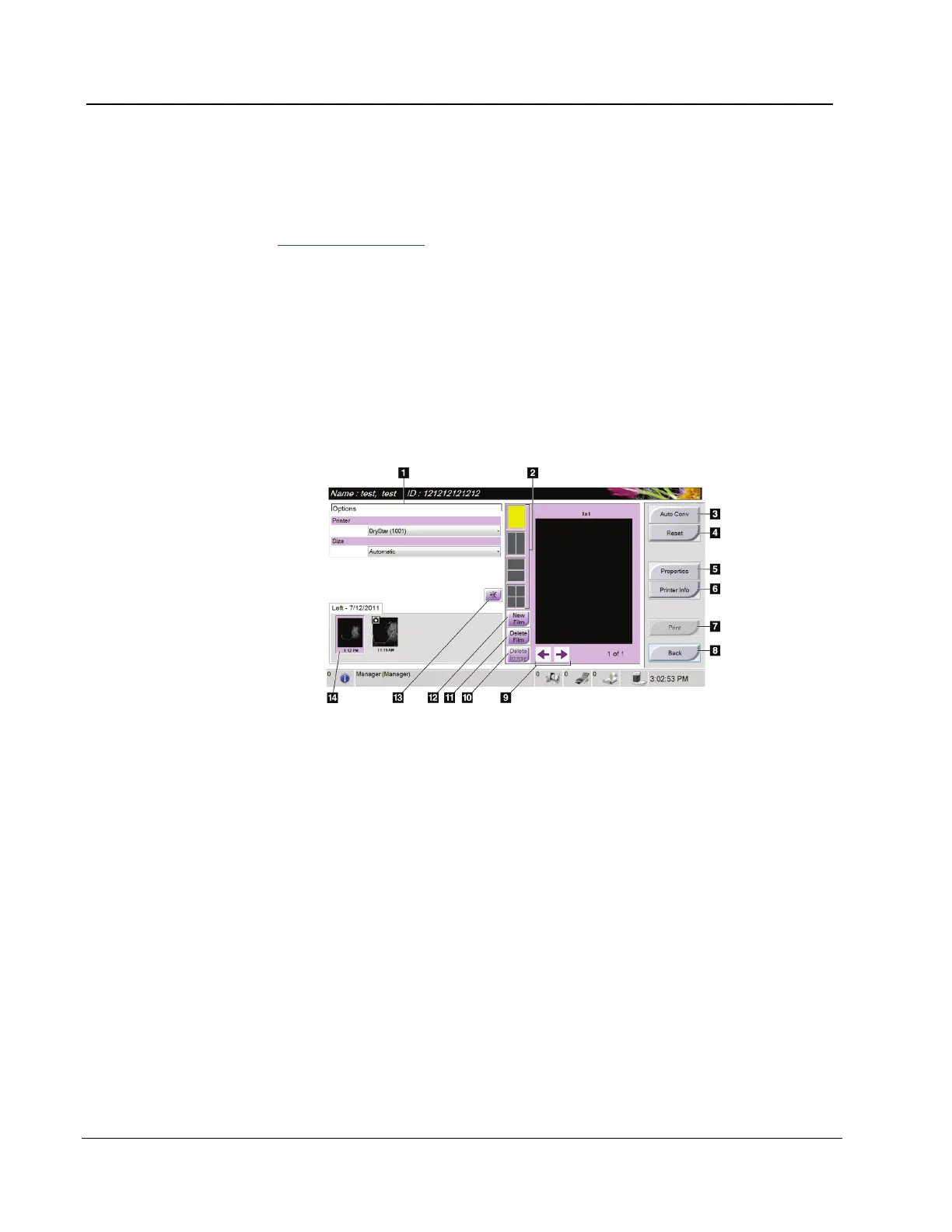
1. From the Procedure screen, select the Print button. The Print Screen displays. Refer to
the figure The Print Screen on page 28 to prepare your print information.
2. Select the film format from the Options area of the page.
3. Select a thumbnail image.
4. Select the image display box on the right side of the screen to put the selected
thumbnail image on the film.
5. To put other thumbnail images on the film, repeat steps 2 to 4.
6. To print a different film format of the same images, select the New Film button and
repeat steps 1 to 4.
7. Select the Print button to print your films.
Figure 16: The Print Screen
Figure Legend
1. Select the printer options.
2. Select the film format (number of tiles).
3. Create (automatically) one film for each thumbnail image.
4. Return the screen to previous settings.
5. Open the Properties screen for selection of printer defaults.
6. Show the printer IP address, AE Title, Port and capability for True Size print.
7. Start the print process.
8. Return the screen to previous settings.
9. Step through the film pages.
10. Delete an image from the current film.
11. Delete the current film selection.
12. Create a new film.
13. Mirror the image.
14. Thumbnail image view














 To Next Page