Trident User Guide
Chapter 4: The User Interface
Page 30 MAN-02098 Revision 008
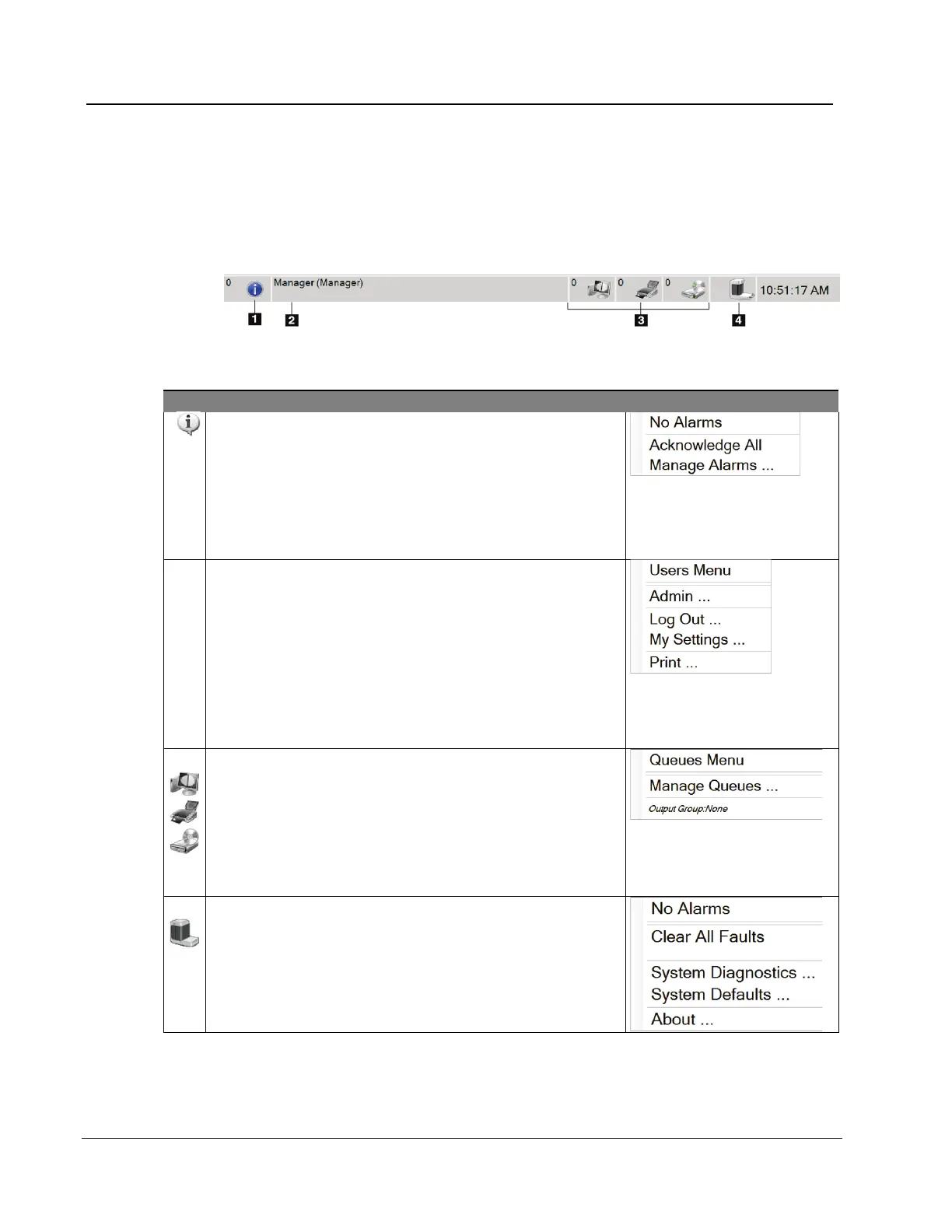
4.6 About the Taskbar
The Taskbar at the bottom of the screen displays additional icons, which you can select to
access information or perform system tasks.
Figure 17: The Taskbar
Table 3: The Taskbar Menus
1
Select the Information icon to display a menu.
This section of the taskbar flashes a yellow color if an alarm
exists.
Select Acknowledge All to remove the flashing indication.
Select the Manage Alarms option to display and close any
Select the user name to display a menu.
Admin displays the Admin screen.
Log Out returns you to the Sign-in screen.
My Settings displays the Edit Operator screen to review or
edit Operator information, or change your password.
Print
prints the displayed patient list to a connected printer.
Note that this popup menu is inactive in the Procedure
Select an output icon (workstation/archive, printer, or
CD-ROM) to display a menu. Each menu selection takes
you to the screen for that selection.
Manage Queues displays the status of jobs in the queue
and job information for the selected output, and allows you
to filter the queue display.
Clear All Faults deletes all error messages.
System Diagnostics accesses Subsystem settings.
System Defaults opens the Defaults screen to set the
default values.
About displays information about the Workstation.














 To Next Page