Trident User Guide
Chapter 6: Clinical Procedures
MAN-02098 Revision 008 Page 41
6: Clinical Procedures
6.1 System Startup
Refer to How to Start the System on page 15 for complete information on the following
steps.
1. Lock the cart casters and then connect the system to power and the network.
2. Press the computer power button.
3. Select the Log In button in the Startup screen.
4. Select your user name, enter your password, then select the Log in button
6.2 Image Acquisition
Refer to The Select Patient Screen on page 19 for information on the screen components.
1. Select a patient from the worklist in the Select Patient screen, or manually add a new
patient (refer to How to Add a New Patient on page 20).
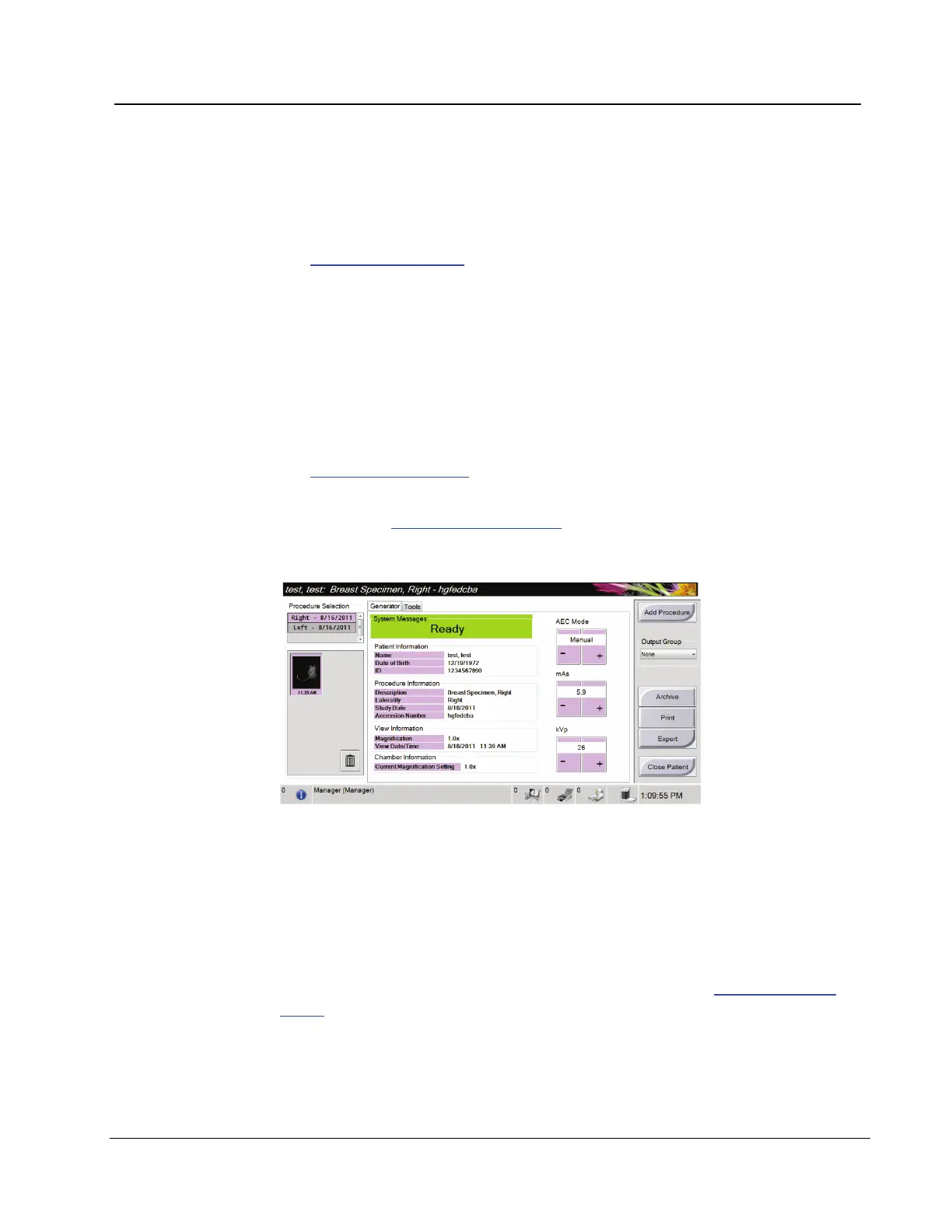
2. In the Procedure screen, set the exposure techniques and select the output devices.
Figure 24: Procedure Example
3. Position the specimen in the Cabinet for contact or magnification imaging.
4. Close the Cabinet door and turn the Key Switch to the unlocked position.
5. Confirm that all exposure factors are set correctly.
6. Press the X-RAY button. The acquired image displays then saves automatically.
7. To delete an image, select the thumbnail then select the trash can icon.
8. Review the image and make necessary enhancements. Refer to How to Review the
Images on page 34.
9. To acquire additional images of the same specimen, press the X-RAY button for each
new image.














 To Next Page