Configuring Video Analytics
61
Note
• The volume numbers (0~100) on the left side of wave diagram
does not represent decibel (dB). Sound intensity level has
already been mapped to preset values. You can, however, use
the real-world inputs at your installation site that are shown on
the wave diagram to configure an alarm level.
• To configure this feature, you must not mute the audio in
Setup Camera Setup Audio. The default of the camera
can be muted due to the lack of an internal microphone. An
external microphone is provided by users.
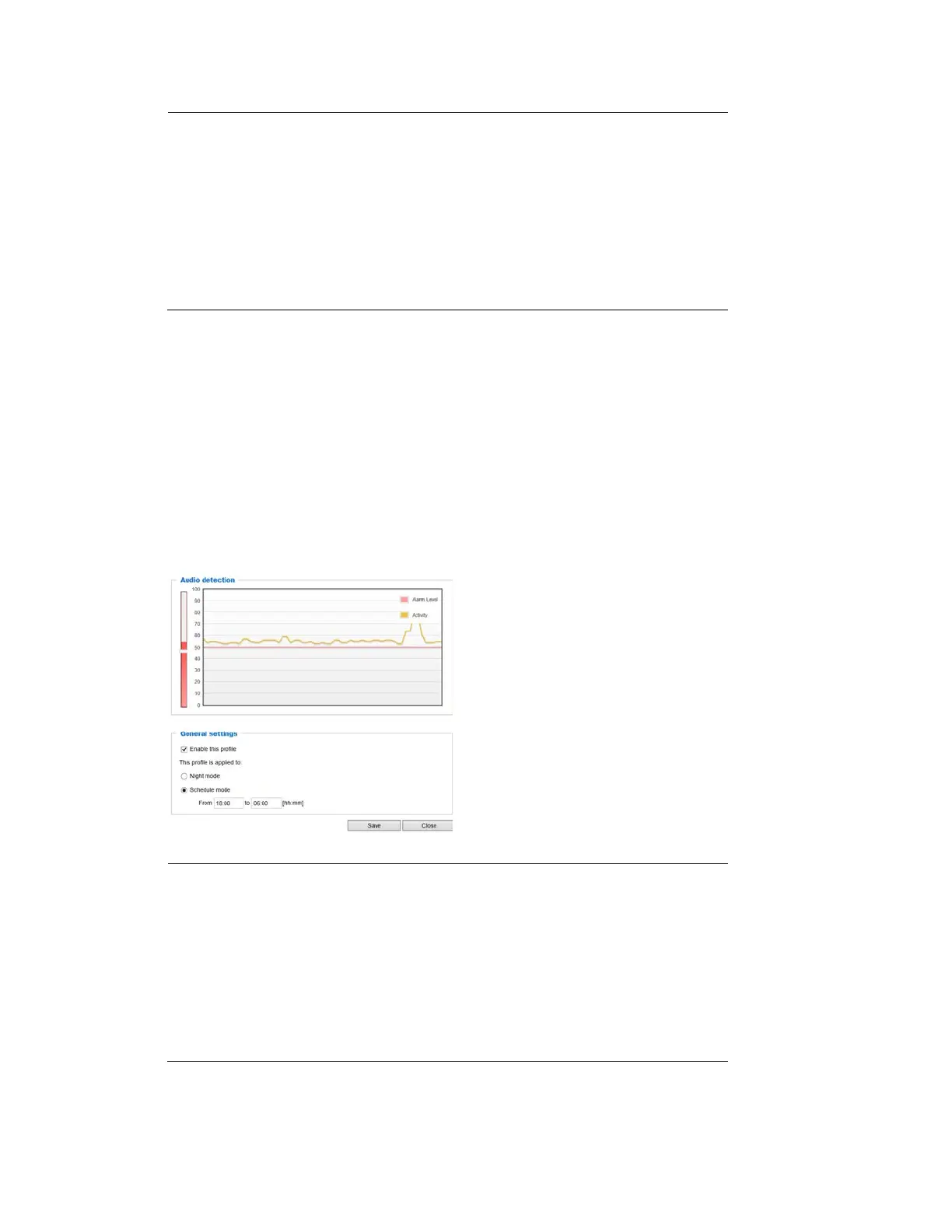
You can use the Profile window to configure a different audio detection setting. For example,
a place can be noisy in the day time and become very quiet in the night.
1. Check Enable this profile. Once the Audio detection window is opened, the current sound
input will be interactively indicated by a fluctuating yellow wave diagram.
2. Drag the Alarm level slider to a preferred location on the left slide bar.
3. Select the Night mode or Schedule mode. You may also manually configure a period of
time during which this profile will take effect.
4. Click Save and then click Close to complete your configuration.
Figure 6-8 Audio Detection Profile
Note
• If the Alarm level and the received volume are set within a range
of 20% on the wave diagram, frequent alarms will be triggered.
It is recommended to set the Alarm level farther apart from the
detected sound level.
• To configure and enable this feature, you must not configure
video stream #1 into Motion JPEG. If an external microphone
input is connected and recording of audio stream is preferred,
audio stream is transmitted between camera and
viewer/recording station along with stream #1.



 To Next Page
 Loading...