EasyManua.ls Logo

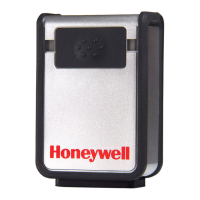
Honeywell Vuquest 3310g - User Manual

Honeywell Vuquest 3310g
278 pages
Print Icon
To Next Page IconTo Next Page
Loading...
Vuquest™ 3310g
Area-Imaging Scanner
User’s Guide

Table of Contents

Other manuals for Honeywell Vuquest 3310g

Questions and Answers

  • S
    Shannon HarveyJul 26, 2025
    What to do if Honeywell Barcode Reader won’t read barcode?
    • J
      jessicaorrJul 26, 2025
      If the Honeywell Barcode Reader won’t read your bar code at all, scan the sample bar codes in the back of this manual. If the scanner reads the sample bar codes, check that your bar code is readable. If the scanner still can’t read the sample bar codes, scan All.
  • E
    Edwin HoodAug 1, 2025
    What to do if my Honeywell Vuquest 3310g isn’t reading symbols well?
    • J
      jramirezAug 1, 2025
      If the Honeywell Barcode Reader isn’t reading symbols well, check that the symbols aren’t smeared, rough, scratched, or exhibiting voids. Also, check that the symbols aren’t coated with frost or water droplets on the surface and that the symbols are enabled in the scanner or in the decoder to which the scanner connects.
  • J
    Jesse ColemanAug 8, 2025
    How to fix a Honeywell Vuquest 3310g Barcode Reader with aimer not illuminated?
    • S
      Shawn PerryAug 8, 2025
      If the aimer isn’t illuminated, check that the cable is connected properly, the host system power is on (if external power isn’t used), and that the button works.
  • C
    cody02Aug 13, 2025
    Why is my Honeywell Vuquest 3310g displaying incorrect data?
    • J
      Jerome McphersonAug 13, 2025
      The Honeywell Barcode Reader may not be programmed for the appropriate terminal interface or to output your bar code data properly. Reprogram the scanner with the correct Plug and Play bar code or the proper symbology selections.
  • J
    James CastroAug 19, 2025
    What to do if Honeywell Vuquest 3310g displays but doesn't enter the barcode?
    • A
      allenkimberlyAug 19, 2025
      If the barcode is displayed but not entered, you need to program a suffix. Programming a suffix enables the scanner to output the bar code data plus the key you need (such as “CR”) to enter the data into your application.

Summary

Disclaimer

Product Agency Compliance - USA

FCC Part 15 Subpart B Class B

Compliance statement for FCC Part 15 Subpart B Class B regulations.

International Compliance

Canada: ICES-003

Compliance statement for Canadian ICES-003 regulations.

Europe: EMC Directive

CE marking indicates compliance with EMC and Low Voltage Directives.

Regional Approvals

Taiwan Agency Approval

Taiwan agency approval statement (BSMI Standard).

International Standards

LED Safety, CB Scheme, Patents, and IP53 protection details.

Chapter 1: Getting Started

Unpacking and Connecting the Device

Steps for unpacking and connecting the scanner via USB, Keyboard Wedge, or RS232.

Chapter 2: Programming the Interface

Interface Types

Configuration for Keyboard Wedge, Laptop Direct Connect, RS232, USB interfaces.

Chapter 3: Input;Output Settings

Beeper and Indicator Settings

Configuring beeper feedback, volume, pitch, duration, and LED indicators.

Presentation Mode Settings

Configuring presentation mode, sensitivity, centering, and LED behavior.

Character Activation and Deactivation

Setting up character-based scanning activation and deactivation.

Chapter 4: Data Editing

Prefix;Suffix Overview

Explanation of adding data before or after scanned bar code data.

Adding and Clearing Prefixes;Suffixes

Steps to add prefixes/suffixes and clear existing ones.

Function Code Transmit & Check Character

Enabling function code transmission and specifying check characters.

Transmission Delays

Configuring intercharacter, interfunction, and intermessage delays.

Chapter 5: Data Formatting

Adding and Managing Data Formats

Steps to create, program, and clear data formats.

Data Format Editor Commands

Detailed explanation of commands used within the Data Format Editor.

Chapter 6: External Input; Output

External Trigger Controls

Configuring external trigger functionality and polarity.

External Illumination Control

Enabling and configuring external illumination.

Chapter 7: Symbologies

Symbology Settings Overview

List of available symbologies and general settings.

Code 11 and Code 128 Configuration

Settings for Code 11 and Code 128 symbologies.

QR Code and Data Matrix Configuration

Settings for QR Code and Data Matrix symbologies.

Chapter 8: Imaging Commands

Image Capture (IMGSNP)

Command for capturing images with style, beeper, and trigger modifiers.

Intelligent Signature Capture (IMGBOX)

Configuring signature capture area size, location, and optimization.

Chapter 9: Interface Keys

Keyboard Function Relationships

Mapping keyboard codes to ASCII and CTRL+X functions.

Chapter 10: Utilities

Resetting the Factory Defaults

Procedures for resetting scanner to factory default settings.

Chapter 11: Serial Programming Commands

Command Conventions and Syntax

Conventions and syntax rules for serial commands.

Menu Commands Reference

Table listing menu commands, settings, serial commands, and pages.

Chapter 12: Product Specifications

3310 Scanner Specifications

Detailed technical specifications including dimensions, performance, and environmental data.

Depth of Field Performance

Typical and guaranteed ranges for reading various bar code types.

Chapter 13: Maintenance

Cleaning Procedures

Instructions for cleaning the scanner housing and window safely.

Troubleshooting Scanner Issues

Guidance on diagnosing and resolving common scanner problems.

Chapter 14: Customer Support

Technical Assistance Resources

Contact methods for technical support and accessing resources.

Appendix A: Reference Charts

Symbology Charts

Tables mapping symbology IDs, modifiers, and hex values for AIM and Honeywell.

ASCII Conversion Chart (Code Page 1252)

Mapping of ASCII control characters to HEX and CTRL+X commands.

Honeywell Vuquest 3310g Specifications

General IconGeneral
TypeFixed bar code reader
Sensor type-
Yaw reading angle-65 - 65 °
Pitch reading angle-45 - 45 °
Optical sensor resolution838 pixels
Light levels (direct sunlight)0 - 100000 lx
Standard interfacesPS/2
Connectivity technologyWired
Input voltage5 V
Power consumption450 mA
Power source typeAC
Power consumption (standby)0.45 W
Power consumption (typical)2.3 W
Product colorWhite
International Protection (IP) codeIP53
Storage temperature (T-T)-20 - 70 °C
Operating temperature (T-T)0 - 40 °C
Operating relative humidity (H-H)0 - 95 %
Cables includedUSB
Weight and Dimensions IconWeight and Dimensions
Depth74 mm
Width50 mm
Height26 mm
Weight75 g

Related product manuals