System Settings and Adjustments
Navigation and Editing
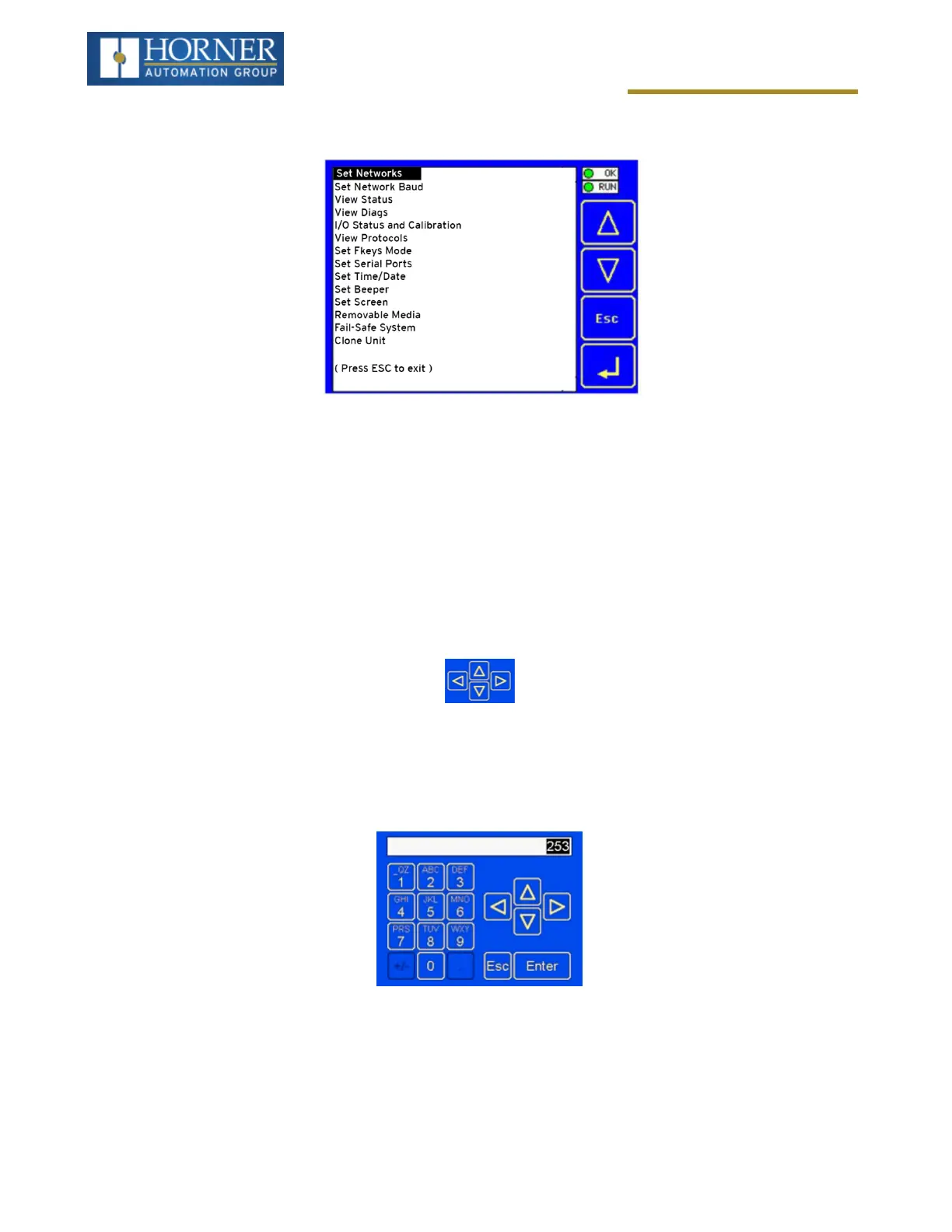
As mentioned above, the System Menu is started by pressing the System key on the X4 OCS. Next press ESC to
exit the System Menu, or use ↑ and ↓ to select an item and press the Enter key to display the item’s Sub-Menu.
A Sub-Menu generally shows a list of System Settings and their values. After opening a Sub-Menu, if any of its Sys-
tem Settings are editable, the first System Setting that can be edited is highlighted. If desired, the↑ and ↓ keys can
be used to select a different System Setting to be edited.
At this point, either press ESC to exit the Sub-Menu (returning to the Main Menu) or press Enter to edit the high-
lighted System Setting. If Enter is pressed, the System Setting’s value will be highlighted, indicating that it is ready
to be modified.
When modifying a System Setting’s value, use either the arrow keys (↓↑ → ← ) or the numeric keys, or the appro-
priate touch screen icons to select a new value.
The arrow keys are used to edit System Settings that have just a few possible values. Each time the arrow key is
pressed, a new possible value is displayed. When the desired value appears, press the Enter key to save it; oth-
erwise press the ESC key to cancel the edit.
The numeric keys are normally used to enter numeric System Settings:
In addition, to edit a single numeric digit, use the → or ← key to select the digit and then either press a numeric key
or use ↓ or ↑ to modify the digit. In any case, after entering the new desired value, press the Enter key to save it; oth-
erwise press the ESC key to cancel the edit.
Page 26 of 163



 To Next Page