22
Installing a fan tray
CAUTION:
To prevent damage to the fan tray or the connectors on the backplane, insert the fan tray gently. If you
encounter a hard resistance while inserting the fan tray, pull out the fan tray and insert it again.
Select appropriate fan trays as needed. For the optional fan trays and their specifications, see "Fan
trays."
Installing an LSWM1HFANSC or LSWM1HFANSCB fan tray
1. Wear an ESD wrist strap and make sure it makes good skin contact and is reliably grounded.
2. Unpack the fan tray and verify that the fan tray model is correct.
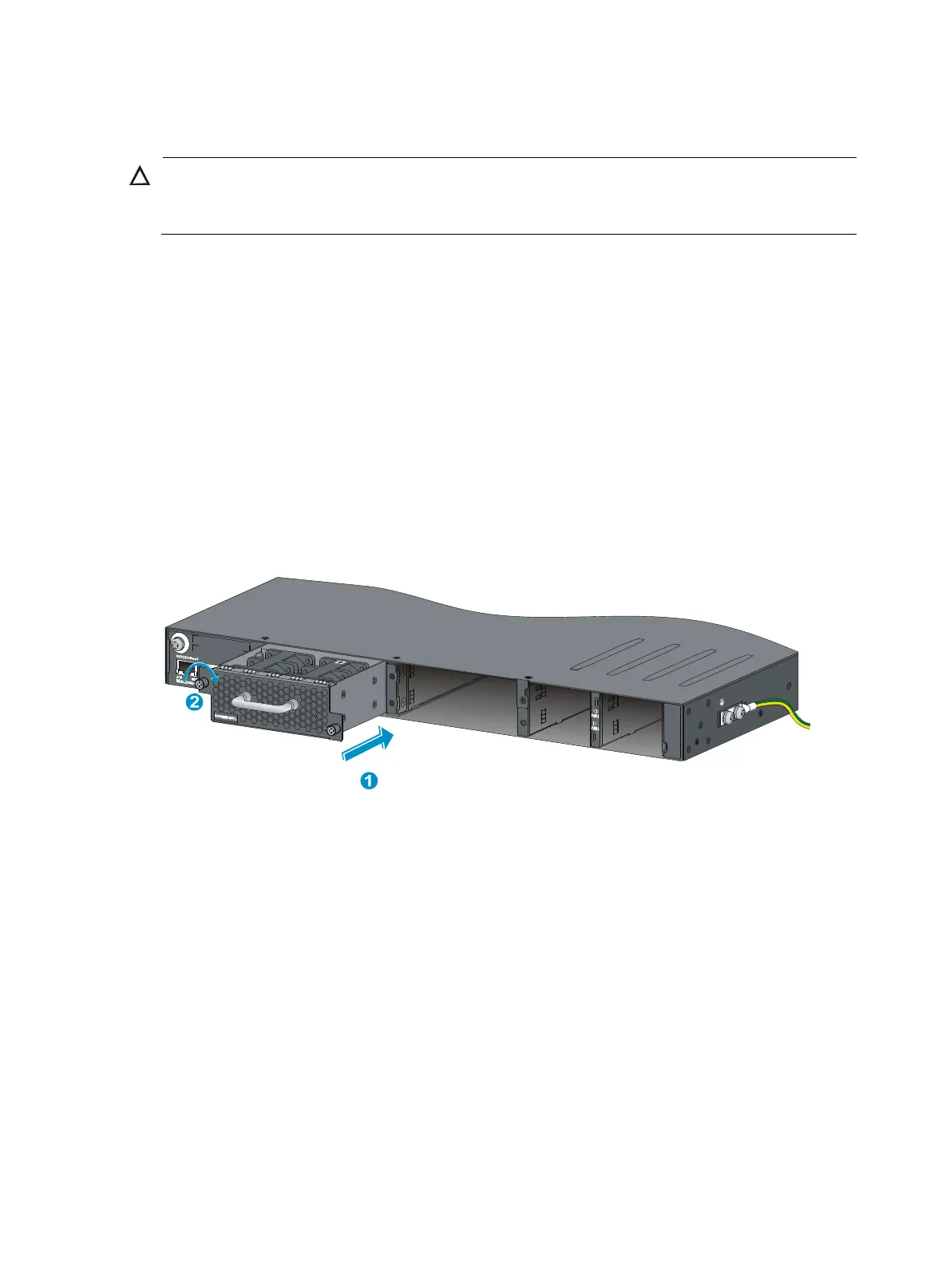
3. Grasp the handle of the fan tray with one hand and support the fan tray bottom with the other, and
slide the fan tray along the guide rails into the slot until the fan tray seats in the slot and has a firm
contact with the backplane (see callout 1 in Figure 24).
4. Fasten the
captive screw on the fan tray with a Philips screwdriver until the fan tray is securely
attached in the chassis (see callout 2 in Figure 24).
If the captive screw cannot be tightly fastened, verify the installation of the fan tray.
Figure 24 Installing an LSWM1HFANSC/LSWM1HFANSCB fan tray
Installing an LSWM1BFANSC or LSWM1BFANSCB fan tray
1. Wear an ESD wrist strap and make sure it makes good skin contact and is reliably grounded.
2. Unpack the fan tray and verify that the fan tray model is correct.
3. Orient the fan tray with the "TOP" mark on the top. Grasp the handle of the fan tray with one hand
and support the fan tray bottom with the other, and slide the fan tray along the guide rails into the
slot until the fan tray is fully seated in the slot and has a firm contact with the backplane.



 To Next Page