Page 55
User Guide v 1.0 — August 2018 Altanium Neo5
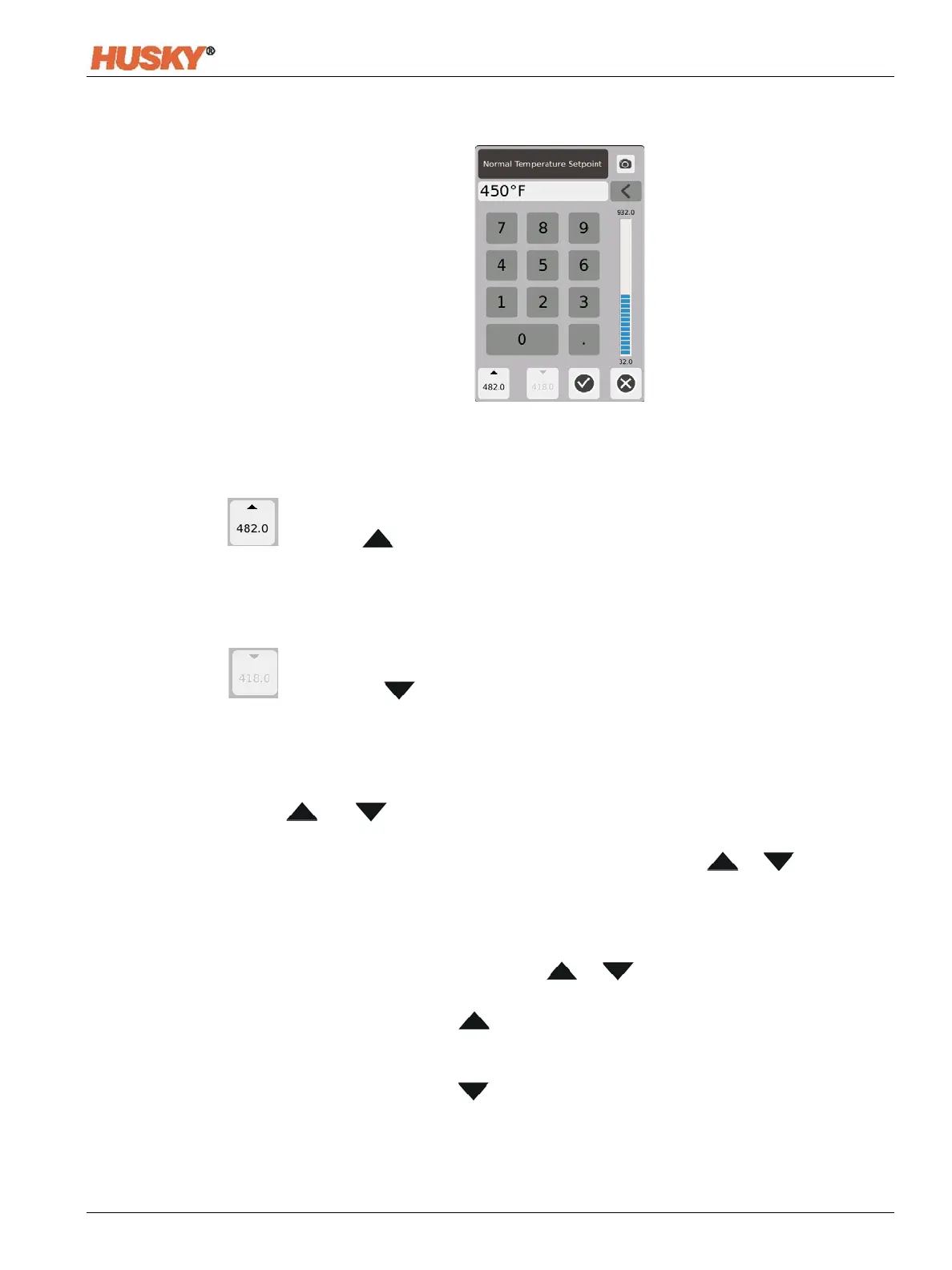
Touch the box to the right of the parameter to display a keyboard or menu.
Temperature Setpoint — Use the keypad to enter the zone(s) temperature setpoint in Auto
or Monitor regulation.
Up and Down Arrows
Up arrow, , indicates the setpoint will increase by the entered amount. The
number below the arrow is the maximum numerical value that can be input in the dialog
window without exceeding the maximum limit of the setpoint.
NOTE: A maximum setpoint limit must be entered, refer to Section 7.5.4, before this button
becomes active.
Down arrow, , indicates the setpoint will decrease by the entered amount. The
number below the arrow is the maximum numerical value that can be input in the dialog
window without going below the minimum limit of the setpoint.
NOTE: A minimum setpoint limit must be entered, refer to Section 7.5.4, before this button
becomes active.
Use the and arrows to add or subtract a specified amount from the current
setpoint.
1. In the Normal Temperature Setpoint dialog box, touch the or button.
NOTE: The two buttons are at first greyed out.
2. With the keypad, enter in the amount that you want to add or subtract from the current
setpoint. For example, 5 degrees.
NOTE: After you enter the amount the or buttons will become active, not
greyed out.
3. Touch the button with the arrow. 5 degrees will be added to the current setpoint.
The dialog box will disappear. You will return to the Quick Set screen, and the setpoint
shown in the selected zones will increase by 5 degrees.
4. Touch the button with the arrow, and the current setpoint will decrease by 5
degrees. The dialog box will disappear. You will return to the Quick Set screen, and the
setpoint shown in the selected zones will increase by 5 degrees.
5. The number in the button is the maximum value that you can enter with the keypad to
use the up and down arrows.


 To Next Page