ClearMark™ Installation, Operation & User Manual – Page 43
V 1.S.10 January 2021
0.2 Central area:
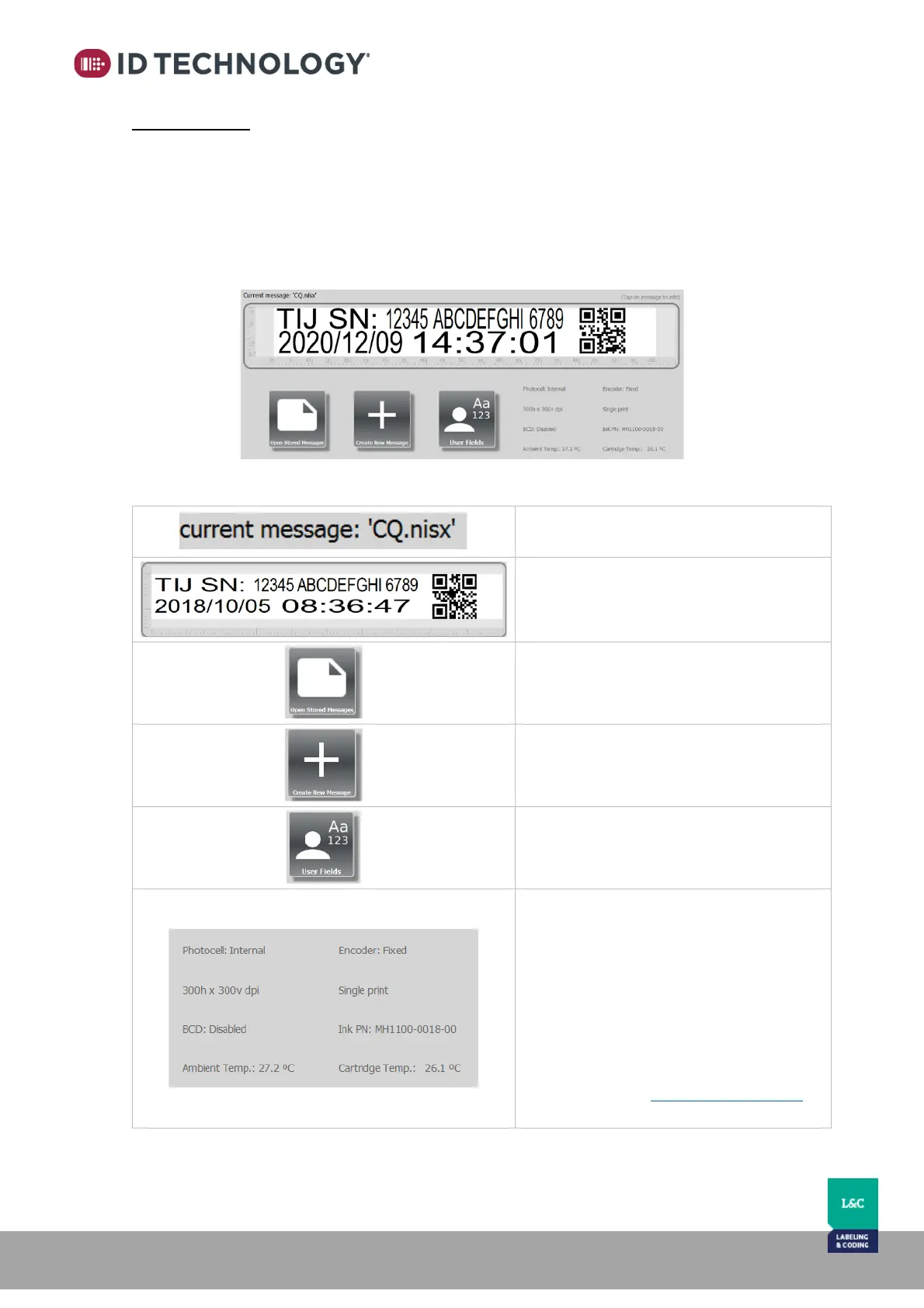
This area shows the name of the file to be printed and a print preview, as well as letting you edit
the selected message by tapping on the message text. It also has:
- Two buttons for opening any stored print message or creating a new one
- If present in the current message, a user input button is present to allow easy update of
message content
- An area with a summary of the current print configuration and information related with
the cartridge as, for example, its Part Number.
The areas and icons found on this bar are described below:
Current message:
Name of the file selected to be printed.
Print preview:
Preview of the message to be printed.
Note: Tap on the message to edit it.
Open Stored Messages:
Button to access to the stored messages
list.
Create New Message:
Button to access message creation wizard.
User Fields:
Button to modify the user input field text.
Only visible if the message has user fields.
Summary of print configuration and
Cartridge PN:
Summary of the current print configuration
and information about the cartridge
loaded. Note: Cartridge temperature will
be reset to ambient temperature value
every time a new cartridge is inserted and
will be showed in red if this value is higher
than the cartridge’s stipulated maximum
temperature. See Cartridge information to
know max temperature.


 To Next Page