69
#define LMSC_S_CARDOUTSENSOR 0x0000000040000000 // Caught by card out sensor
#define LMSC_S_OUTDOORSENSOR 0x0000000080000000 // Caught by stacker open sensor
Laminator’s Error Code
#define LMSC_E_HEATHDRLIFTUP 0x0000000100000000 // Error while lifting up Heat-header
#define LMSC_E_HEATHDRLIFTDOWN 0x0000000400000000 // Error while lifting down Heat-header
#define LMSC_E_CARDIN 0x0000001000000000 // Error while moving card in
#define LMSC_E_MOVE_LAMINATE 0x0000004000000000 // Error while moving to Laminate position.
#define LMSC_E_FRONTCARDOUT 0x0000010000000000 // Error while front card out (printer side)
#define LMSC_E_REARCARDOUT 0x0000020000000000 // Error while rear card out (stacker side)
#define LMSC_E_ROTATE 0x0000040000000000 // Error while rotating
#define LMSC_E_INIT 0x0000800000000000 // Error while initializing laminator
#define LMSC_E_EMPTYFILM 0x0001000000000000 // Film remain count is 0.
#define LMSC_E_NOFILM 0x8000000000000000 // No film is installed, or cannot
4.3. Firmware upgrade
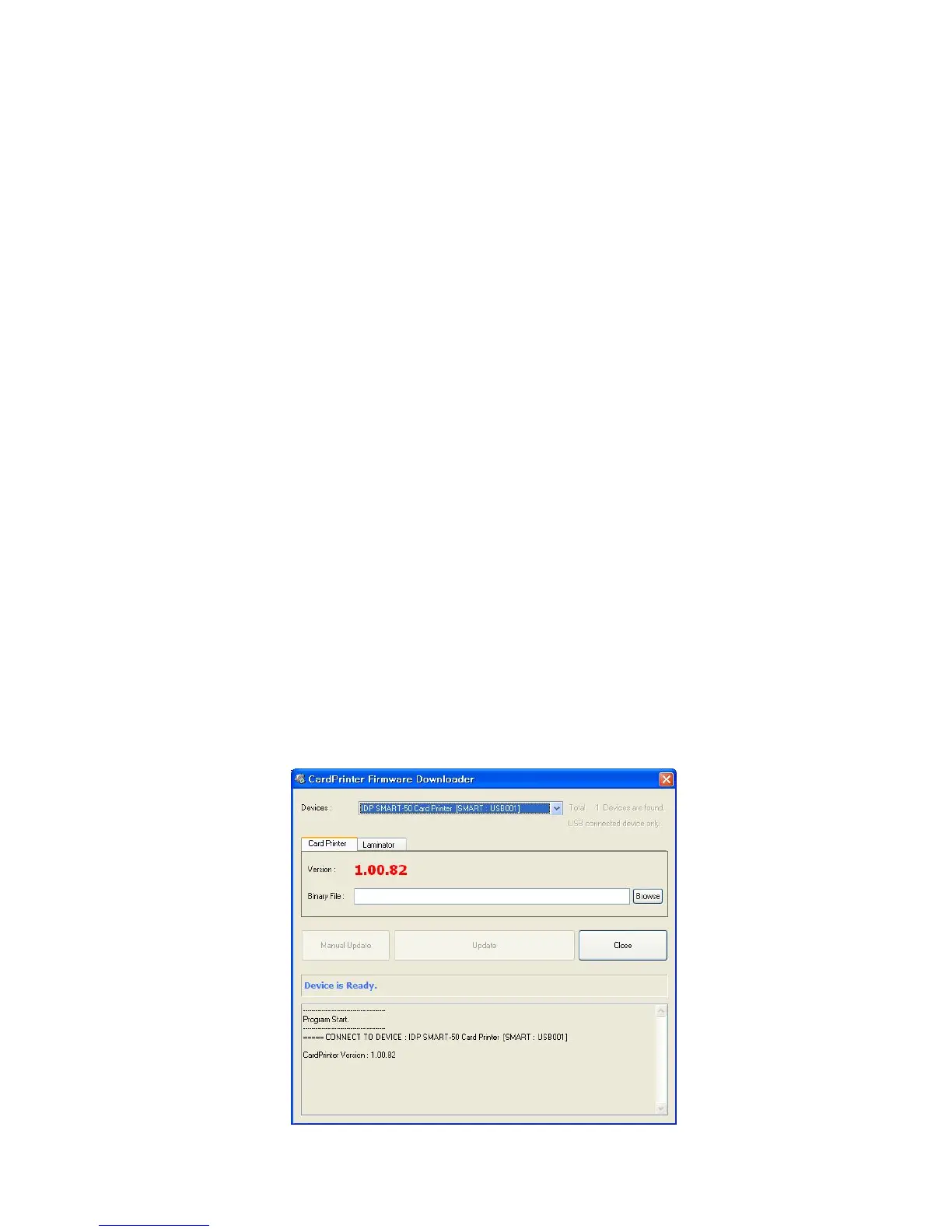
When you run the CardPrinterFirmware, you can see the pop-up window as the Pic. 120.
Device: Select the local printer that you want to upgrade.
Card Printer / Laminator: Select the device you want upgrade.
Device Version: Displays the current firmware version of selected printer.
Binary File: Click “Browse” button and select new firmware file to update.
Manual Update: It is used when you want to upgrade manually.
Update: Upgrades automatically. In generally, we recommend upgrading automatically.
Close: Exit.
Message : It displays information of upgrading.
Pic.120 Upgrading printer firmware



 To Next Page