Version V1.0
2
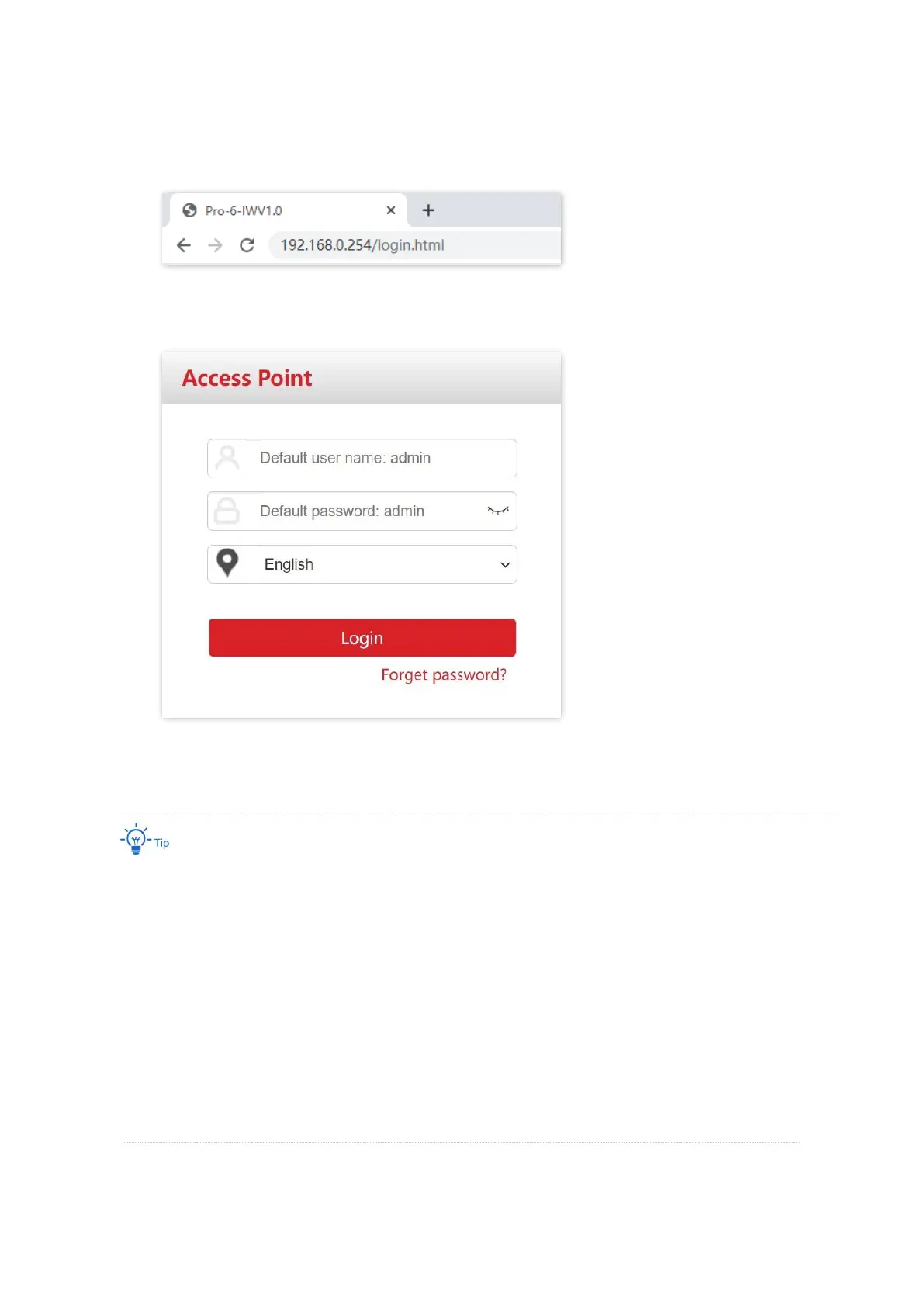
3. Start a browser on the computer and visit the IP address of the AP (192.168.0.254 by
default).
4. Enter the login user name and password, and click Login.
---End
If the above page does not appear, try the following solutions:
− Ensure that all your Ethernet cables are properly connected.
− Clear the cache of your web browser, or try with the web browser.
− Ensure that the IP address of the computer is in a same network segment with the AP.
− The AP may obtain an IP address from a DHCP server in the LAN. You can check the new IP
address from the client list of the DHCP server and use this new IP address to log in.
− If two or more APs are connected in a network without a controller, connect one AP to the
network first, change its IP address to a different IP address on the same network segment, and
then connect to the next AP and proceed the same modifications.
− If the problem persists, reset the AP, and then try logging in again. How to reset: After AP
completes startup, hold down the reset button for about 10 seconds, and release when the
indicator goes out. When the indicator blinks white, the AP is reset.
Log in to the web UI of the AP. You can configure the AP now.



 To Next Page